

Where do I store a customer’s licence and ID?
- Manager v3
- Administrator
- Agency manager
- Rental agent
In short. In the customer’s file, Documents panel, “Add a document”. For a person, choose the type (licence, passport, identity card), or name the file freely: PDF, JPEG or PNG, 10 MB at most.
A customer’s papers (ID, proof of address, company registration extract…) stay on their file: you find them again on every booking, without asking for them again.
Open the customer’s file, Documents panel
The panel shows “Documents (N)”. If it is empty, Fleetee says “No document on file”. “Add a document” is in the panel, and also in the file’s “More” menu.
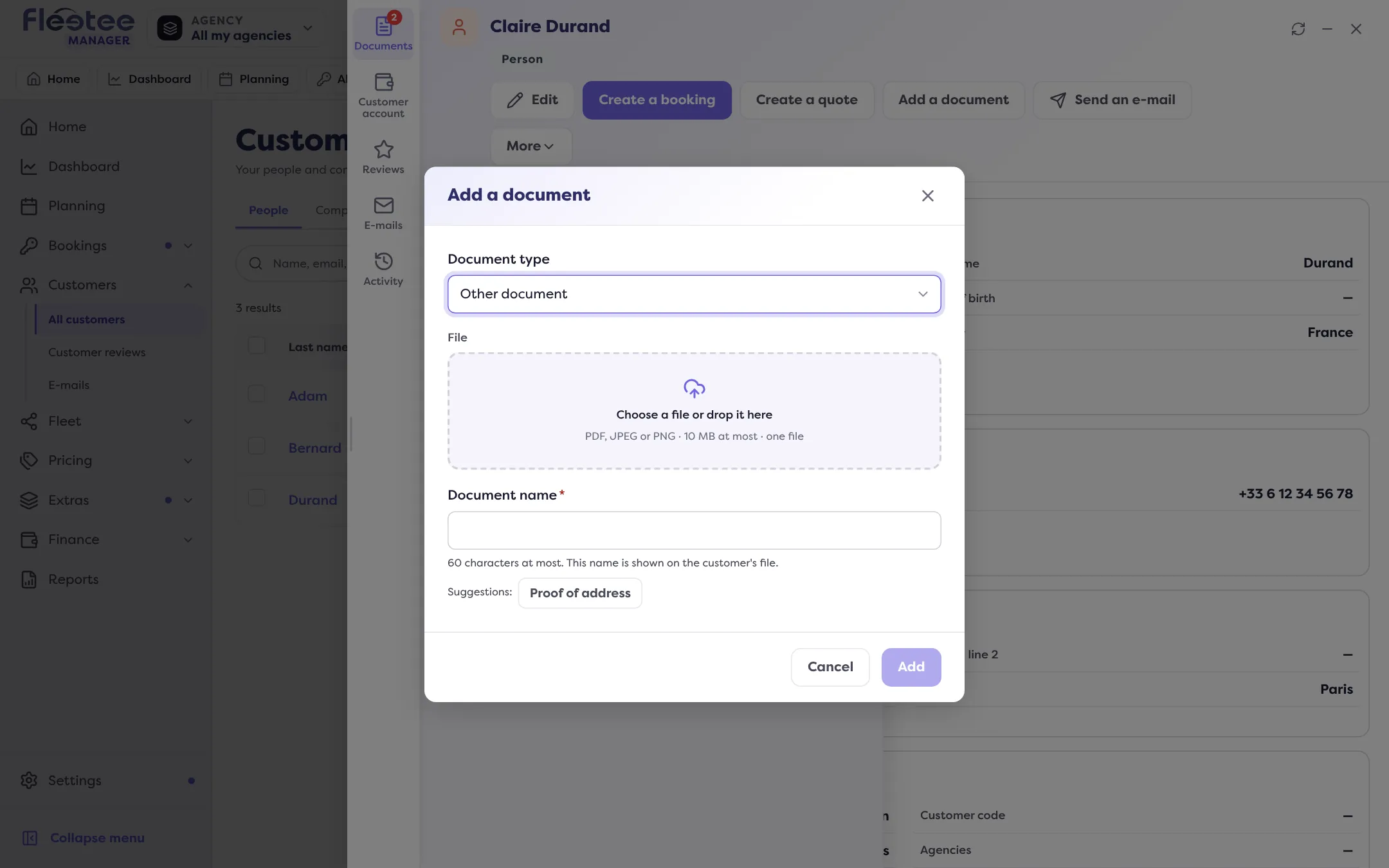
Choose the document type (a person)
For a person, the “Document type” list offers Driving licence, sometimes Passport and Identity card (depending on the identity papers your company has set up), and Other document. A licence, passport or identity card goes into the matching section of the file: you click “Continue” and fill in its details. For a company, there is no type: every document is free.
Drop the file
“Choose a file or drop it here”: one file at a time, in PDF, JPEG or PNG format, 10 MB at most. A refused file is explained (“is not supported”, “is too large”, “is empty”).
Name the document
For a free document, the name is required. It follows the file’s name; you can change it (60 characters at most) or click a suggestion: ID document, Proof of address, Company registration extract, Leader’s ID document.
Click “Add”
The message “The document has been added.” confirms it. The addition is recorded in the customer’s Activity.
Open, reuse or delete a document
Each card has “Open” (in a new tab) and a menu. A free document of a person can be reused for a section (“Use for the driving licence”, etc.) when its file allows it. “Delete” asks for confirmation: the deletion is final and recorded in the customer’s Activity.
Documents sent by the customer during online check-in also appear here, labelled “Online check-in”. To accept or refuse them, see Accept or refuse a document sent by the customer.
To fill in a file from a photo, see How do I fill in a customer file by photographing their licence?.
Where to find it: Customer file › Documents › “Add a document”
Where to find it: Customer file › Documents › “Add a document”
Go further
Updated on 18 November 2026 with version 3.0