

How do I handle several drivers in online check-in?
- Manager v3
- Administrator
- Agency manager
- Rental agent
In short. Turn on “Ask for additional drivers” in the settings: the customer declares their drivers. You follow each one in the booking’s “Online check-in” card and can add or remove drivers with “Add or edit”.
When several people may drive, each one needs their licence checked. Online check-in allows it: the customer declares their drivers, and each driver has their own details and papers.
Let the customer declare their drivers
Open Settings › Customers › Online check-in
Administrators only.
Click “Configure” for a vehicle type
Open the “Additional drivers” section.
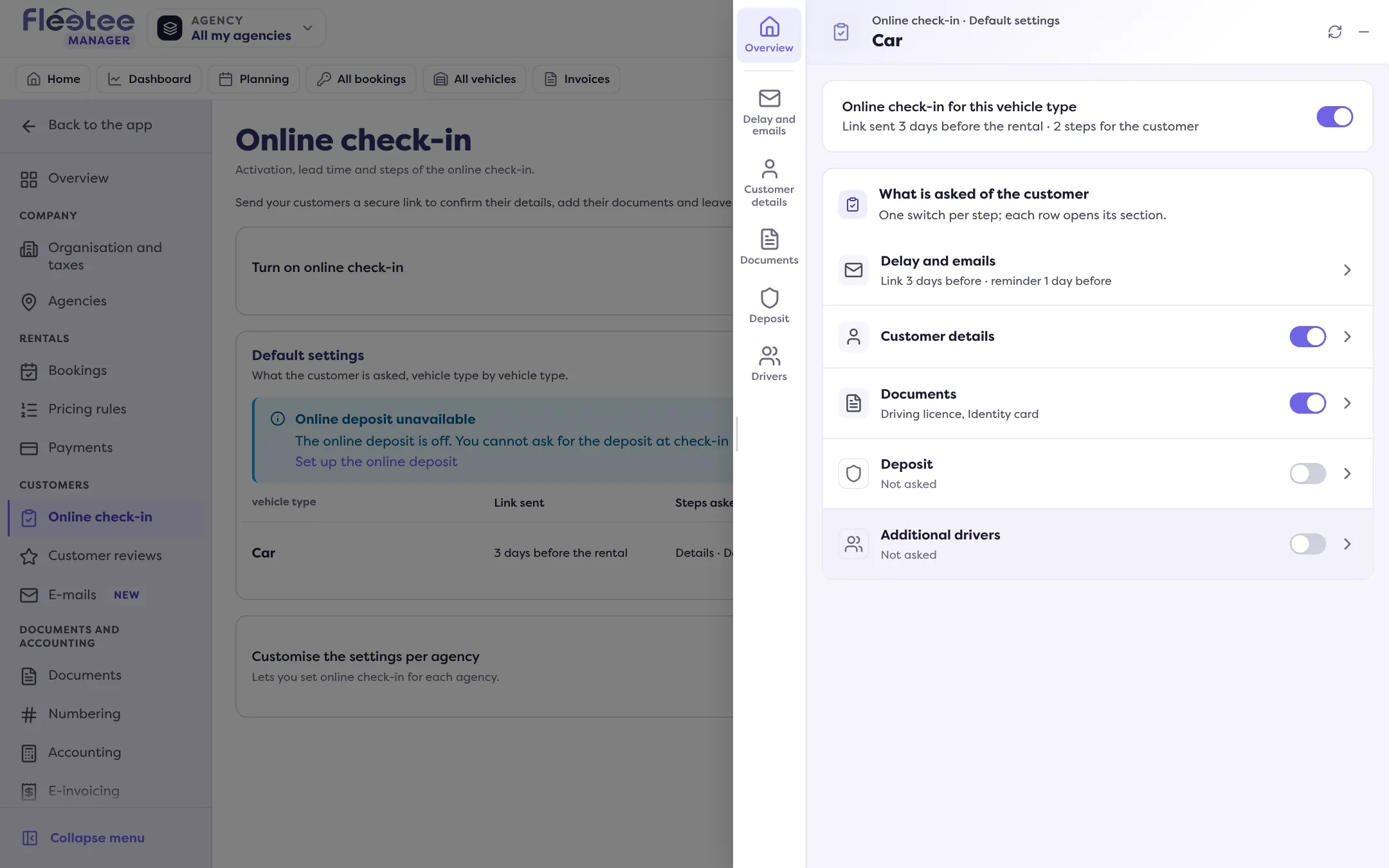
Turn on “Ask for additional drivers”
The customer declares their additional drivers during check-in. Their price is set in your options: the “additional driver” option. A paid option asks for the online payment first.
So the customer can add a driver themselves, without calling you. The setting is detailed in How do I set up online check-in for my customers?.
Follow each driver
On the booking, the “Online check-in” card in the Customer panel has a table per person: the Holder, then Driver 1, Driver 2… An empty slot is called “Driver to be named”. Each one has three columns: Information (Received, Not provided yet), Driving licence (Not provided yet, Received, to check, Checked) and Documents.
Each document submitted lands on the right person’s file, not on the holder’s. The booking’s overall status (Not started, Waiting for the customer, For you to check, Ready) takes every driver into account: it only becomes Ready when each one is complete.
You accept or refuse each paper separately: see Accept or refuse a document sent by the customer. “Validate manually” also exists per driver: Fleetee asks “Do you really want to validate the … step manually for …?”.
Add or remove a driver yourself
Click “Add or edit”
In the card, on the Drivers line. The “Drivers” page opens; the “Drivers of the rental” block lists those already attached, with their licence.
Pick an existing customer or create a driver
“From the customers” tab: search for the customer, their licence is attached to the booking (or added to their file if they have none). A company does not drive: choose a person. “Create a driver” tab: first name, last name, e-mail, date of birth, then licence number, country and date, and its photos (PDF, PNG or JPEG, 10 MB at most). If a customer already has this e-mail, Fleetee offers “Use this customer”.
Save
“Add the driver” or “Attach the driver”. To take one off, “Remove” then “Remove the driver”: the customer and their licence stay in their file, they are just no longer a driver of this booking.
Adding a driver sets online check-in back to Waiting for the customer until their papers are received and checked. If your company applies a young-driver surcharge, it is recalculated from the drivers’ ages: the price of the booking may change.
Where to find it: Rental page › Customer panel › “Online check-in” card
Where to find it: Rental page › Customer panel › “Online check-in” card
Go further
Updated on 18 November 2026 with version 3.0