

How do I assign a conversation to a colleague?
- Manager v3
- Administrator
- Agency manager
- Rental agent
In short. In an inbox conversation, “I’ll take it” assigns it to you; “Assign” picks a colleague. The “Mine” tab gathers your conversations, “Unassigned” those waiting for somebody.
Each conversation of the shared inbox can have an owner. It stops two colleagues answering the same customer, or nobody doing it.
Open the conversation
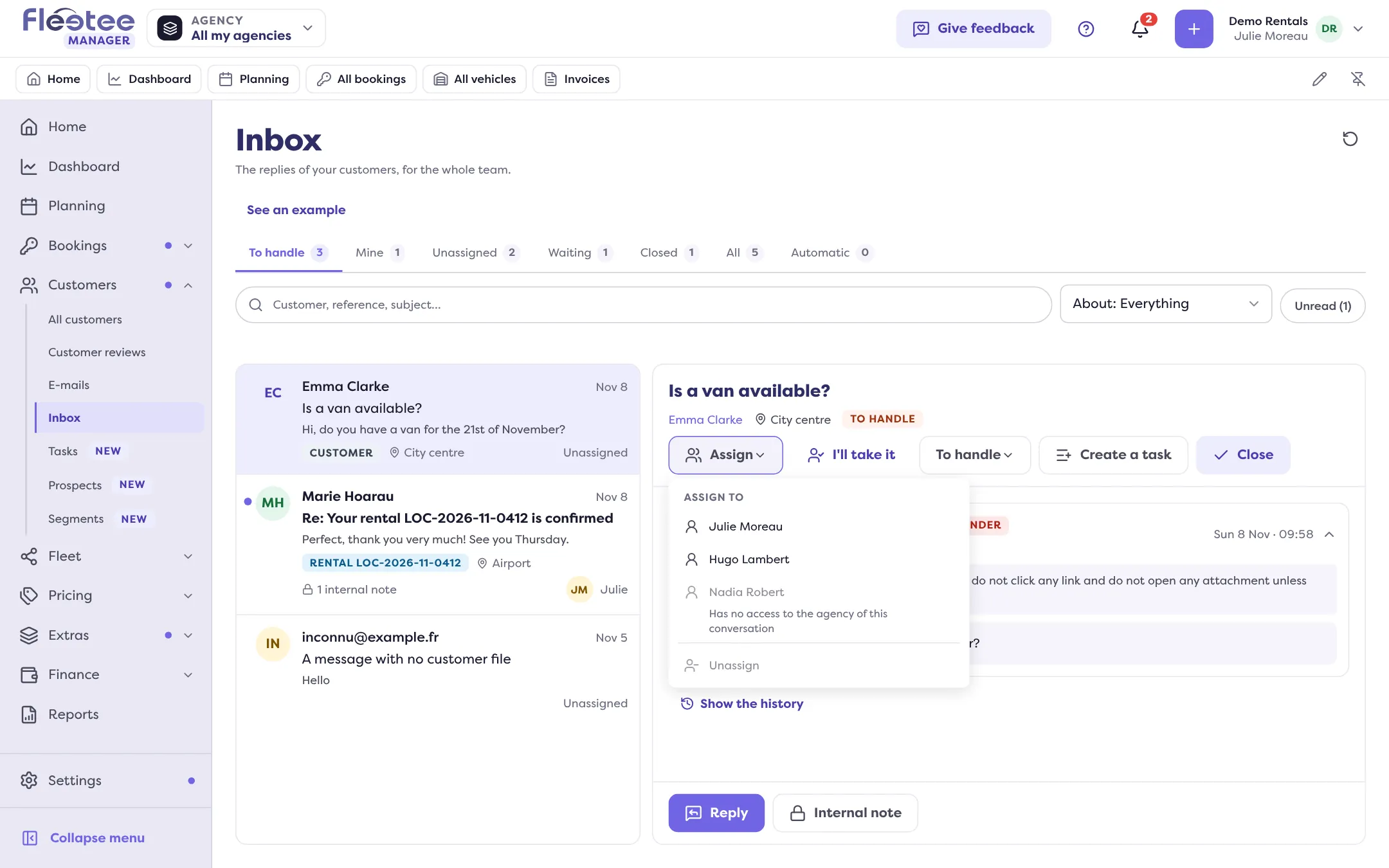
In Customers › Inbox. In the list, each line shows the owner’s first name, or Unassigned.
Assign it
To take it yourself, click “I’ll take it”. To hand it over, click “Assign” (the button then reads “Assigned to …”): the “Assign to” menu lists your colleagues, you first (“… (you)”). A greyed-out colleague has no access to the conversation’s agency.
Check
A message confirms (“Conversation assigned to …”). The conversation shows in its owner’s Mine tab.
Remove or change the assignment
In the same menu, “Unassign” frees the conversation: it goes back to Unassigned. To hand it to someone else, just pick another colleague. “Show the history” keeps a trace of every change (“… assigned the conversation to …”, “… removed the assignment”).
What it changes
- Notifications: the owner is told when a conversation is assigned to them, and when the customer replies. With no owner, the whole agency team is told of the reply.
- The “Mine” tab shows only your conversations; “Unassigned” gathers those waiting for somebody. If you have none, the page offers “See the unassigned ones”.
- Internal notes stay between colleagues: they are never sent to the customer. @ tells a specific colleague.
If the assignment is refused
- “This person has no access to the agency of the conversation” or “is no longer in the team that answers the customers”: choose somebody else.
- The actions (assign, reply, note) need the right to read and send e-mails, on the conversation’s agency. When you are signed in as a member of the company, or simulating a role, the inbox can be read but nothing can be changed.
To remind someone to follow a customer up, see create a task or a reminder.
Where to find it: Customers › Inbox › a conversation › “Assign”
Where to find it: Customers › Inbox › a conversation › “Assign”
Go further
Updated on 18 November 2026 with version 3.0