

How do I turn a prospect into a customer?
- Manager v3
- Administrator
- Agency manager
- Rental agent
In short. Customers › Prospects: an unknown person who writes to you becomes a prospect. “Convert into a customer” creates their file, “Attach to a customer” links them to an existing file; their conversations then join the file.
When someone Fleetee does not know writes to you, they appear as a prospect: an e-mail address and their conversations, with no customer file. As long as they are not a customer, you cannot reply from Fleetee. You first have to convert or attach them.
Prospects depend on the shared inbox. Without it, the page says “Prospects are not open”. They mostly arrive when you receive your usual mailbox’s e-mails in Fleetee: an unknown person writing to the forwarded mailbox becomes a prospect.
See the prospects
In Customers › Prospects, the tabs sort the list: Open, Converted, Set aside and All. Search by name or e-mail address (2 characters at least). A line shows the first contact, the number of conversations and how many are unread. Click a line to see its conversations.
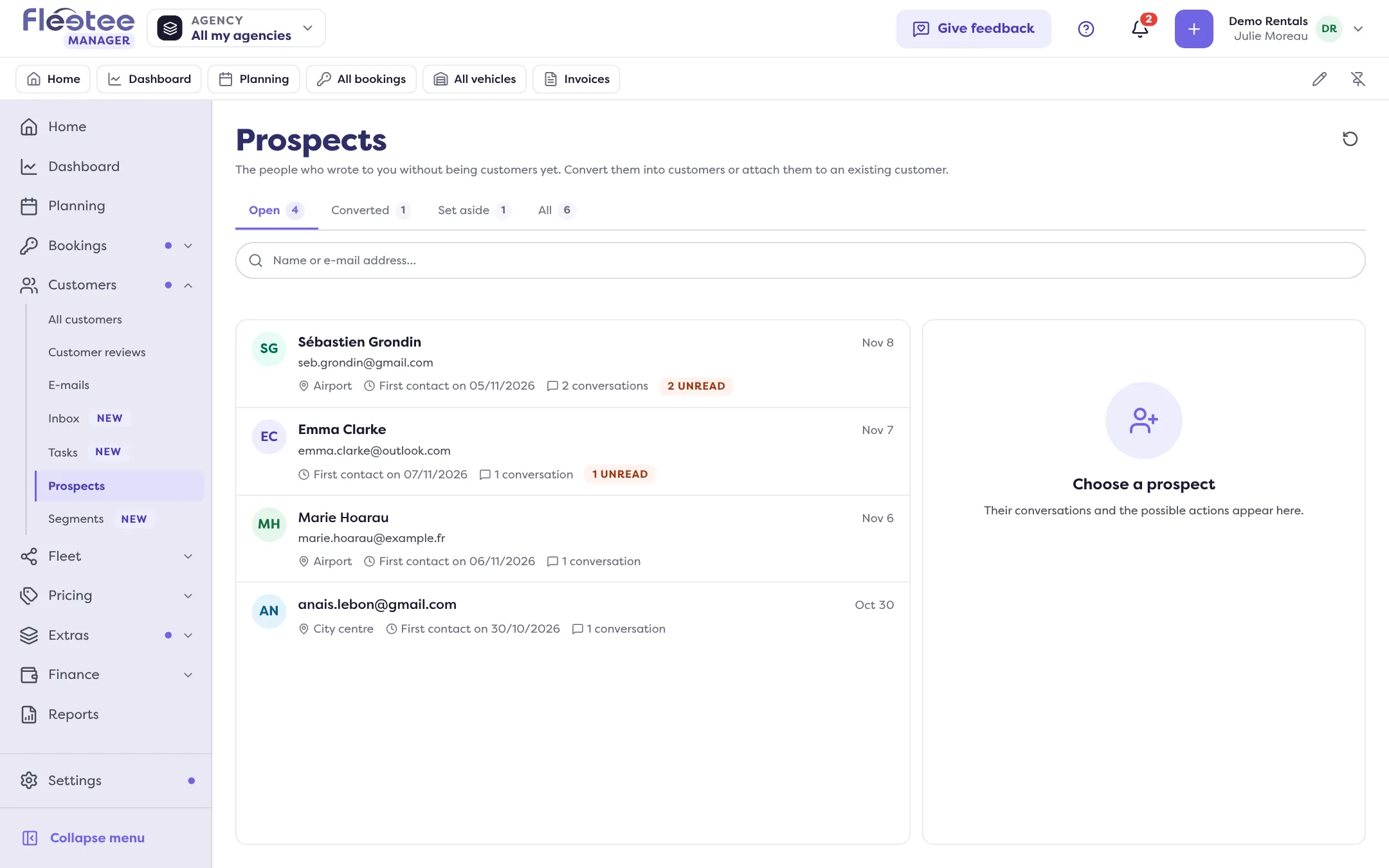
Convert a prospect into a customer
Click “Convert into a customer”
The panel picks up the e-mail address from the message.
Complete the file
Choose the customer type (Person or Company) and enter the first and last name (for a company: “Company name” and the contact). Phone is optional. Choose the customer’s agency.
Click “Convert into a customer”
The file is created, and the prospect’s conversations join it. The message says “… is now a customer”.
If a customer already has this e-mail address, Fleetee says so (“This customer already exists”) and offers “Attach to this customer” rather than creating a second one. If that customer is in an agency that is not yours, ask an administrator to handle it.
Attach a prospect to an existing customer
This is the right action when the person is already a customer but wrote from another address.
Click “Attach to a customer”
The panel says: “Is … already a customer under another address?”
Find the customer
Type a name, an e-mail or a phone number (2 characters at least), pick the customer from the list. “Change” corrects your choice.
Click “Attach”
The prospect’s conversations are filed on that customer’s file.
Set a prospect aside
“Set aside” removes from the list a person you do not wish to handle. They go to the Set aside tab, and “Reopen” puts them back in Open. “Undo” reverses it right after.
A converted prospect keeps a link to the customer’s file (“Open the customer’s file”).
Where to find it: Customers › Prospects
Where to find it: Customers › Prospects
Go further
Updated on 18 November 2026 with version 3.0