

How do I import my customers?
- Manager v3
- Administrator
- Agency manager
- Rental agent
In short. Customers › All customers › “Import customers”: drop a CSV or Excel file, match its columns, let Fleetee check every row, choose what to do with duplicates, then start the import. A report tells you what was created.
Coming from another system or a spreadsheet? Import all your customers at once instead of retyping them. Nothing is written to Fleetee until you start the import.
Importing is done on a computer or a tablet. On a phone, Fleetee shows “Import not available on a phone”. To import customers, vehicles and bookings together, see Import vehicles, customers and bookings in one go.
Open “Import customers”
In Customers › All customers, click “Import customers”. The panel has five steps: File, Columns, Check, Sending, Report.
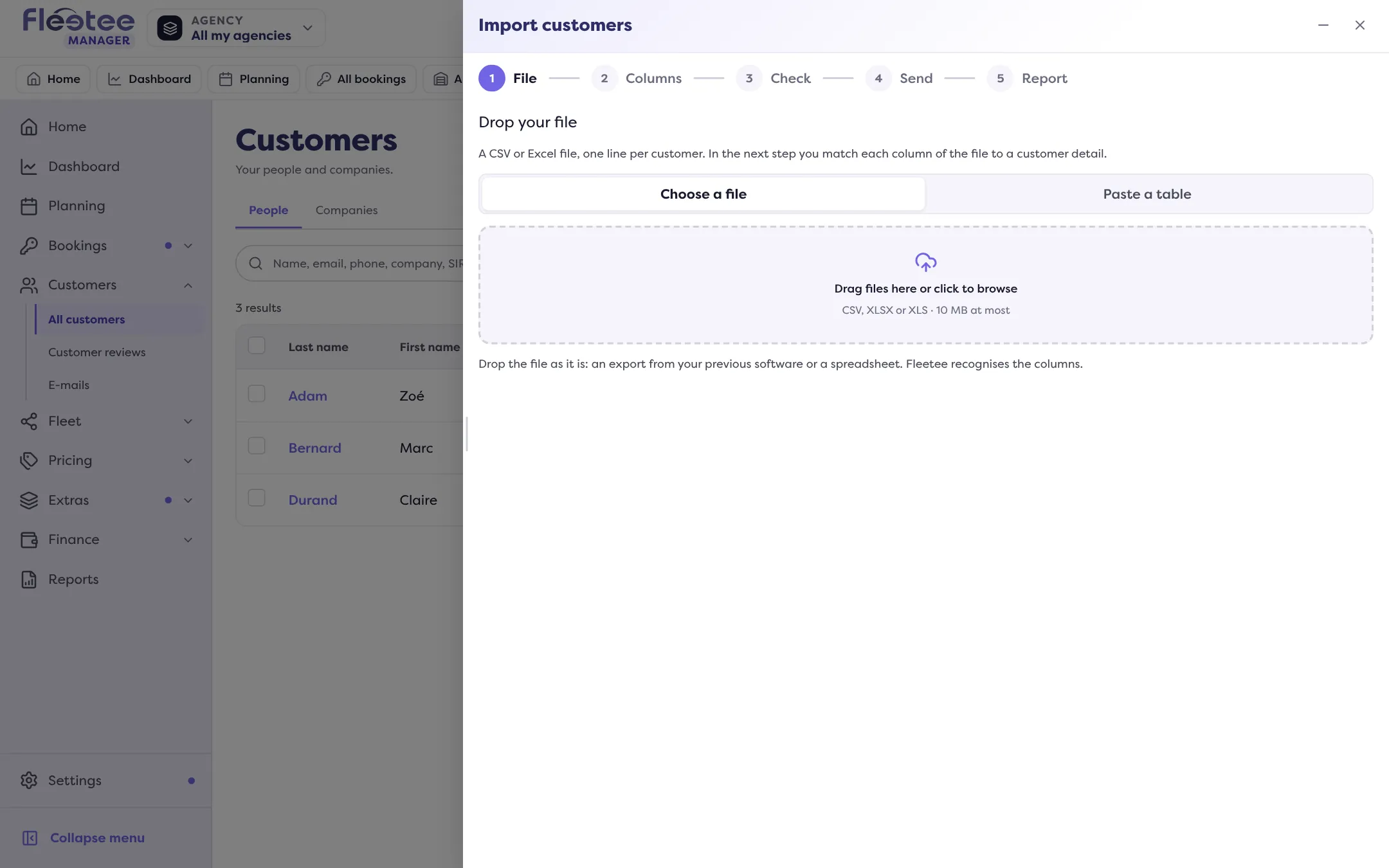
Drop your file
A CSV, XLSX or XLS file, 10 MB at most, one row per customer. Drop it as it is: an export from your previous software works, Fleetee recognises the columns. A file that is too big or has too many rows is refused: split it and import the parts one after the other.
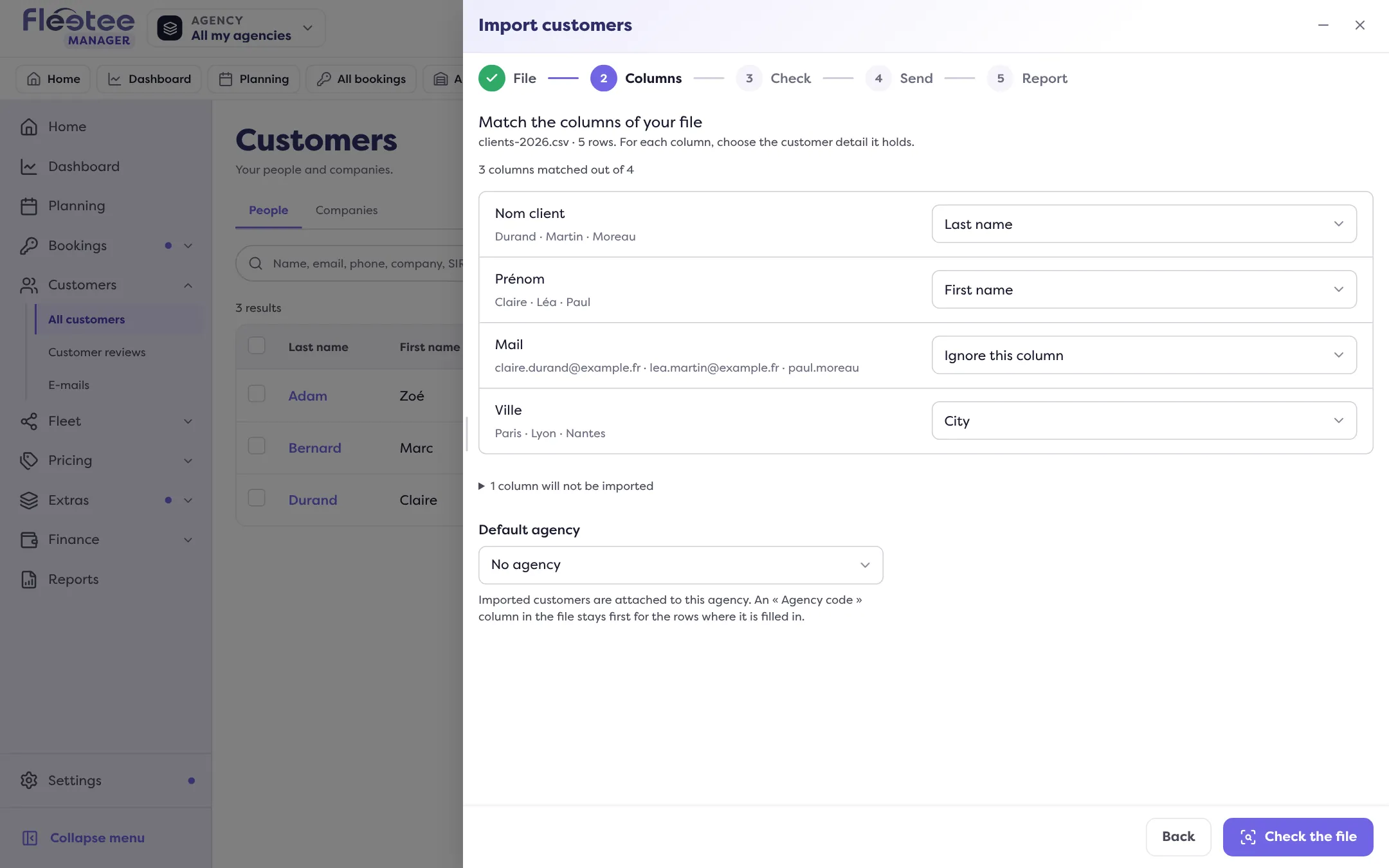
Match the columns
For each column of the file, choose the customer detail it holds (first name, last name, email, phone, address, company, SIREN, price list, agency code, licence…) or “Ignore this column”. You need at least the first name, the last name or the company. Also choose a default agency: it is used for rows without an “Agency code” column. Click “Check the file”.
Let Fleetee check the file
Fleetee checks every row. You can close the panel and keep working: the check goes on and the import stays in “Previous imports”.
Read the check result
Four counters: Ready, Duplicates, To fix, Skipped. The tabs To fix, Duplicates, All and Skipped list the rows; the search finds a name, an email or a phone number.
Fix or skip the rows in error
Fix a cell right in the table (“Reset” puts back the value of the file), or click “Skip” for a row. “Download the rows to fix” exports them so you can work on them in a spreadsheet; “Skip the rows to fix” sets them all aside to import the rest. While a row is left to fix, “Start the import” is greyed out.
Choose what to do with duplicates
See the next section. The Simulation block announces “N will be created, N updated, N skipped”.
Click “Start the import”
Confirm. The import goes on even if you close the tab; you can minimise the window. “Stop the import” finishes the block of rows in progress, then stops: what is already created stays, and “Resume the import” processes the remaining rows.
What to do with duplicates
A row is a duplicate when it matches a customer already in Fleetee, or another row of the file. Fleetee gives the reason: same SIREN, same email, same phone or same name. The choice applies to the whole file, and a row can have its own:
- Skip the duplicates (default): existing customers are not changed and no duplicate is created.
- Update the existing customer: only the fields filled in the file are taken over; an empty field in the file never erases existing information.
- Create anyway: a new customer is created even if a similar one already exists.
Two rows of the file for the same customer are merged: a single customer is created, with the history and the missing details of both. A customer who already exists in an agency that is not yours cannot be imported.
After the import
The report gives the number of customers created, updated, skipped and failed, row by row, with the reason for each failure. “Download the report (CSV)” and “Download the failed rows (CSV)” let you correct and import again. A started import cannot be undone: stopping it never deletes the customers already created.
A customer’s rental history (start date, end date, amount) is only added when all three columns are matched.
Where to find it: Customers › All customers › “Import customers”
Where to find it: Customers › All customers › “Import customers”
Go further
Updated on 18 November 2026 with version 3.0