

How do I organise my customers with tags and notes?
- Manager v3
- Administrator
- Agency manager
- Rental agent
In short. On the customer file, “Add a tag” colours and sorts the customer; from the list, tick customers then “Add a tag”. Internal notes, seen by the team only, can be pinned and attached to a rental.
A tag is a coloured label (“Loyal”, “Baby seat”…) shared by the whole company. A note is a word you leave the team about a customer. Both help you find and understand your customers, and tags feed the segments.
Your role may allow reading tags and notes without changing them: the file says so (“Your role can read tags and notes, not change them”). These features also depend on the customer follow-up being open for your company.
Put a tag on a customer
Open the customer’s file
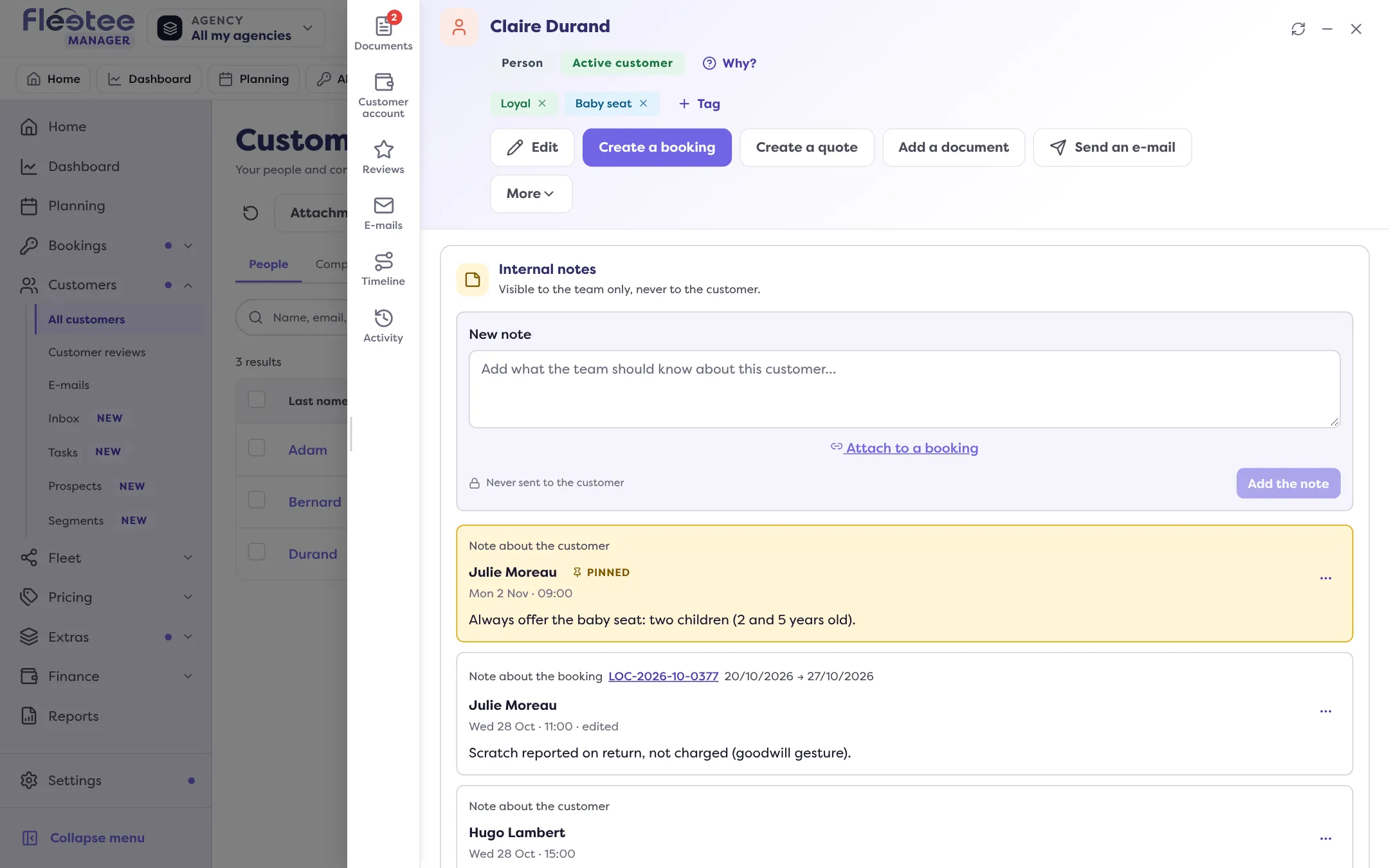
The tags are under the customer’s name.
Click “Add a tag”
Search for an existing tag (“Search for or create a tag…”), or type a new name then “Create ‘…’”. For a new tag, choose its colour (blue, green, amber, orange, red, pink, violet, turquoise or grey), then “Create and add”.
Remove it if needed
Remove a tag from the file with its cross (“Remove the tag …”).
A customer carries 20 tags at most. The company also has a maximum number of tags: beyond it, delete one before creating another.
Tag several customers at once
In Customers › All customers, tick the customers, then click “Add a tag” (or “Remove a tag”) in the selection bar. Choose the tag, then “Add to N customers”. Fleetee reports the result, and flags the customers that did not change (already 20 tags, outside your agencies or deleted). A selection is capped at a number of customers at a time; if it is too large, untick a few.
Rename, recolour, delete a tag
“Manage tags” (in the tag picker) lists the company’s tags. Renaming or recolouring a tag changes it for every customer that carries it; “Delete” removes it from them, for good. These actions need rights over the whole company.
Write a note
Type in “New note”
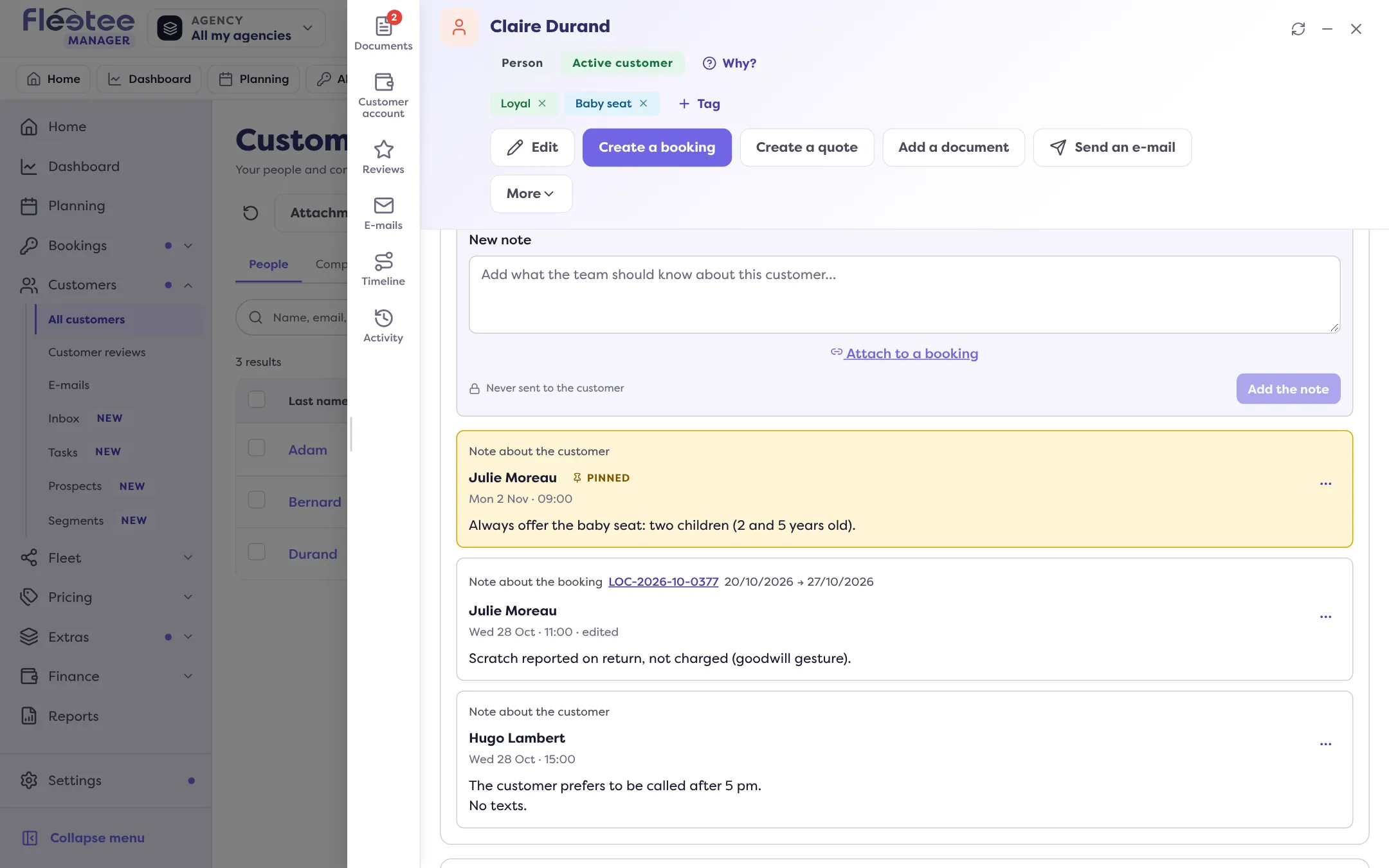
The box says “Add what the team should know about this customer…”. The note is visible to the team only, never to the customer.
Attach it to a rental (optional)
“Attach to a booking” links the note to one of the customer’s bookings.
Click “Add the note”
The note shows in the list and in the timeline.
A note’s menu lets you “Pin” it (pinned notes go first; there is a maximum, beyond which you must unpin one), “Edit” it (its author only) and “Delete” it (the author or an administrator; deletion is final).
Where to find it: Customer file, under the name; customer list › ticked rows › “Add a tag”
Where to find it: Customer file, under the name; customer list › ticked rows › “Add a tag”
Go further
Updated on 18 November 2026 with version 3.0