

What do a customer’s status and timeline tell me?
- Manager v3
- Administrator
- Agency manager
- Rental agent
In short. The commercial status (Prospect, Quote sent, Active customer, Inactive) is calculated from rentals and quotes; “Why?” explains it. The timeline gathers the customer’s whole history, newest first.
In a customer’s file, the Timeline panel tells the story of the relationship, and the commercial status sums it up in a word. Nobody types this status: Fleetee calculates it.
These items belong to the customer follow-up tied to the shared inbox. If they do not appear, the feature is not open for your company (see the shared inbox).
The four statuses
- Prospect: no open quote and no rental.
- Quote sent: a quote was sent to the customer and is still valid; no rental.
- Active customer: a rental is under way or to come, or the last rental ended less than 12 months ago.
- Inactive: the last rental ended 12 months ago or more, with none under way or to come.
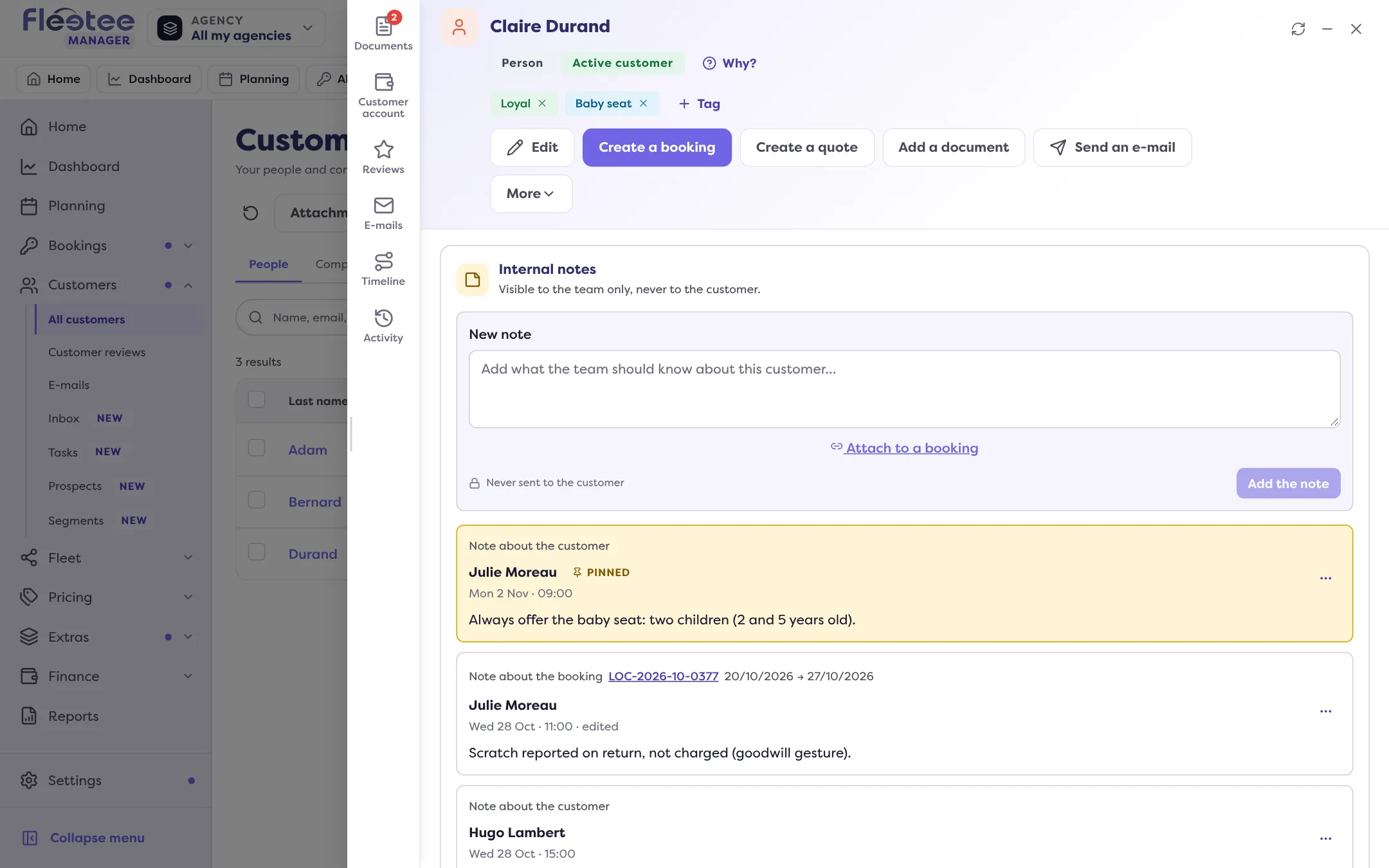
So the status changes by itself: a quote not accepted by its expiry date puts the customer back to Prospect; their first rental makes them Active customer; a year with no rental makes them Inactive, until the next rental. The figures are recalculated every night and each time a rental, a quote or an invoice changes.
The “Why?” button next to the status explains the calculation with this customer’s facts: first contact date, quote sent and its validity, next rental, last rental ended, and what will change the status (“Will become ‘Inactive’ on … without a new rental”).
Commercial follow-up
The Commercial follow-up card gives the figures the status rests on: number of rentals, last rental ended, next rental, invoiced, net of credit notes (issued invoices minus credit notes, tax included), open quotes and first contact.
The timeline
It lists, newest first, everything that happened with this customer. The “Filter by type of event” control picks a family:
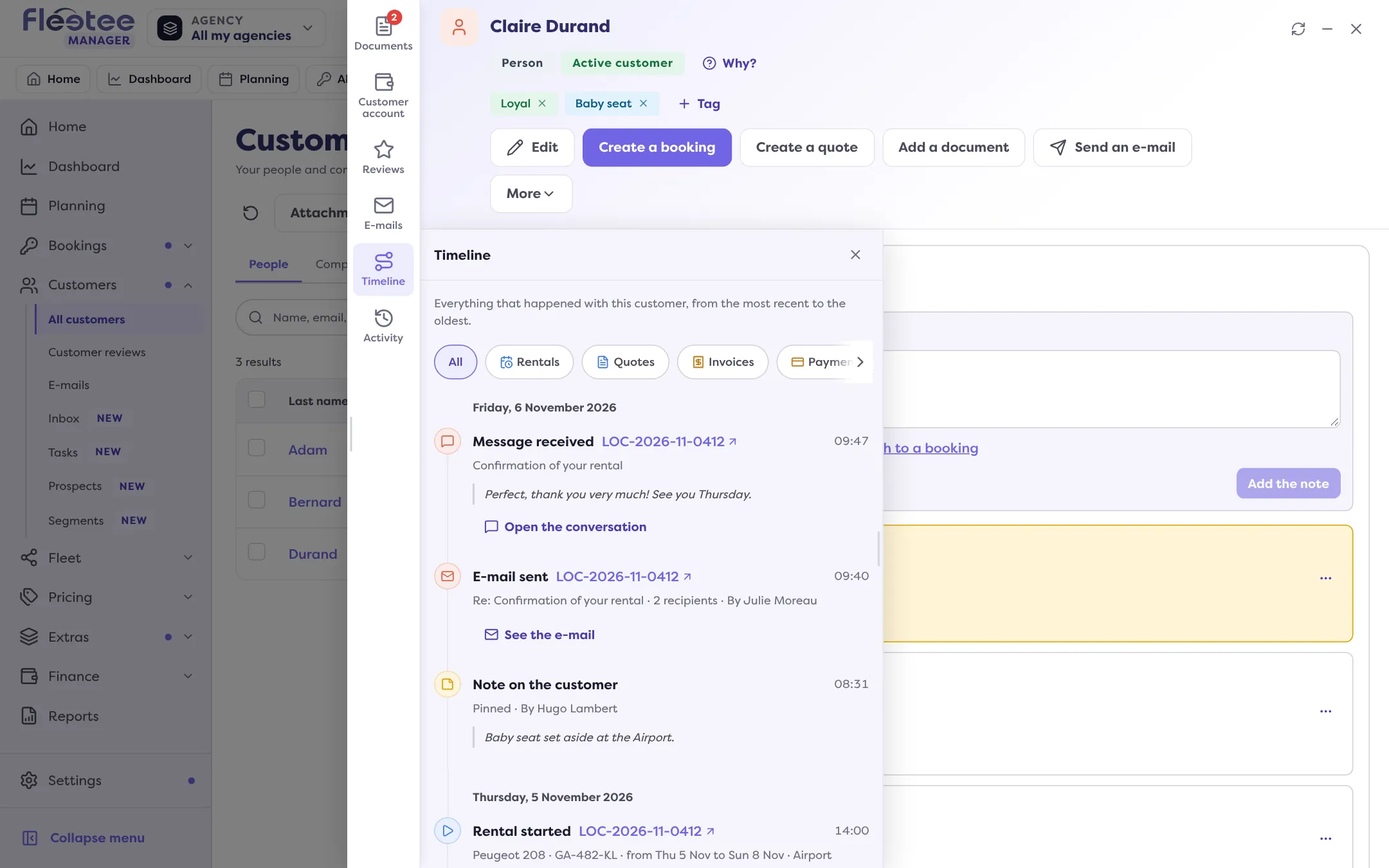
- Rentals: created, started, ended, cancelled;
- Quotes: sent, accepted;
- Invoices: invoice or credit note issued;
- Payments: payment received, refund made;
- E-mails: sent, including automatic e-mails;
- Conversations: messages received and internal notes from the inbox;
- Notes: the team’s notes on the customer;
- File changes: creation, edits, licence, tags, requests to attach to an agency.
Each line shows the date, who acted (“By …”), the amount where relevant, and a link to open the item (“Open the rental”, “Open the invoice”, “See the e-mail”…). “See more” loads the rest. A future event (a departure still to come) is not listed yet.
You only see the families your role may read, on your agencies: for instance, invoices and payments require the right to see accounting.
Where to find it: Customer file › Timeline
Where to find it: Customer file › Timeline
Go further
Updated on 18 November 2026 with version 3.0