

How do I export my customer list?
- Manager v3
- Administrator
- Agency manager
In short. Customers › All customers: “Export” produces a report of the whole filtered list; tick rows and “Export the selection” takes only those. Reserved for the administrator and the agency manager.
Exporting a list produces a report: a file drawn from your customer list, which you then download from Reports. It holds what the list shows: same tabs, same search, same filters, same order.
The export buttons only appear for the roles allowed to create a report (the administrator and the agency manager). If you do not see them, ask one of them to run the export.
Prepare the list
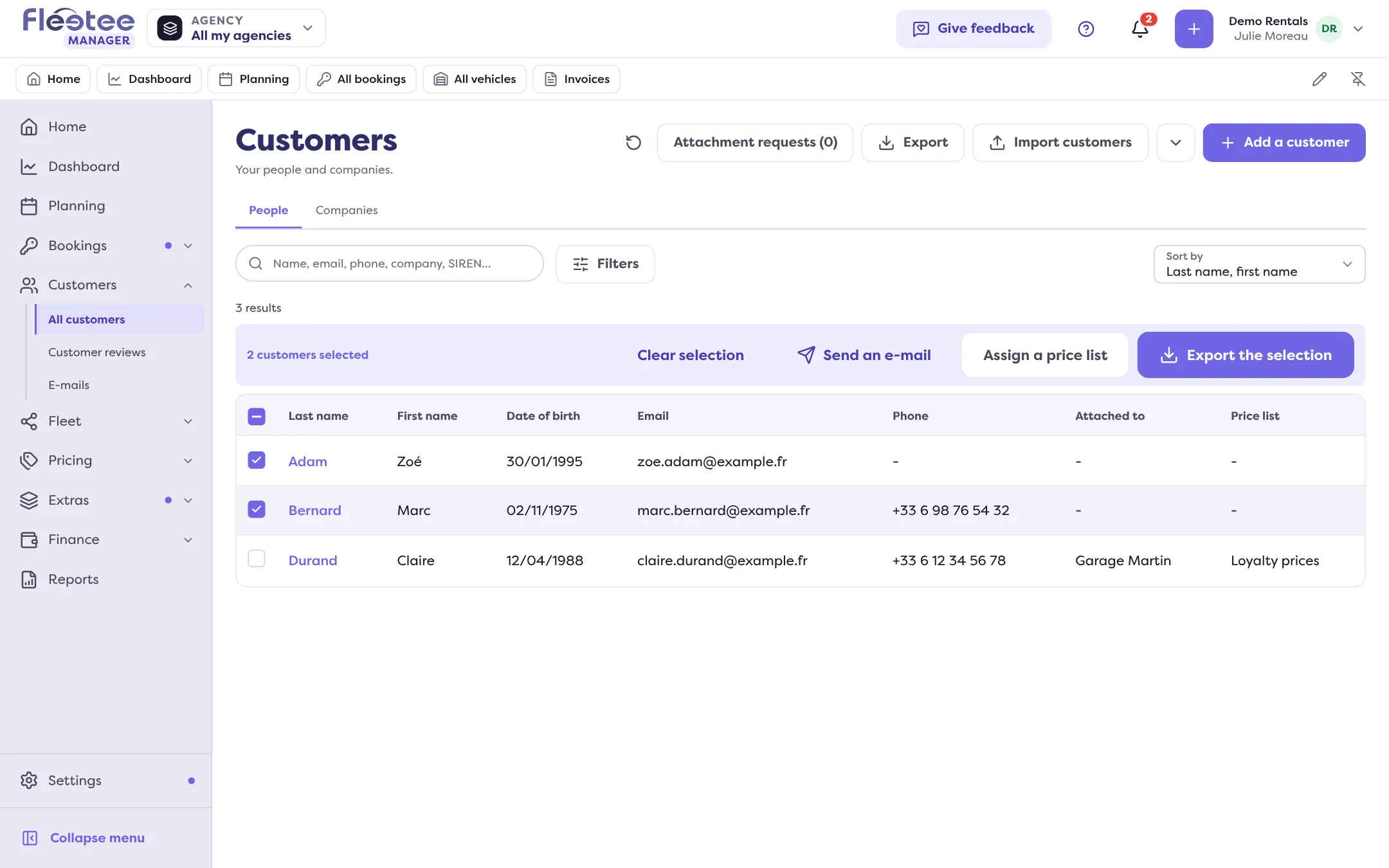
Open Customers › All customers. Pick the tab, search and filters that give the customers you want: the file will hold exactly those rows.
Export the whole list, or a selection
The whole filtered list: click “Export” at the top of the list. Only a few customers: tick their rows, then click “Export the selection” in the bar that appears (it also offers “Send an e-mail” and “Add a tag”). “Clear selection” empties your selection.
Check what the file will hold
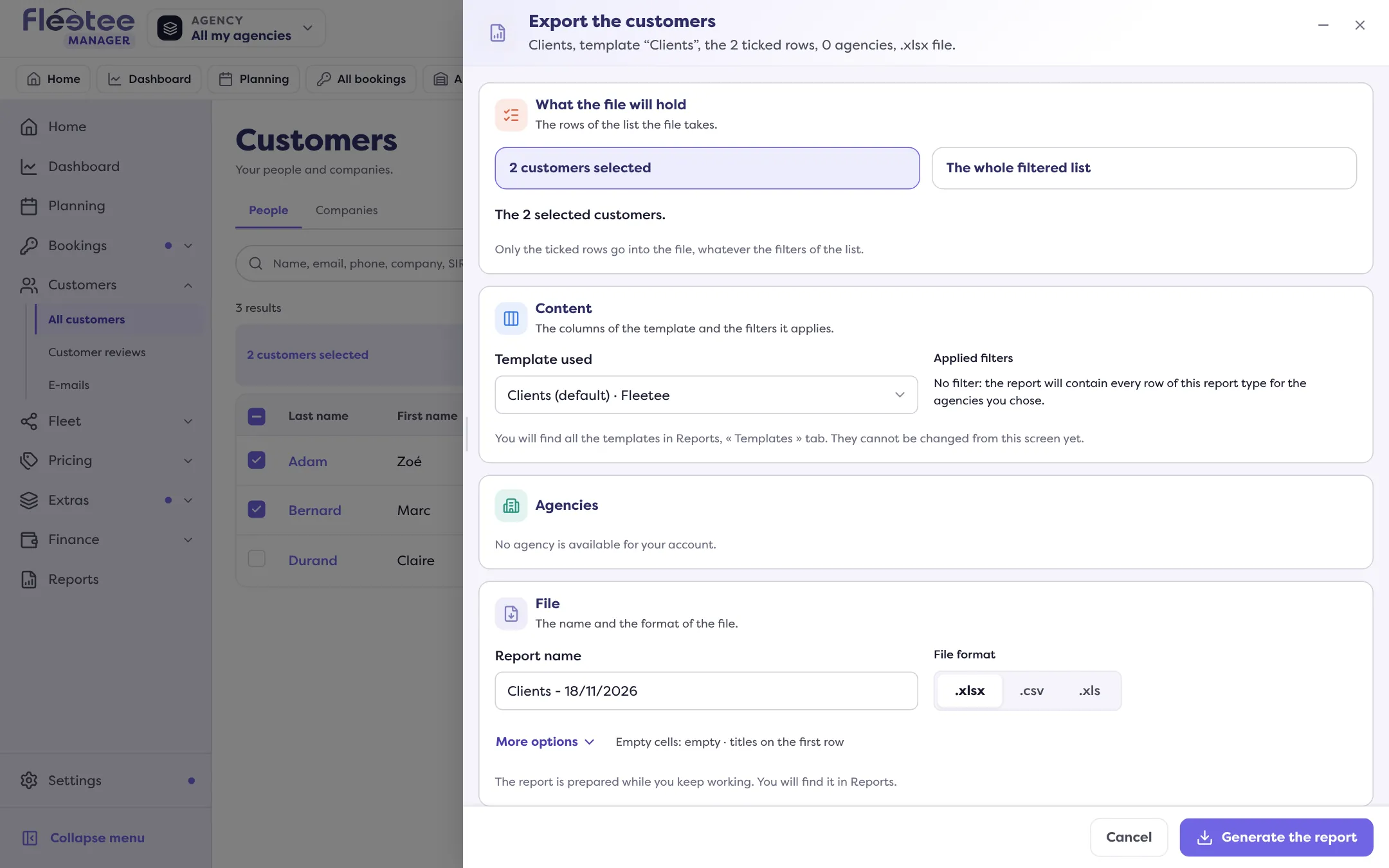
The “Export the customers” drawer shows the number of rows (“The 12 customers of the filtered list”, or “The 3 selected customers”). With ticked rows, only those go into the file, whatever the filters of the list. Choose the template and the file format as for a custom report.
Start the export
The “Report requested” message appears; “See in Reports” opens the list of reports. The file is prepared while you keep working, then you download it from that page.
If a filter cannot be carried over
When a filter of the list does not apply to the export, Fleetee tells you before it starts: “The file will hold more rows than the list.” You can cancel to fix the list, or choose “Export anyway”.
For a single customer
A customer’s file has its own export: the customer ledger (the customer’s invoices and payments) exports to XLSX, CSV or PDF. See the customer file.
Where to find it: Customers › All customers › ticked rows › “Export the selection”
Where to find it: Customers › All customers › ticked rows › “Export the selection”
Go further
Updated on 18 November 2026 with version 3.0