

How do I match a payment to an invoice?
- Manager v3
- Administrator
- Agency manager
In short. From the invoice, Payments tab › “Reconcile a payment”, or from the payment, “Reconcile an invoice”: choose, confirm, the amount is allocated. You can undo a reconciliation; nothing is refunded.
This is reserved to the administrator and the agency managers. With another role, ask one of them to do it.
Reconciling means saying that a payment already collected settles an invoice. The amount allocated comes off the invoice’s remaining amount to pay. A payment can cover several invoices, as long as it has an available amount left.
From the invoice
Open the invoice, Payments tab
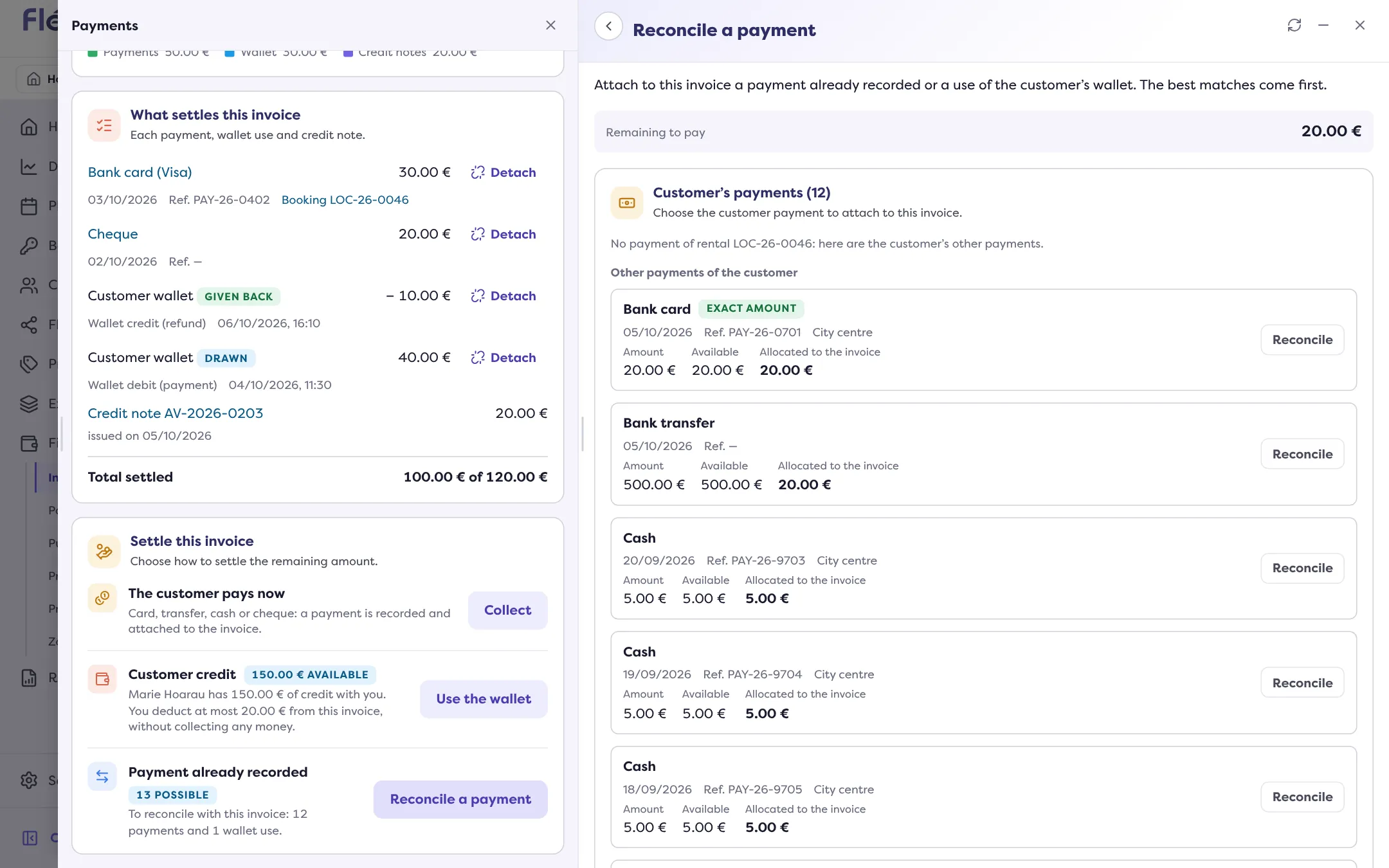
The “Payment already recorded” block shows if the customer has payments or wallet uses to reconcile: “To reconcile with this invoice: 2 payments”.
Click “Reconcile a payment”
The list shows the customer’s payments. Choose the right one.
Confirm
The “Reconcile the payment” window details: “Amount allocated to the invoice”, “Remaining to pay after the reconciliation”. If the payment is more than what remains to pay, part of it stays available for another invoice. Click “Reconcile”.
The Payments tab then shows “What settles this invoice”.
From the payment
Open the payment
In Finance › Payments, open the payment. The Invoice reconciliation section shows what is already reconciled: “Reconciled … of …”.
Click “Reconcile an invoice”
The “Reconcile an invoice” panel lists the customer’s invoices, one at a time: first those of the same rental, then those whose remaining amount is closest to the available amount. The “Exact amount” and “Close amount” badges help you choose.
Click “Reconcile” next to the invoice
Confirm: the amount allocated and the remaining amount to pay show. Message: “Invoice … reconciled: … allocated.”
A payment already collected, a new invoice
It is possible: as long as a payment has an available amount, you reconcile it with an invoice issued afterwards. If an invoice is not in the list, it has no remaining amount to pay, or it is not issued.
When reconciling is impossible
The panel says so:
- A prepayment, a deposit, a refund or a purchase payment is not allocated to a customer invoice.
- The payment is not paid yet: only a paid payment can be reconciled.
- It was refunded or transferred to the wallet: nothing is left to allocate.
- It is already fully allocated to invoices.
- It has no customer: its invoices cannot be looked up.
- The invoice is a draft, a credit note or a closed invoice, or has no customer.
Undo a reconciliation
In the invoice’s Payments tab, “Detach” opens “Cancel the reconciliation”. Nothing is refunded: the amount becomes available again on the payment, for another invoice. If the invoice is no longer settled, it goes back to “Awaiting payment” or “Partially paid”.
No payment to reconcile?
In the same area, “Settle this invoice” offers: “Collect” (a new payment, allocated to the invoice), “Use the wallet” (the customer’s credit) and “Retain from the deposit” (read How do I keep part of a deposit for charges?).
Where to find it: Invoice › Payments tab › “Reconcile a payment”
Where to find it: Invoice › Payments tab; or Finance › Payments › a payment › Invoice reconciliation
Go further
Updated on 18 November 2026 with version 3.0