

How do I embed the booking module in my WordPress site?
- Web v2
- Administrator
In short. In Réservation › Widget, turn the widget on, choose the mode, save, allow your site’s address, then copy the code and paste it in a custom HTML block in WordPress. No API key is needed.
The widget is a site setting, reserved to the account administrator; a marketing profile can read it but not change it.
If you keep your own site (WordPress, Wix…), you can show the Fleetee booking module on it with a piece of code to paste. You do not have to build an integration or put a secret key in a public page.
Fleetee Web is displayed in French. The names below are quoted as they appear on screen, with a translation in brackets. Before you start, your agencies, vehicles, availability and prices must be ready in Fleetee, and your Fleetee site must have its address online: without it, the code is not provided.
Open Réservation › Widget
The page offers a Lien direct (Direct link, an address to send to your customers) and a Widget de réservation (Booking widget). Do not confuse the link with the code to paste in a page.
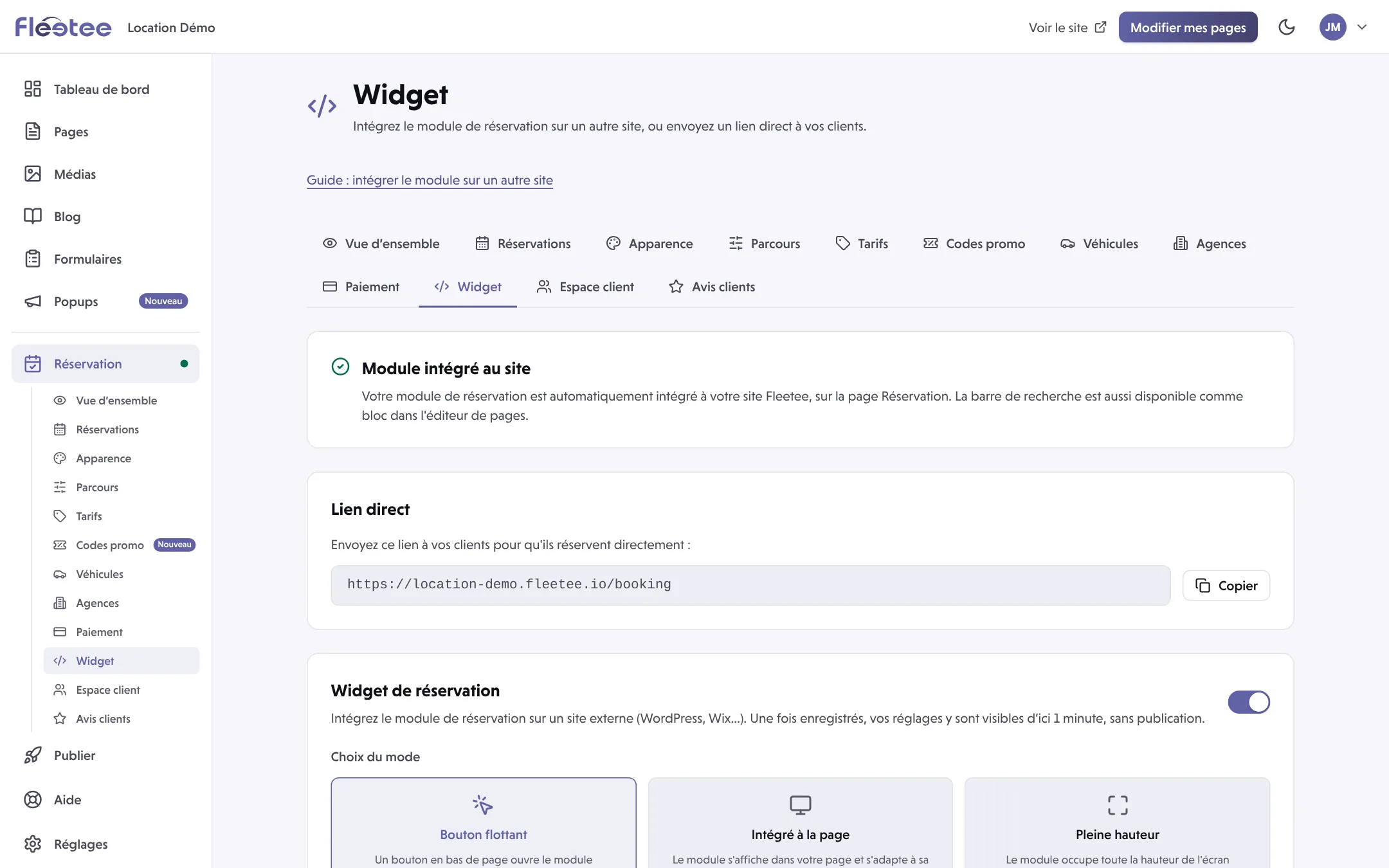
Turn the widget on
Use the Activer le widget (Turn the widget on) switch.
Choose the mode
Choix du mode (Mode): Bouton flottant (Floating button: a button at the bottom of the page opens the module), Intégré à la page (Built into the page: the module shows in your page and adapts to its height) or Pleine hauteur (Full height: the module takes the whole screen height). For the floating button you also set its text, style and place.
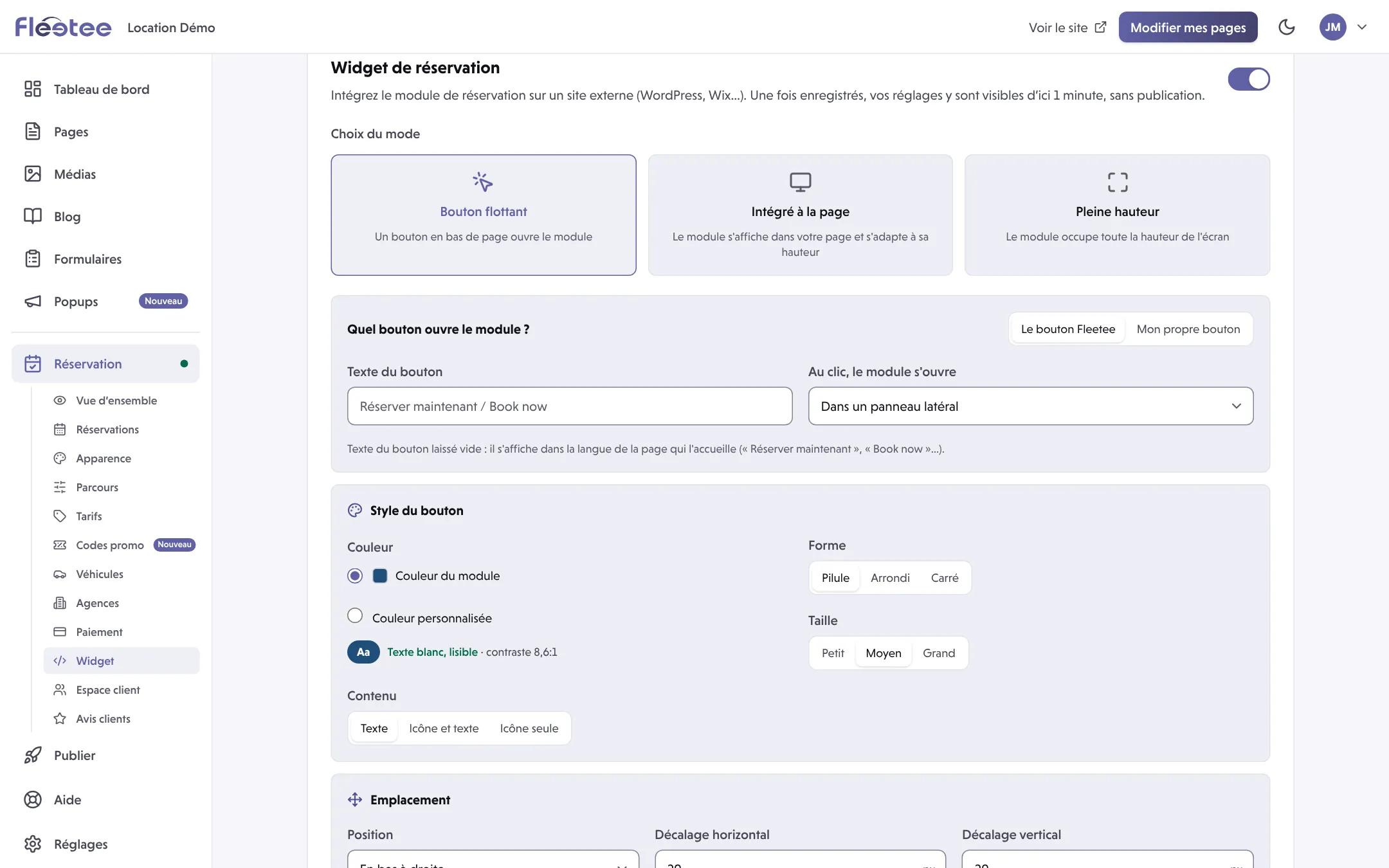
Click “Enregistrer” (Save)
Do it before copying the code: the code follows the mode on screen, which is only online once saved. If you have unsaved changes, the screen tells you.
Allow your site
In Sites autorisés à afficher le widget (Sites allowed to show the widget), enter your site’s address, for example
https://www.my-site.com, with nothing after it, then click Autoriser (Allow). Your Fleetee site is always allowed. The address with “www” and the one without are two different addresses: allow the one you really use.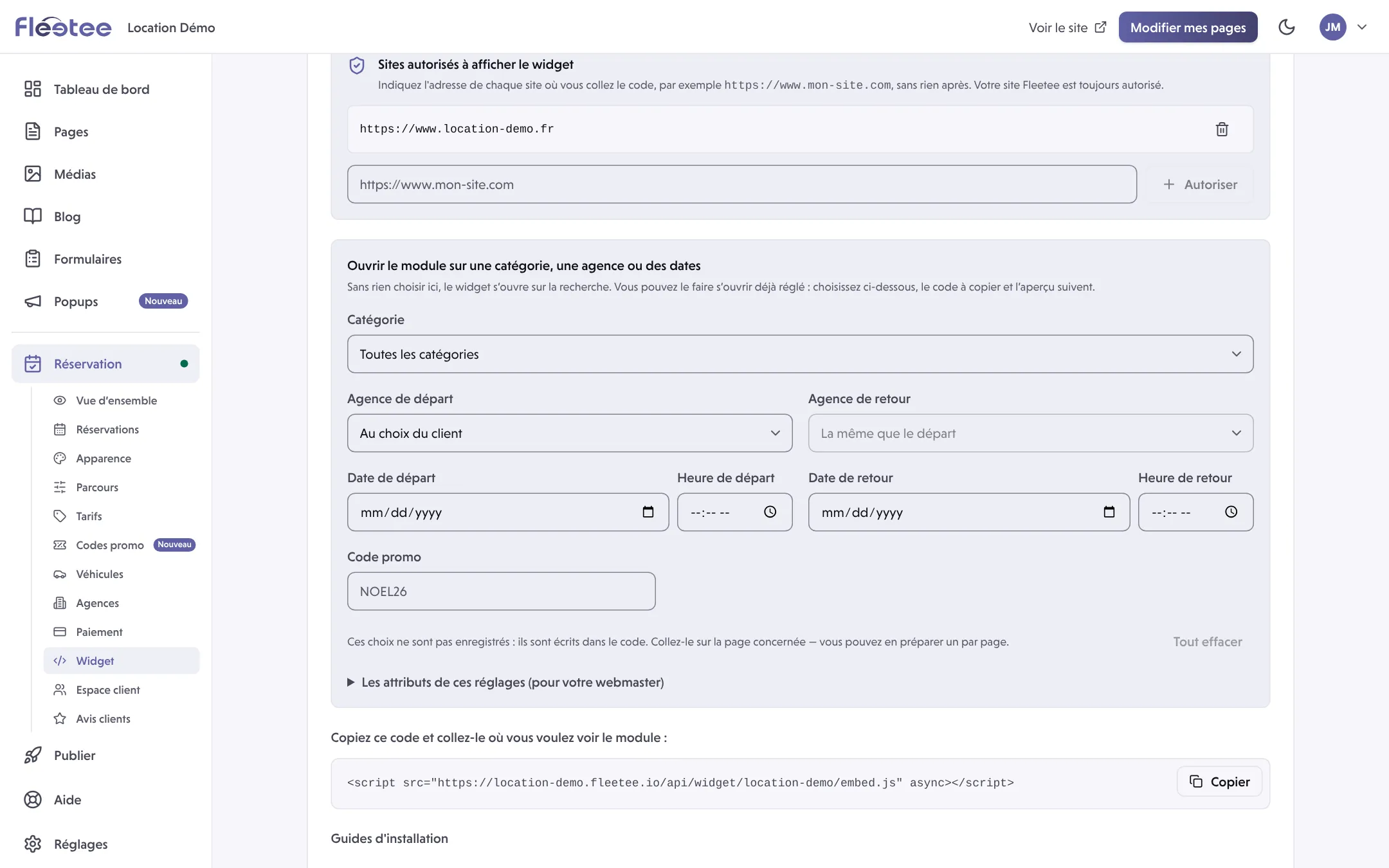
Copy the code
Under “Copiez ce code et collez-le où vous voulez voir le module” (Copy this code and paste it where you want the module to show), click Copier (Copy).
Paste it in WordPress
In WordPress, add a custom HTML block and paste the code, unchanged. Save and publish the page in WordPress: that site has its own publish button.
Test
Open the public page of your site, run a search with dates and a test agency, and check the display on a phone. Do not complete a real booking or payment until you have validated the whole flow.
Other platforms
The Guides d’installation (Installation guides) tabs of the page give the gestures for each platform:
- WordPress: add a custom HTML block and paste the code;
- Wix: Settings › Advanced tab › Custom code, then paste the code;
- HTML: paste the code where the module must appear on the page (or just before
</body>for the floating button); - Autre (Other): see your platform’s help (Squarespace, Webflow, Shopify…) to add custom code.
If the module does not show
- It shows on some sites only: compare the exact address of the page (“www”, “https”, a test site) with the list of allowed sites.
- It does not show in your site’s editor: some tools only run the code on the published page. Look at the public page in another tab.
- The code is unavailable (“Adresse indisponible”): check that your Fleetee site has been published once; without that, the screen says so.
- A saved setting does not show yet: widget settings reach your site within 1 minute, with no publication.
- The module opens but does not offer what you expect: first check agencies, dates, availability, prices and booking settings before touching the code.
If an allowed site should no longer show the module, remove it from the list: the module then stops at once on that site. Fleetee asks you to confirm.
Where to find it: Réservation › Widget (Booking › Widget)
Go further
Updated on 18 November 2026 with version 2.0