

How do I turn on online payment on my website?
- Web v2
- Administrator
In short. In Réservation › Paiement, click “Activer le paiement en ligne”, choose your provider (Stripe is the simplest), connect it, then turn it on. Without online payment, an automatic booking cannot be made.
With online payment, your customers pay by card when they book on your site. It is set in Fleetee Web, in Réservation › Paiement.
Fleetee Web is displayed in French. The names below are quoted as they appear on screen, with a translation in brackets. For payment on rentals made in Manager, see How do I set up online payment, online deposit and down payment?.
Open Réservation › Paiement
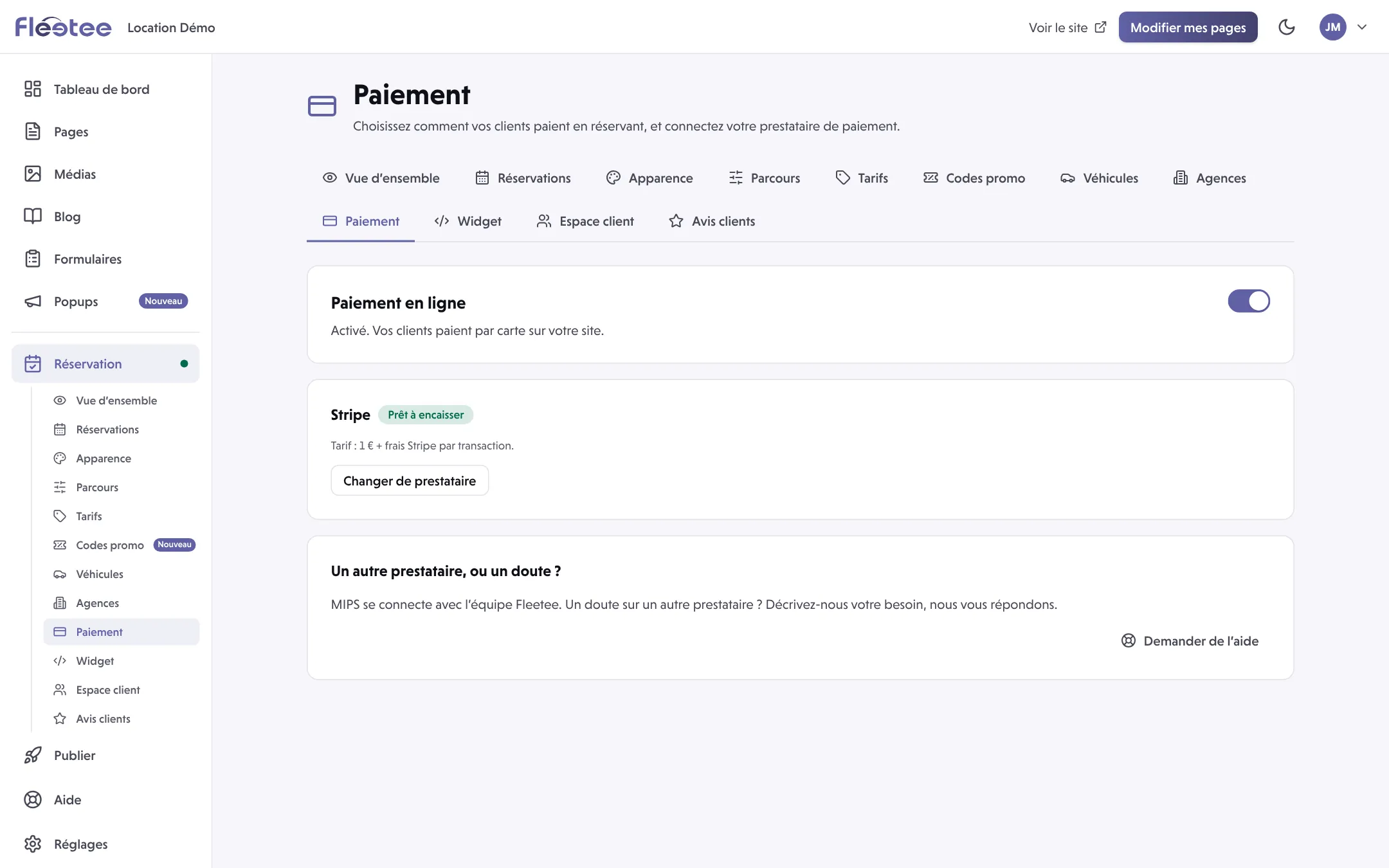
The screen says where you stand: “Vos clients paient par carte au moment de réserver sur votre site” (Your customers pay by card when they book on your site), or the state of your provider.
Click “Activer le paiement en ligne” (Turn on online payment)
A three-step guide opens: Choisir (Choose), Connecter (Connect), C’est prêt (It is ready). If a set-up is already started, the button reads Reprendre (Resume), and Choisir un autre prestataire (Choose another provider) switches provider.
Choose your provider
Stripe is presented as the simplest: you open your account in a few minutes, with no contract with your bank. Under “J’ai déjà un contrat avec ma banque” (I already have a contract with my bank) you find PayZen, SystemPay, PayZen by OSB, Lyra Collect, MIPS and Swikly. MIPS is set up with the Fleetee team.
Connect it
Stripe: click Ouvrir mon compte de paiement (Open my payment account) and fill in Stripe’s form (a few minutes). You then come back to Fleetee Web; it is ready as soon as Stripe has validated your account, which can take a few minutes. PayZen, SystemPay, PayZen by OSB, Lyra Collect, Swikly: enter your identifiers, then Enregistrer (Save). Only the main administrator of the account can save PayZen.
Turn it on, then click “Terminer” (Finish)
At the C’est prêt step, the provider is ready: click Activer le paiement en ligne. Fleetee Web writes “Vos clients peuvent maintenant payer par carte sur votre site” (Your customers can now pay by card on your site), then Terminer closes the guide. As long as the provider is not ready to take payments, the button stays inactive and nothing is on for your customers.
Read your provider’s state
Once the provider is chosen, it shows with a state:
- Prêt à encaisser (Ready to take payments): your customers can pay. With Stripe, an account can already take payments while still asking to finish verification (Reprendre mon inscription, then Vérifier à nouveau);
- Inscription à terminer (Sign-up to finish): Stripe’s form is not finished;
- En vérification chez Stripe (Being verified by Stripe): Stripe is checking your account, come back later;
- Enregistré, non vérifié (Saved, not verified), Identifiants incomplets (Incomplete identifiers), “refuse ces identifiants” (refuses these identifiers): the identifiers entered need fixing (Remplacer les identifiants to enter them again);
- Non connecté (Not connected): nothing is linked.
Changer de prestataire (Change provider) switches provider at any time. If the provider is no longer ready, Réparer (Repair) reopens the guide.
The link with booking validation
Online payment and booking validation go together:
- With Automatique validation, your bookings are confirmed automatically, which requires online payment. As long as no payment method is ready, your customers cannot book.
- Two ways out: turn online payment on, or switch to manual validation in Réservation › Parcours (the customer sends a request that you accept).
- You can also turn payment off with the switch on the page: your customers then book without paying on your site (with manual validation).
In Réservation › Parcours (Booking flow) you also set the deposit (“Demander l’intégralité du paiement” or “Demander un acompte”) and the pricing groups whose bookings are paid online. See How do I get my booking module up and running?.
If the page says payment is set agency by agency
“Votre paiement est réglé agence par agence. Cet écran en montre l’état sans le modifier.” (Your payment is set agency by agency. This screen shows its state without changing it.) The Consulter les paiements par agence link gives the state of each agency.
A question about another provider?
The “Un autre prestataire, ou un doute ?” (Another provider, or a doubt?) block lets you describe your need to the Fleetee team.
Where to find it: Réservation › Paiement (Booking › Payment)
Go further
Updated on 18 November 2026 with version 2.0