

How do I set the colours, logo, favicon and sharing image?
- Web v2
- Marketing
In short. Colours and fonts are set in Réglages › Apparence; the logo and favicon in Réglages › Général, live as soon as you choose them; the sharing image is set page by page, in the editor’s “SEO” tool.
Your site’s identity rests on four settings: the colours (your brand palette), the logo, the favicon (the small icon in the browser tab) and the sharing image (the picture Facebook or WhatsApp shows when someone shares a page). They are not all in the same place.
Fleetee Web is displayed in French. The names below are quoted as they appear on screen, with a translation in brackets when needed.
Colours and fonts: Réglages › Apparence (Settings › Appearance)
Open Réglages › Apparence
The Palette de couleurs (colour palette) card lists seven colours: Principale (main: primary buttons, links, icons), Secondaire (secondary: light backgrounds, badges), Accent (items to stand out), Fond de page (page background), Fond des cartes (card background), Texte principal (main text) and Texte secondaire (secondary text).
Pick each colour
Click the swatch, or type the colour code, for example
#0E4A5A. Plain text such as “red” is refused. Blocks without a custom colour use this palette, so a change affects the whole site.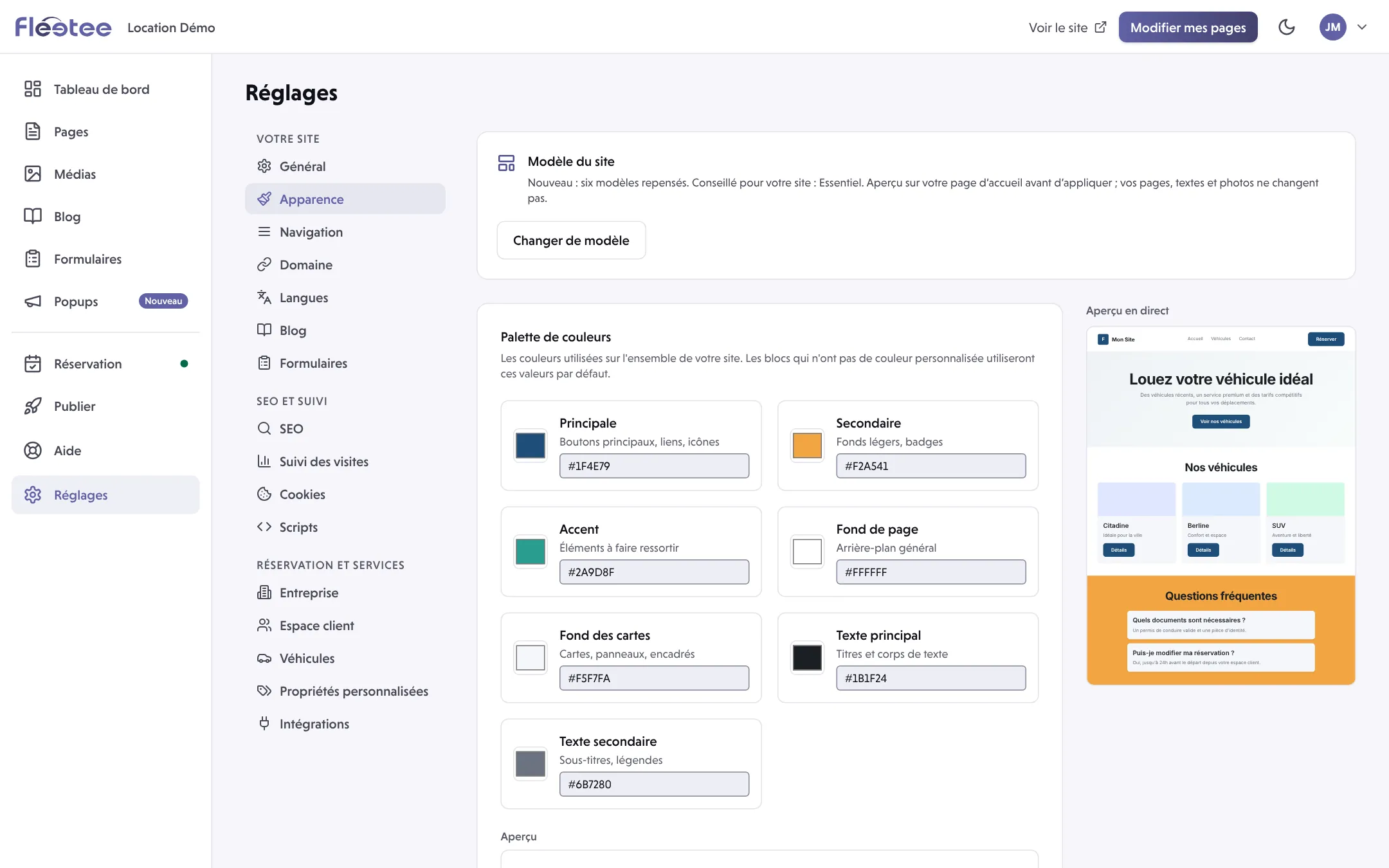
Read the legibility warnings
If two colours are hard to read together (light text on a light background), Fleetee Web flags it under “Couleurs difficiles à lire” (colours that are hard to read) and offers a fix, Appliquer (Apply) followed by the suggested colour code. When you save, it also asks what to do with a palette that is hard to read.
Set the typography (optional)
The Typographie card offers Paires de polices (font pairs); Avancé (Advanced) allows a custom font or a free choice among Google Fonts.
Click “Enregistrer”, then publish
A saved palette only reaches visitors once the site is published. See Save, preview, publish: what is the difference?.
The same screen offers Changer de modèle (change template) to switch to another site template. The booking module follows the site palette: see What is the booking module?.
Logo and favicon: Réglages › Général (Settings › General)
Open Réglages › Général
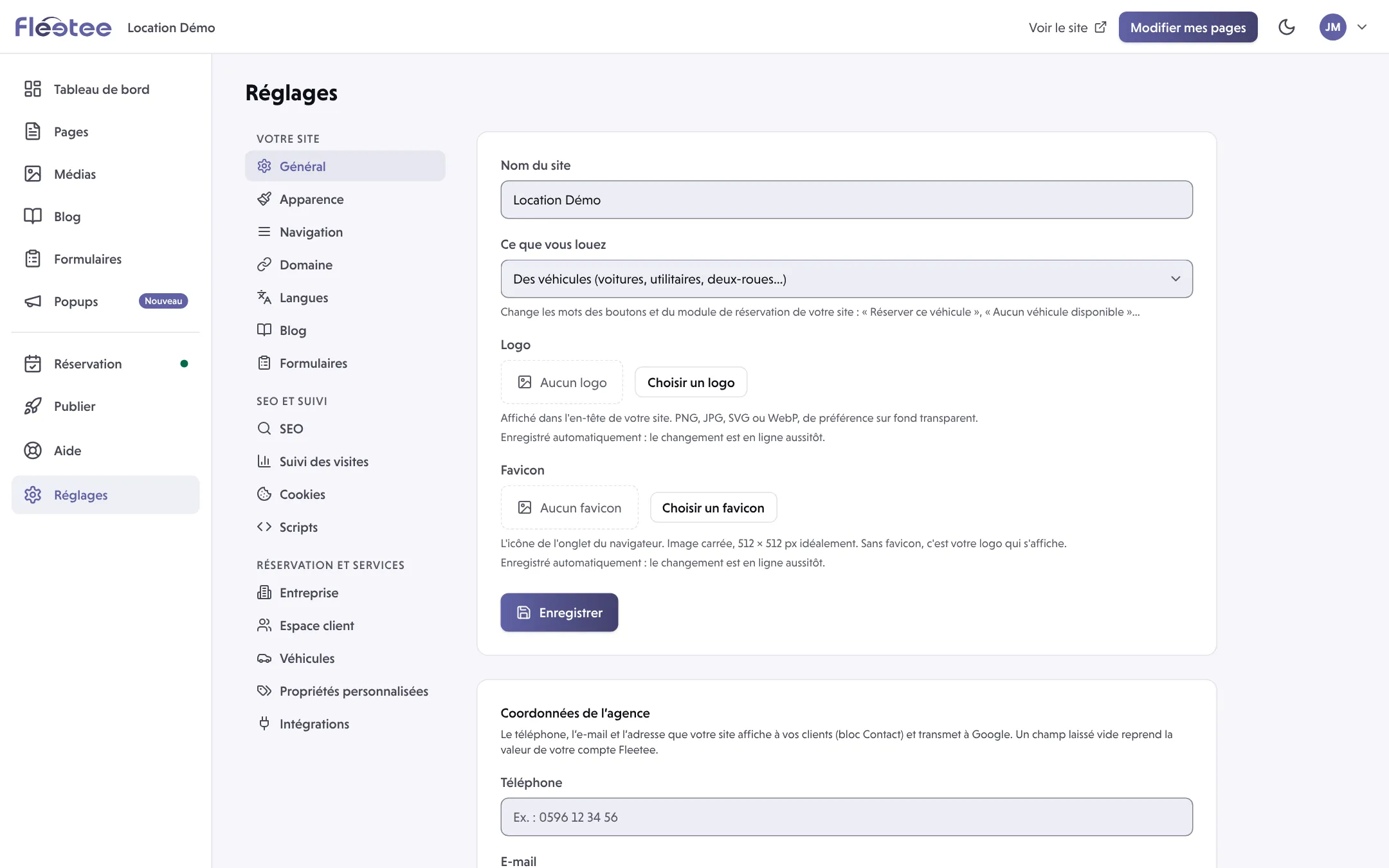
The Logo and Favicon fields are under the site name.
Click “Choisir un logo” (or “Choisir un favicon”)
Pick an image from your media library, or upload one. For the logo, PNG, JPG, SVG or WebP are accepted, preferably on a transparent background. For the favicon, Fleetee Web recommends a square image, ideally 512 × 512 px. Without a favicon, your logo is shown in the tab.
Check the preview
To replace the image, click Changer le logo (or Changer le favicon).
The logo and favicon are saved automatically: the change is live straight away, with no publication. Retirer le logo (or Retirer le favicon) removes it from the live site at once; the image stays in your media library.
The sharing image: one per page
The sharing image is not in Réglages: it is set page by page.
Open the page in Pages
Open the “SEO” tool in the “⋯” menu
It shows the Titre SEO (SEO title), the Description SEO, the Google preview and the Image de partage (Facebook, WhatsApp…) (sharing image).
Choose the image
Click the image area, then Changer d’image (change image) to pick another one, or Retirer (remove). Without a sharing image, the tool says so: “Aucune image de partage : choisissez celle qui s’affichera quand la page est partagée” (no sharing image: choose the one shown when the page is shared).
Save the page, then publish
The SEO score is informative: it does not block publishing.
Where to find it: Réglages › Apparence (colours, fonts); Réglages › Général (logo, favicon); page editor › “⋯” › SEO (sharing image)
Where to find it: Réglages › Apparence (Settings › Appearance); Réglages › Général (Settings › General); page editor › “⋯” › SEO
Go further
Updated on 18 November 2026 with version 2.0