

How do I edit a page of my website?
- Web v2
- Administrator
- Marketing
In short. In Pages, open the page, change its blocks in the editor, click “Enregistrer la page” (Save the page), check the preview, then publish. Saving does not put anything online.
You edit the pages of your site in the Fleetee Web editor. A page is made of sections, which hold columns, which hold blocks (text, image, form…).
Fleetee Web is displayed in French. The names below are quoted as they appear on screen, with a translation in brackets. Only people allowed to edit the site can edit or publish (by default the account administrator and the marketing profile); in read-only mode, ask one of them to do the actions.
Open the page in Pages
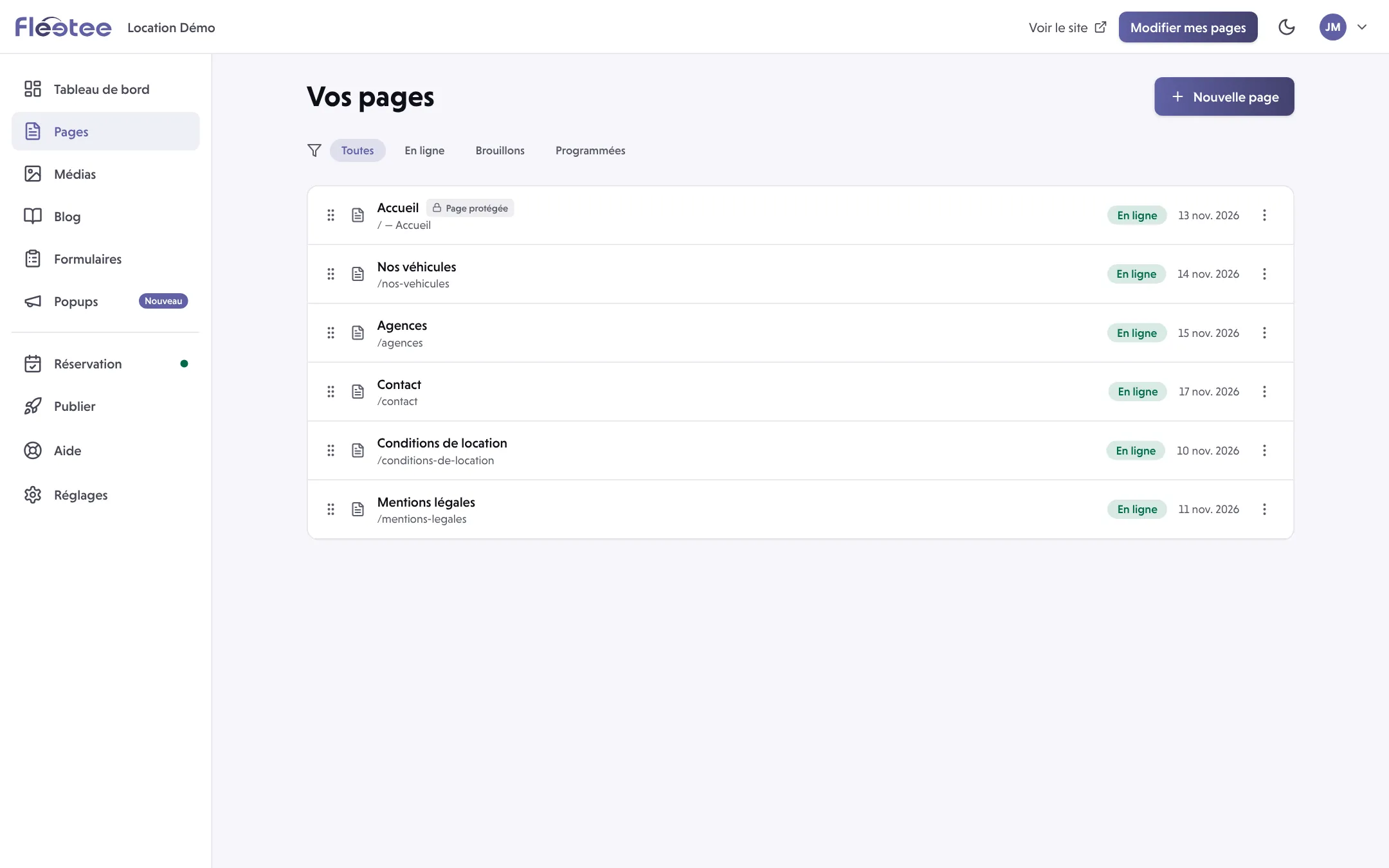
In the left menu, click Pages, then the page to edit. If you cannot find it, search for its title: it may still be a draft.
Change a text or a block
Select the block, then double-click in the text to change. For an image, pick a media from the media library. Paramètres du bloc (Block settings) gives the settings of the selected block (alignment, spacing, colour or framing, depending on the block).
Click “Enregistrer la page” (Save the page)
Finish typing by clicking outside the text, then save. The Ctrl+S shortcut (Cmd+S on Mac) works too. Wait for the save to finish before you close the tab.
Check the preview
Open Aperçu (Preview): the quick preview rereads the layout inside the editor, Prévisualiser sur le site (Preview on the site) opens the draft in another tab. Also switch to the mobile view.
Publish
For a site that is already online, Publier cette page (Publish this page) puts the page you worked on online. See Save, preview, publish: what is the difference?.
Add a page
- In Pages, start creating a page.
- Fill in Titre de la page (Page title). The page address is worked out from the title: if it is already taken, Fleetee suggests another one with a number, for you to check.
- Click Créer la page (Create the page). The page is created as a draft and the editor opens: it is not yet visible on the public site.
A new page does not appear in the site menu by itself. See How do I organise the menu and translate my website?.
Organise sections and columns
- Ajouter une section (Add a section) creates a new area. Choose its layout: one column for running text, two columns for an image next to a text, up to four columns.
- In the column you want, Ajouter un bloc (Add a block) opens the block catalogue. The block lands in that column.
- Do not use spaces or empty lines to build a column: pick the section structure that fits.
- Before you delete a section, check all the blocks it contains.
If something goes wrong
- The text changes in the preview but not on the site: the page is not published, or you are looking at another language.
- Saving fails: stay on the page, keep your text, read the message shown and check your connection and your rights.
- An image looks cropped: check its framing in its settings and check on mobile.
- Someone else is working on the same page: coordinate, so that you do not replace recent work from an old tab.
Where to find it: Pages
Go further
Updated on 18 November 2026 with version 2.0