

How do I create my website with Fleetee Web?
- Web v2
- Administrator
In short. Open “Website” in the Manager menu: the Fleetee Web assistant asks a few questions (business, place, brand, template), then “Créer mon site” (Create my site) generates your site. You can edit it before publishing.
Creating the site is done from the “Website” menu of Manager, reserved to the administrator.
You create your website yourself, with an assistant in a few screens. Fleetee Web takes your vehicles, agencies and prices: you do not retype them.
Fleetee Web is displayed in French. The button names below are quoted as they appear on screen, with a translation in brackets.
Open the assistant
In Fleetee Manager, click “Website” at the bottom of the menu: Fleetee Web opens in a new tab, already signed in. On Home, the “Create your rental website” card also has a “Créer mon site maintenant” (Create my website now) button. If you have just created your account for Fleetee Web, the assistant opens by itself.
Choose what you want to create
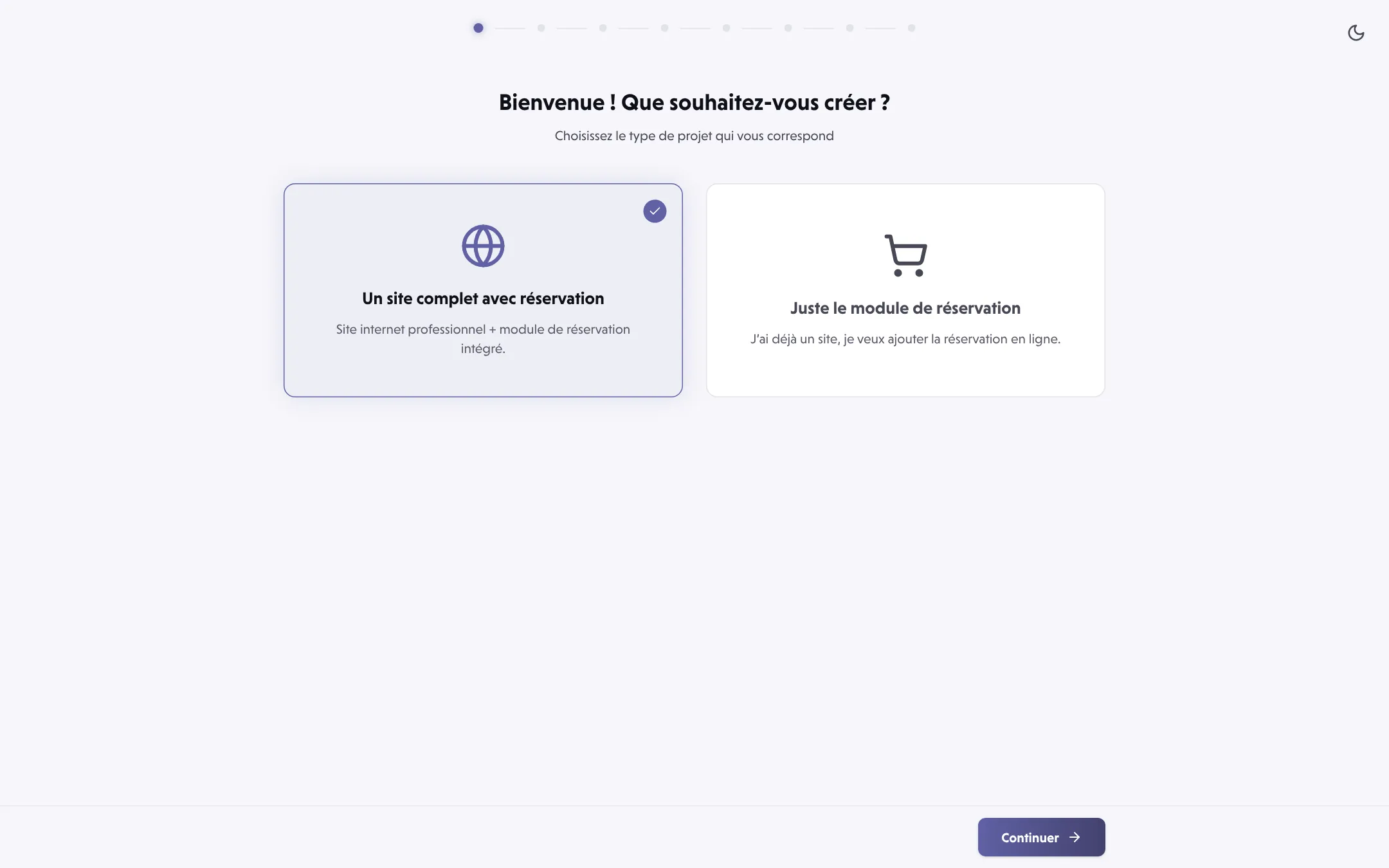
“Bienvenue ! Que souhaitez-vous créer ?” (Welcome! What would you like to create?): “Un site complet avec réservation” (a complete website with booking), or “Juste le module de réservation” (just the booking module) if you already have a site.
Say what you rent
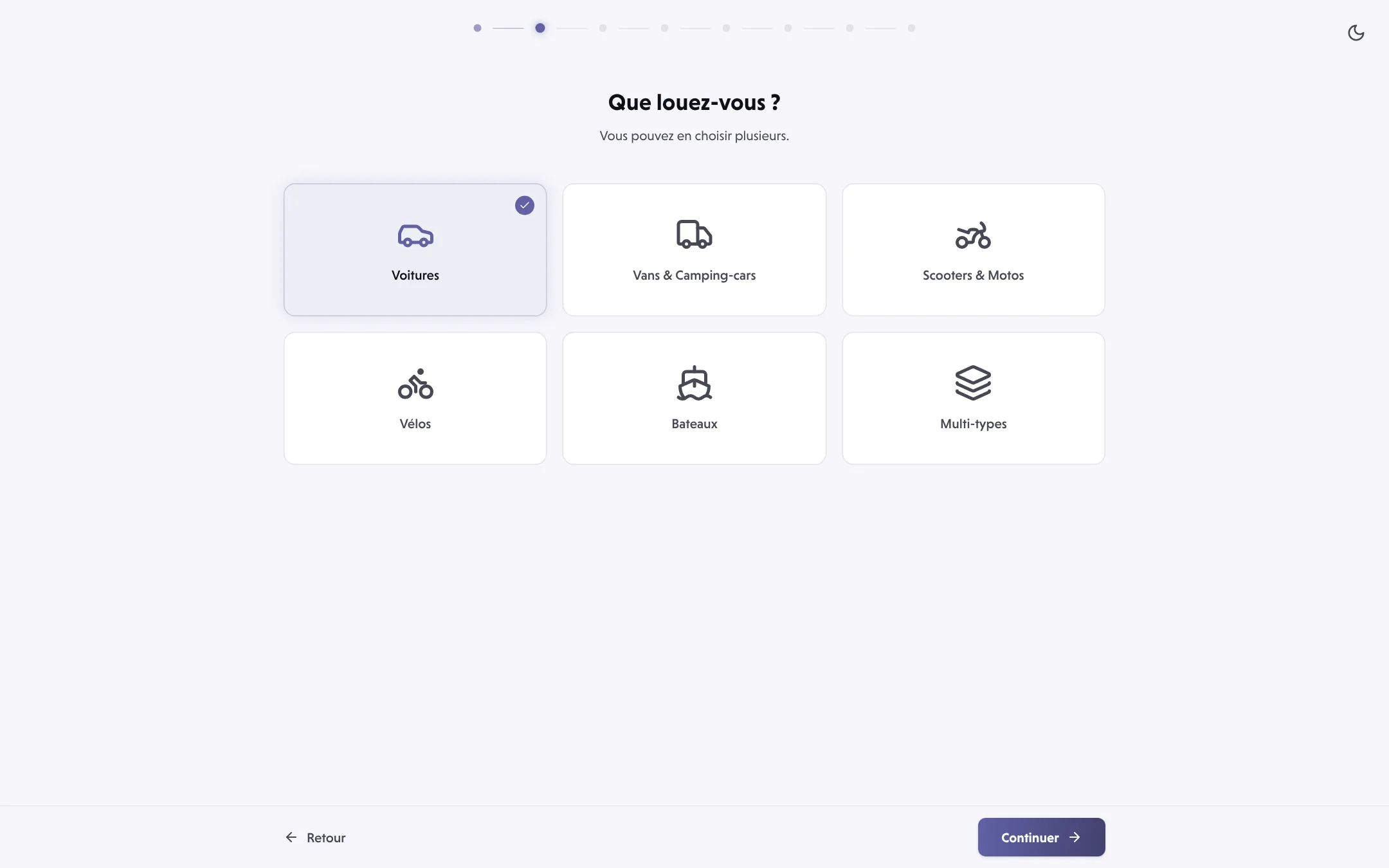
“Que louez-vous ?” (What do you rent?): Voitures (cars), Vans & Camping-cars, Scooters & Motos, Vélos (bikes), Bateaux (boats) or Multi-types. You can pick several.
Describe your business
“Comment décririez-vous votre activité ?” (How would you describe your business?): choose a positioning (Luxe, Standard, Économique, Aventure, Familial: luxury, standard, budget, adventure, family) and your customers (Touristes, Professionnels, Citadins, Voyageurs d’affaires, Mixte: tourists, professionals, city dwellers, business travellers, mixed). Fleetee uses them to recommend a template.
Say where your company is
“Où se trouve votre entreprise ?” (Where is your company?) Fleetee reads your agencies and their addresses. With no address, type your town or region. If your account has no vehicle category yet, a “Combien de véhicules avez-vous ?” (How many vehicles do you have?) screen is added.
Customise your brand
“Personnalisez votre marque”: upload your logo, pick a colour palette, a font pair and at least one language for the site (Français, English, Español, Deutsch, Italiano, Português or Nederlands). A preview updates as you choose.
Choose your template
“Choisissez votre modèle” (Choose your template): each preview is built with your vehicles, agencies and colours. One or two templates are “Recommandés pour vous” (recommended for you), with the reason. Click “Sélectionner” (Select), then “Continuer” (Continue).
Review and create
“Votre site, avant de le créer” (Your site, before creating it) summarises the template, colours, fonts, logo, languages and the pages that will be created. “Modifier” (Edit) takes you back to the step concerned. Click “Créer mon site” (Create my site).
Discover your site
While Fleetee creates the site, the “Nous créons votre site personnalisé” (We are creating your personalised site) screen shows it filling in. Then “Votre site est prêt !” (Your site is ready!): click “Découvrir mon site” (Discover my site) to open the editor.
Only the booking module
If you choose “Juste le module de réservation”, the assistant is shorter: the need, what you rent, your brand, then the creation. At the end, the button is “Intégrer le module” (Add the module). See How do I get my booking module up and running?.
Your site is not online yet
The site you create is not visible to your customers until you publish it. You can edit it, page by page, before publishing.
You already have a Fleetee site from the previous version
In that case, the assistant starts with “Votre site actuel” (Your current site) and takes over what it can: your new site is created as a draft, and the current site stays online. A link also lets you start from a blank page.
Where to find it: Manager › “Website” (bottom of the menu), or Home › “Créer mon site maintenant” (Create my website now)
Go further
Updated on 18 November 2026 with version 2.0