

Where do I see the bookings made on my website?
- Web v2
- Administrator
- Agency manager
- Marketing
In short. In Fleetee Web, Réservation › Réservations lists your customers’ bookings, from the request to the end of the rental. Search, filter, open a sheet, then accept, refuse or cancel. In Manager, they are also among your rentals.
Each booking a customer makes on your site arrives in Fleetee. You read it in Fleetee Web, in Réservation › Réservations, and in Manager, with your other rentals.
Fleetee Web is displayed in French. The names below are quoted as they appear on screen, with a translation in brackets.
Open Réservation › Réservations
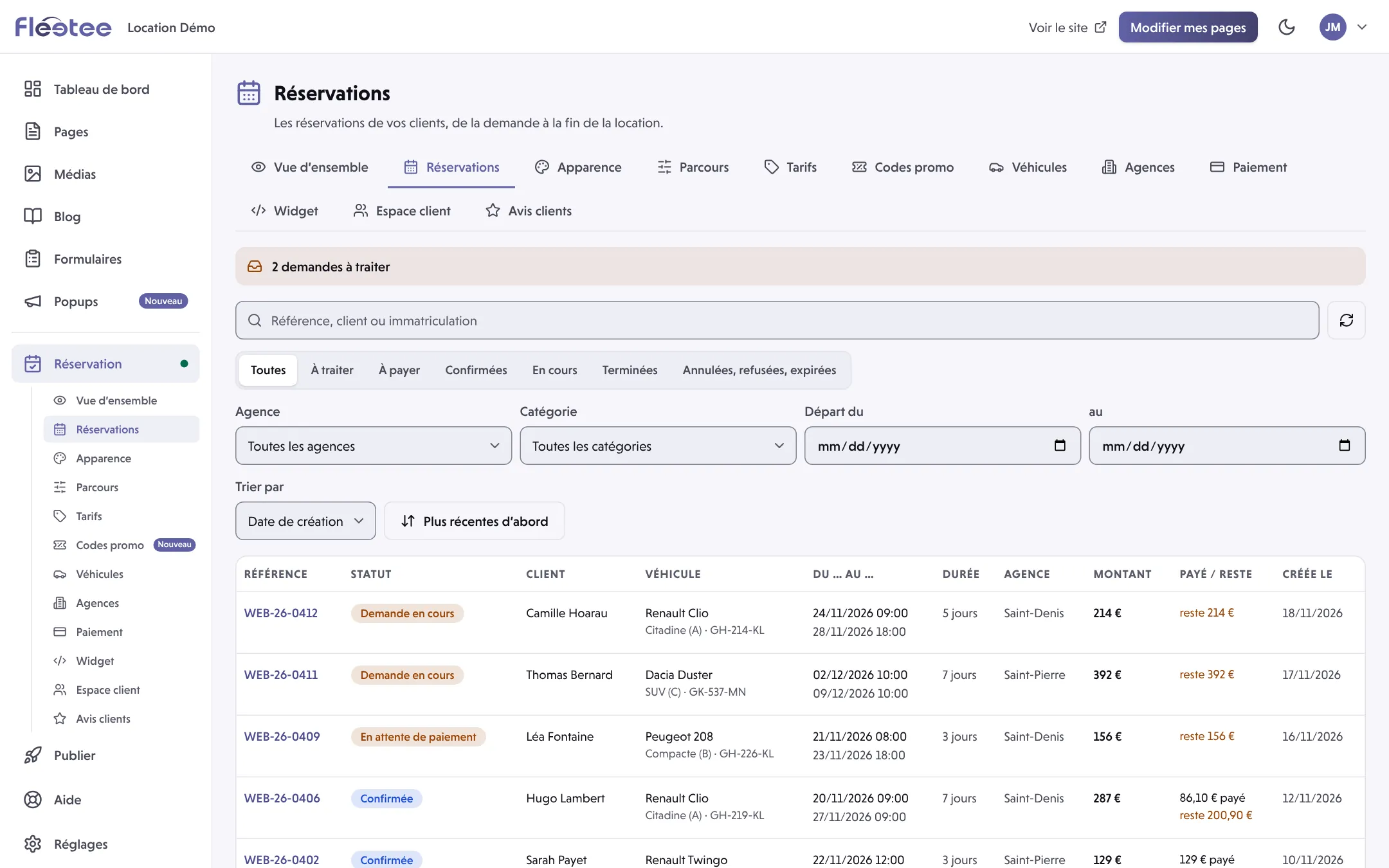
The page is titled “Réservations”: “Les réservations de vos clients, de la demande à la fin de la location.” (Your customers’ bookings, from the request to the end of the rental.) A number in the menu flags the bookings to pay.
Search and filter
Rechercher (Search) by reference, customer or registration number. Filter by Statut (Status), Agence (Agency), Catégorie (Category) and Départ du … au … (Departure from … to …), and sort with Trier par (Sort by: newest or oldest first). Effacer les filtres (Clear filters) resets everything, Actualiser (Refresh) rereads the list.
Read the table
Columns: Référence, Statut, Client, Véhicule, Du … au … (From … to …), Durée (Duration), Agence, Montant (Amount), Payé / reste (Paid / remaining), Créée le (Created on). “Véhicule à attribuer” (Vehicle to assign) means no vehicle is assigned to the booking yet.
Open a booking
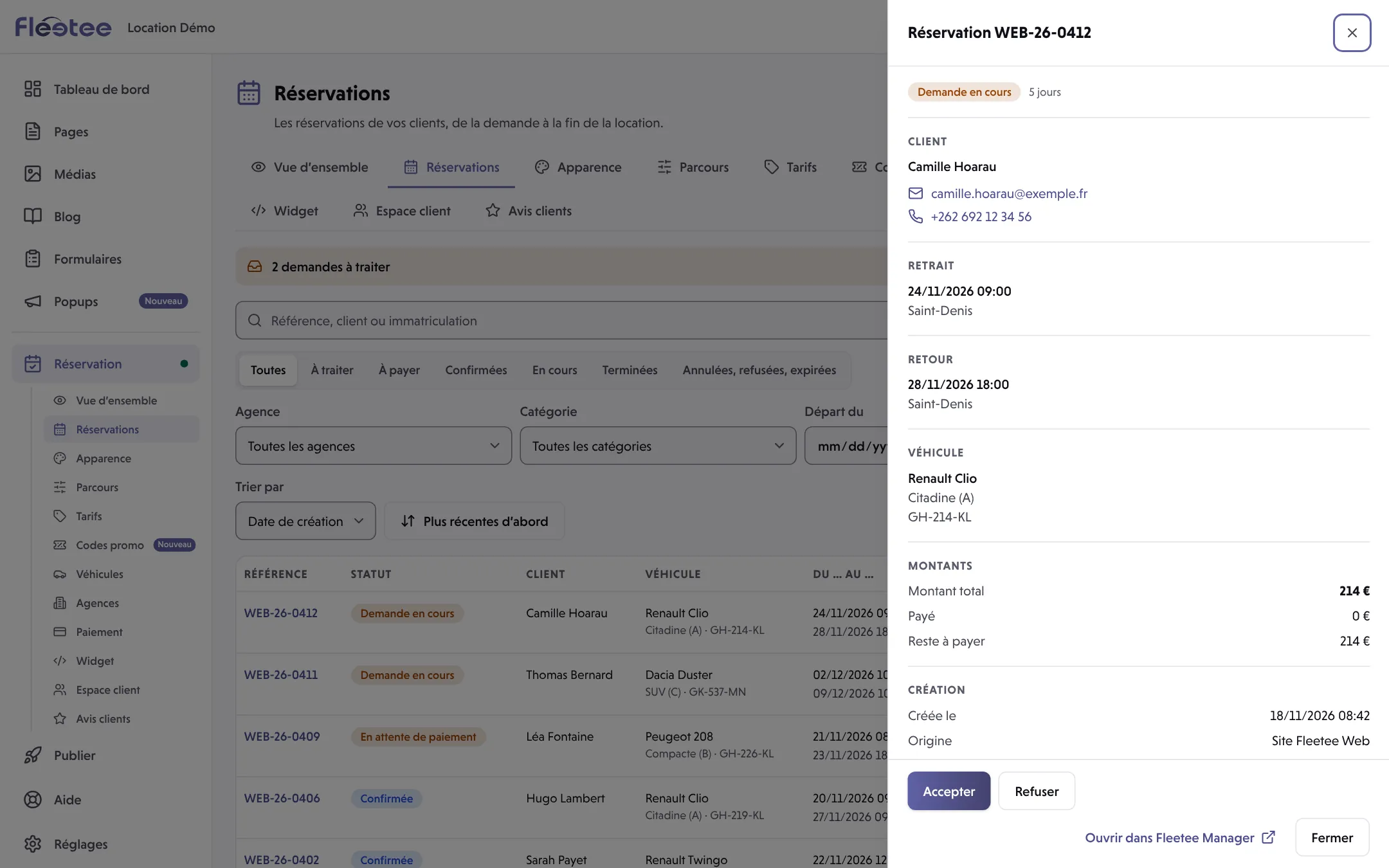
Click a row: the sheet shows the Client (Customer), the Retrait (Pick-up) and the Retour (Return), the Véhicule, the Montants (Amounts: Montant total, Remise discount, Payé paid, Reste à payer remaining) and the Création (Creation) with the Origine (Origin) “Site Fleetee Web”. Ouvrir dans Fleetee Manager (Open in Fleetee Manager) opens the rental in Manager.
The statuses
The list groups statuses into six groups: À traiter (To process: “Demande en cours”, request in progress), À payer (To pay: “En attente de paiement”, awaiting payment), Confirmées (Confirmed: “Réservée”, “Confirmée”), En cours (In progress: “En cours”, “Retard”, late), Terminées (Finished), and Annulées, refusées, expirées (Cancelled, refused, expired). For the Manager side, see What do the booking statuses mean?.
Accept, refuse, cancel
Depending on the status, the sheet offers:
- Accepter (Accept) a request: your customer receives the “Demande acceptée” e-mail, with the link to pay if a payment is asked for; the booking moves to “En attente de paiement”. If your site confirms by itself, it goes straight to “Confirmée” and Fleetee looks for a free vehicle. The confirmation window says what will happen.
- Refuser (Refuse) a request: your customer receives the “Demande refusée” e-mail.
- Annuler la réservation (Cancel the booking): it moves to “Annulée” and its dates become available again. You can tell the customer by e-mail with a message of your choice.
Only the administrator of the Fleetee account can accept, refuse or cancel a booking. Ask them to do it.
If the list is empty
“Aucune réservation pour l’instant. Quand un client réserve sur votre site, elle apparaît ici.” (No booking yet. When a customer books on your site, it shows here.) The “Voir l’état de ma réservation en ligne” (See the state of my online booking) link leads to the module’s Vue d’ensemble. If you had bookings and the list is empty, Effacer les filtres.
Where to find it: Réservation › Réservations (Booking › Bookings)
Go further
Updated on 18 November 2026 with version 2.0