

How do I connect my domain name to my website?
- Web v2
- Administrator
In short. In Réglages › Domaine (Settings › Domain), click “Configurer le domaine” (or “Changer de domaine”), choose “Domaine personnalisé” (custom domain), then copy the DNS line Fleetee Web shows into your domain provider. It takes a few minutes to 48 hours to take effect.
The domain is a site setting, reserved to the account administrator; a marketing profile can read it but not change it.
Your site first answers on a Fleetee address. For it to answer on your own domain name (for example www.my-company.com), you declare it in Fleetee Web, then change a DNS line with whoever manages your domain name. Fleetee Web reads your current lines and tells you, name by name, what to change.
Fleetee Web is displayed in French. The names below are quoted as they appear on screen, with a translation in brackets.
Before you start
- Know who manages your domain name (your “DNS provider”) and have access to their account. Fleetee Web tries to recognise them and writes “Votre nom de domaine est géré chez…” (Your domain name is managed at…). If it cannot, look for the domain’s renewal invoice, or ask whoever created your site.
- Your role must allow changing the site address. Otherwise the screen tells you and “Continuer” (Continue) stays inactive.
Declare the domain
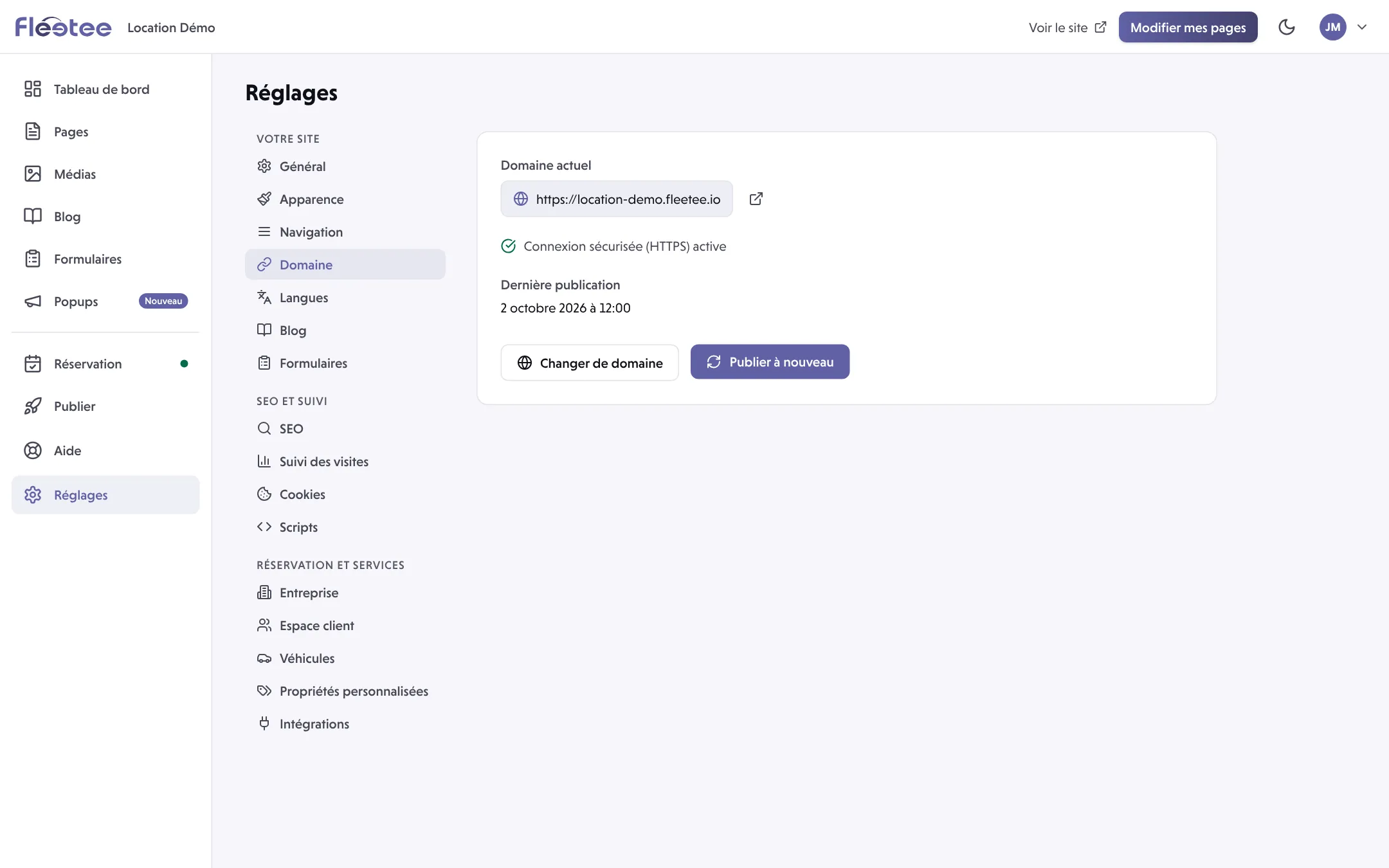
Open Réglages › Domaine
Domaine actuel (Current domain) shows the address your site answers on today. Click Configurer le domaine (Set up the domain), or Changer de domaine (Change domain) if your site is already published.
Choose “Domaine personnalisé”
The other choice, Sous-domaine Fleetee (Fleetee subdomain), keeps the Fleetee address. Enter Votre nom de domaine (Your domain name), in full, with or without “www” (for example
www.my-company.com).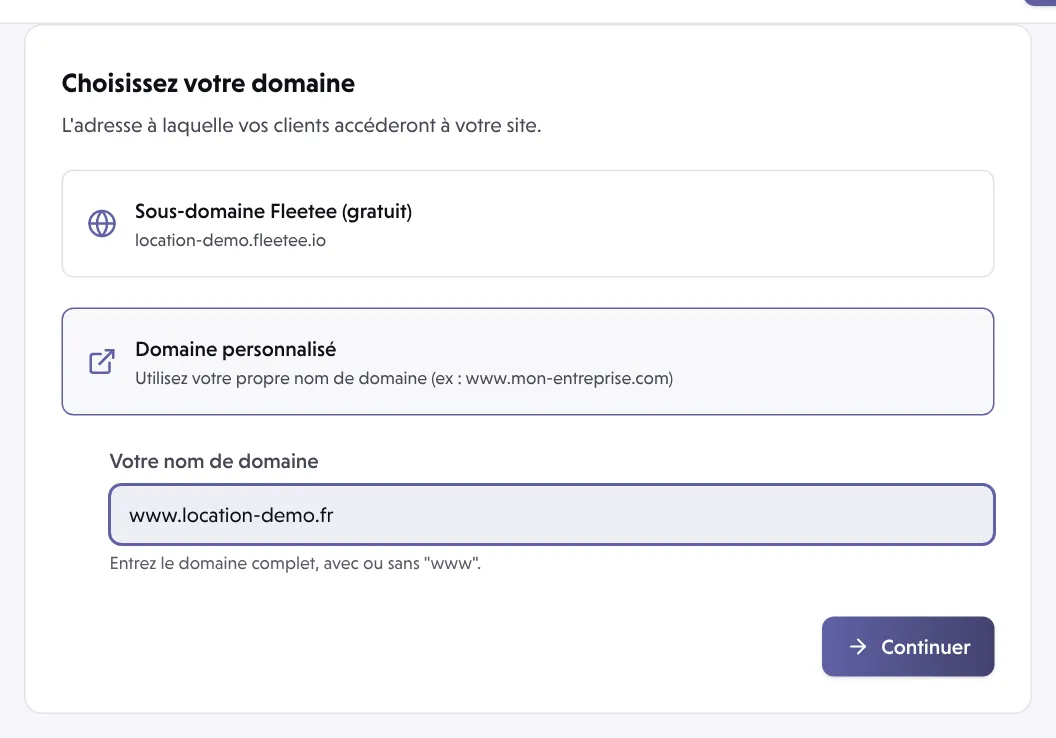
Follow the advice about “www”
Click “Continuer”
If the change alters the address of a site that is already online, Fleetee Web asks you to confirm. You move on to the Configuration DNS step.
Change the DNS line with your provider
At the Configuration DNS step, Vos lignes DNS (Your DNS lines) shows one card per name: the one that shows your site (the main address) and, if there is one, the one that redirects to it. Each card gives:
- the Nom (Name) and Type of the line (for example CNAME for a “www” name, an A line for a name without “www”, often written “@”);
- the Valeur actuelle (Current value) of the line at your provider;
- the Valeur à mettre (Value to set), with a Copier (Copy) button.
At your provider:
- Edit the line shown: replace its value with the one in “Valeur à mettre”, do not add a second line.
- If other lines are in the way (an old A line, for example), Fleetee Web says which to delete first: a CNAME cannot sit alongside other lines of the same name.
- Do not touch the other lines, especially MX and TXT: your e-mails do not change.
- With some providers, enter the value with a dot at the end, as the screen says.
To pass this on to your provider or IT person, use Envoyer à mon prestataire (Send to my provider), under the lines.
Wait for it to take effect
Fleetee Web checks your lines every 20 seconds: the page updates by itself, and you can also click Vérifier maintenant (Check now). Each line goes through states:
- À changer (To change) or À ajouter (To add): your turn;
- Enregistré chez (Saved at) your provider: the line is right, but some networks still keep the old one in memory, for up to an hour;
- Pris en compte (In effect): the line is active.
It can take from a few minutes to 48 hours to take effect. The HTTPS certificate (the secure connection) is created by itself as soon as your lines are in effect. When all is well, the screen shows “Domaine connecté : il est prêt” (Domain connected: it is ready). Only the main address is needed to continue; the other can be changed later. You can leave the page: meanwhile your site stays online on its Fleetee address.
Then Continuer leads to the content to publish, then the checks. See Save, preview, publish: what is the difference?.
If it does not work
- “Ce nom de domaine n’existe pas, ou n’est plus actif” (This domain name does not exist or is no longer active): check the spelling and the renewal with your provider.
- The certificate is “bloqué” (blocked): your domain name only allows some certificates (a CAA line). Add “letsencrypt.org” to the list with your provider.
- With Cloudflare, set the line to “DNS only” (grey cloud): with the orange cloud, Fleetee cannot see where the name leads.
- “Ce nom affiche le site d’un autre compte Fleetee” (This name shows another Fleetee account’s site) or “Ce nom de domaine est déjà utilisé sur un autre compte” (This domain name is already used on another account): follow the TXT line asked for, or ask for help, we will look with you.
- “Votre prestataire DNS ne répond pas pour l’instant” (Your DNS provider is not answering at the moment): Fleetee Web tries again every 20 seconds. If it lasts, contact your provider.
- Some of your visitors still reach the old site: the old line has not expired everywhere yet. Wait, there is nothing to do.
Where to find it: Réglages › Domaine (Settings › Domain)
Go further
Updated on 18 November 2026 with version 2.0