

How do I show, order or hide my extras in the booking module?
- Web v2
- Administrator
- Marketing
In short. In Réservation › Parcours, section “Options et packs proposés en ligne”: pick a pricing group, then offer or hide each option, make it “Incluse d’office” and reorder with Monter and Descendre. Save.
Extras (baby seat, additional driver, insurance…) are created in Manager. What you set in Fleetee Web is which of them the booking module offers your customers, and in what order. Fleetee calls them “options”.
Fleetee Web is displayed in French. The names below are quoted as they appear on screen, with a translation in brackets when needed. If an option or pack does not exist yet, the section says so: it is created in Manager (see How do I create extras (child seat, additional driver…)?).
Open Réservation › Parcours
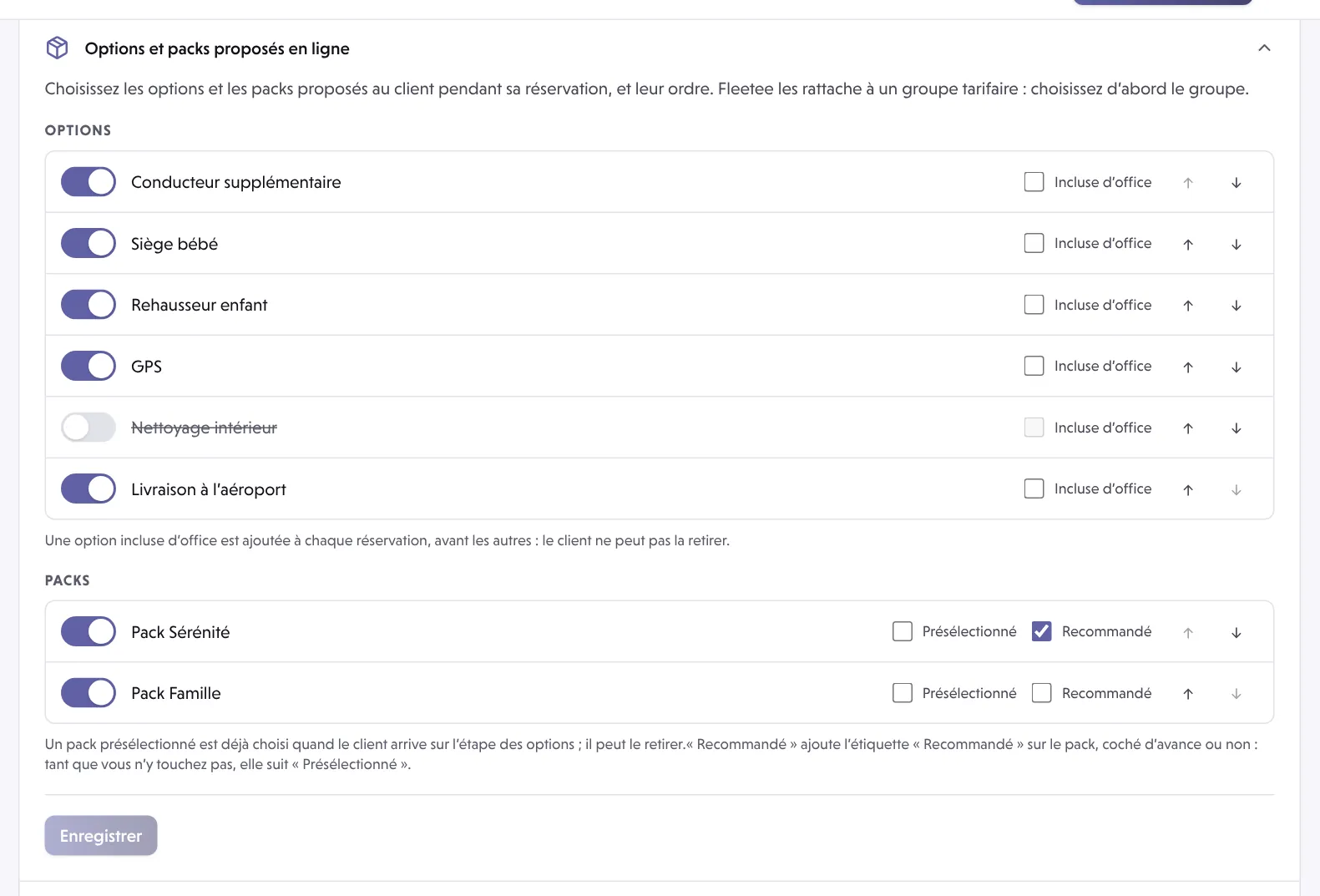
Expand the Options et packs proposés en ligne section. It opens with: “Choisissez les options et les packs proposés au client pendant sa réservation, et leur ordre” (choose the options and packs offered to the customer while booking, and their order).
Choose the pricing group
Fleetee attaches each option and pack to a pricing group (“groupe tarifaire”), and the site only offers a visitor those of the group their rental falls in. With several groups, a Groupe tarifaire selector appears, and a sentence says which group your customers see. What you set applies to the group shown only. See How do I apply a specific price list to my website?.
Show or hide an option
The Proposée en ligne (offered online) switch on each row: when off, the option is struck through and no longer offered on the site. It stays available in Manager.
Make an option mandatory (optional)
Tick Incluse d’office (included by default): the option is added to every booking, before the others, and the customer cannot remove it. The box is unavailable for a hidden option.
Change the order
Use Monter (up) and Descendre (down) on each row. On the site, options included by default come first, then the others follow this order. With several option groups, Ordre des groupes d’options sets the group order the same way.
Set the packs
Each pack has the same controls, plus Présélectionné (preselected: the pack is already chosen when the customer reaches the options step; they can remove it) and Recommandé (a “Recommandé” badge on the pack, which follows “Présélectionné” until you touch it).
Click “Enregistrer” (Save)
Annuler (Cancel) drops your changes. The message “Options et packs enregistrés” confirms.
Showing two steps of the journey or not
The Options proposées au client section turns two optional steps on or off: Afficher le choix du niveau de franchise (show the deductible level choice) and Afficher le choix du palier kilométrique (show the mileage tier choice). When hidden, the customer books with your default deductible or package.
Option photos
An option’s photo is the one you add to the option in Manager. If your site is still on the older version of the module (the screen speaks of “votre site actuel”), the Affichage des résultats et des options section offers Afficher la photo des options (show option photos) and Regrouper les options par thème (group options by theme: insurance, equipment…).
If an option does not show
- It is hidden: check Proposée en ligne in the right pricing group.
- It belongs to another pricing group than the rental’s: change the group shown in the selector.
- Options belong to the company, not to an agency: the setting applies to every agency.
Where to find it: Réservation › Parcours › “Options et packs proposés en ligne”
Where to find it: Réservation › Parcours › “Options et packs proposés en ligne” (Booking › Journey › Options and packs offered online)
Go further
Updated on 18 November 2026 with version 2.0