

How do I organise the menu and translate my website?
- Web v2
- Administrator
- Marketing
In short. The menu and footer are set in Réglages › Navigation, languages in Réglages › Langues. Choose “Plusieurs langues” (several languages), translate each page with “Changer de langue”, save, then publish.
The menu and footer can be edited by whoever may edit the site (by default the administrator and the marketing profile); the languages are a setting reserved to the account administrator.
The menu leads to the right pages, and languages let your visitors read the site in theirs. Both are set in Réglages (Settings) in Fleetee Web.
Fleetee Web is displayed in French. The names below are quoted as they appear on screen, with a translation in brackets. If your site is only a booking module (“Module seul”), it has no header or footer: Navigation and Blog are then not offered in Réglages.
Build the header menu
Open Réglages › Navigation
Find Menu de l’en-tête (Header menu).
Start from a list
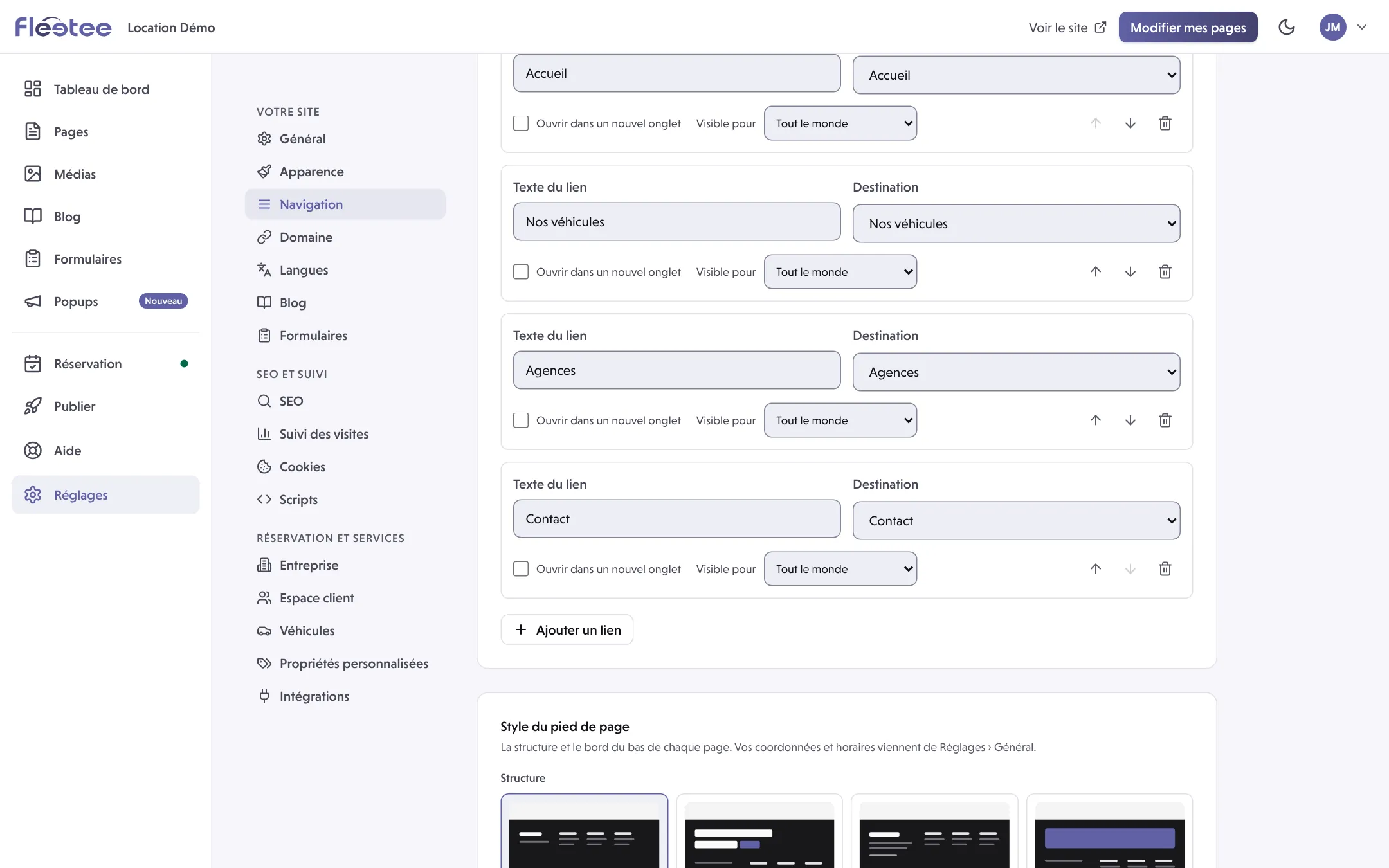
If the menu is empty, Ajouter les pages principales (Add the main pages) prepares a first list. Review it: not every page has to be in it.
Add a link
Ajouter un lien (Add a link), then Texte du lien (Link text, a short label) and its destination in the list. For an outside address, choose Lien externe… (External link…) and fill in Adresse du lien externe (External link address), in full.
Change the order
Monter (Move up) and Descendre (Move down) move a link. Check the result on a phone: the booking button is added to the menu by itself.
Save
Click Enregistrer (Save) and wait for the confirmation, then publish. See Save, preview, publish: what is the difference?.
The Pied de page (Footer) is set in the same place: Titre de la colonne (Column title), Texte du lien and its destination, Ajouter un lien à la colonne (Add a link to the column), Ajouter une colonne (Add a column). Keep labels that make sense out of context, for example “Rental conditions”. Removing a link does not delete the page, but it can make it hard to find.
A page does not enter the menu by itself: add it here. A link to a page that is not published may show in the preview without being offered to the visitor.
Translate the site
Open Réglages › Langues
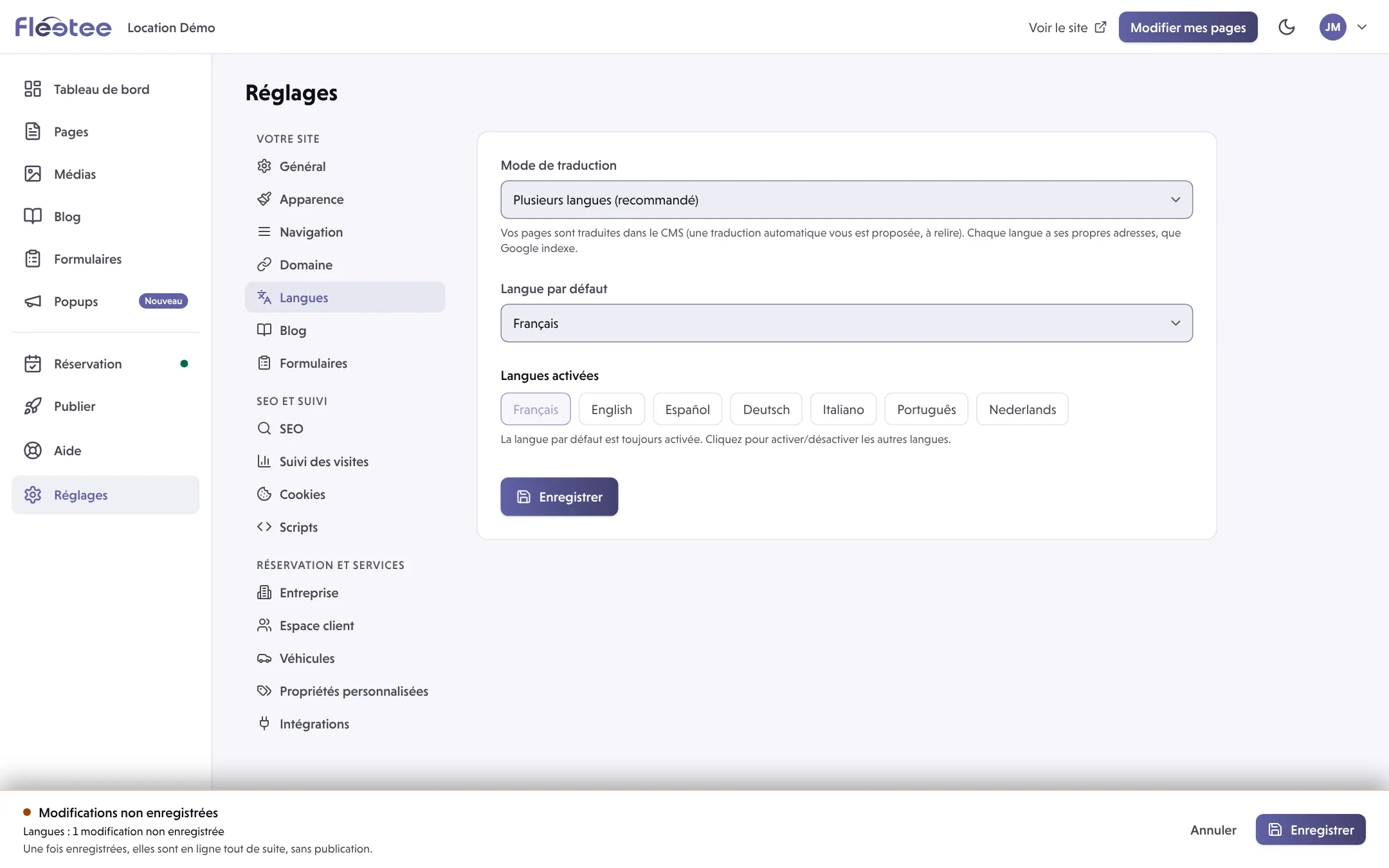
Read Mode de traduction (Translation mode) before you change an existing site. The three choices: Une seule langue (One language), Plusieurs langues (recommandé) (Several languages, recommended) and Weglot (compatibilité) (Weglot, compatibility).
Choose “Plusieurs langues”
Your pages are translated in Fleetee Web, with a machine translation offered that you review. Each language has its own addresses, which Google indexes. Choose the Langue par défaut (Default language, always kept on) and tick the Langues activées (Enabled languages), then save.
Translate each page
Open the page in Pages, then Changer de langue (Change language; on a small screen: Modifier en… in “Plus d’actions”). Review and correct the title, text, buttons and destinations. If you use the machine translation offered, always review the result.
Save before you switch language
Save the current version, then move to the next one. Repeat on the pages that need it and check the preview in each language.
Do not change the Weglot mode of an existing site without reading the consequences shown on screen. Before you remove a language that is already used, read the confirmation. Adding a language does not mean every text is already translated or published.
Translate the booking module
With Plusieurs langues, the texts of Réservation › Apparence are entered in each language: choose the language with the “Textes en FR” (Texts in FR) menu at the top of the screen. A text left empty in a language shows the module’s own text in that language. With Une seule langue, texts show as you type them; with Weglot, Weglot translates them like the rest of the site.
If a language is missing or a link gets lost
- A link exists in the preview but not on the site: check that the page it points to is published, and the language you are viewing.
- An external link is flagged as invalid: check the protocol and the full address.
- A language is missing in the editor: check the translation mode and the saved languages. In Weglot mode, editing stays in the original language.
Where to find it: Réglages › Navigation ; Réglages › Langues (Settings › Navigation; Settings › Languages)
Go further
Updated on 18 November 2026 with version 2.0