

How do I offer a promo code on my website?
- Web v2
- Administrator
- Marketing
In short. In Réservation › Codes promo, click “Créer un code promo”, set the reduction, validity and conditions, turn on “Disponible sur le site” and save: customers type the code in the booking module.
A promo code is a reduction your customers type into the booking module. These are the same codes as Manager’s discount vouchers: Fleetee Web reads and writes them in Fleetee and keeps no copy. See also How do I create a discount code?.
Fleetee Web is displayed in French. The names below are quoted as they appear on screen, with a translation in brackets when needed. The Codes promo entry only appears for accounts where the feature is open: otherwise the screen says “Les codes promo ne sont pas encore disponibles pour votre compte” (promo codes are not yet available for your account). The Fleetee account administrator and the Marketing role can create, edit or delete a code; other roles can view them.
Open Réservation › Codes promo
The list gives, for each code: Code, Réduction (reduction), Validité (validity), Utilisations (uses), Conditions, Où il est utilisé (where it is used) and Statut. The filters Tous, En cours, Programmés and Terminés and the search (Rechercher un code) help you find your way.
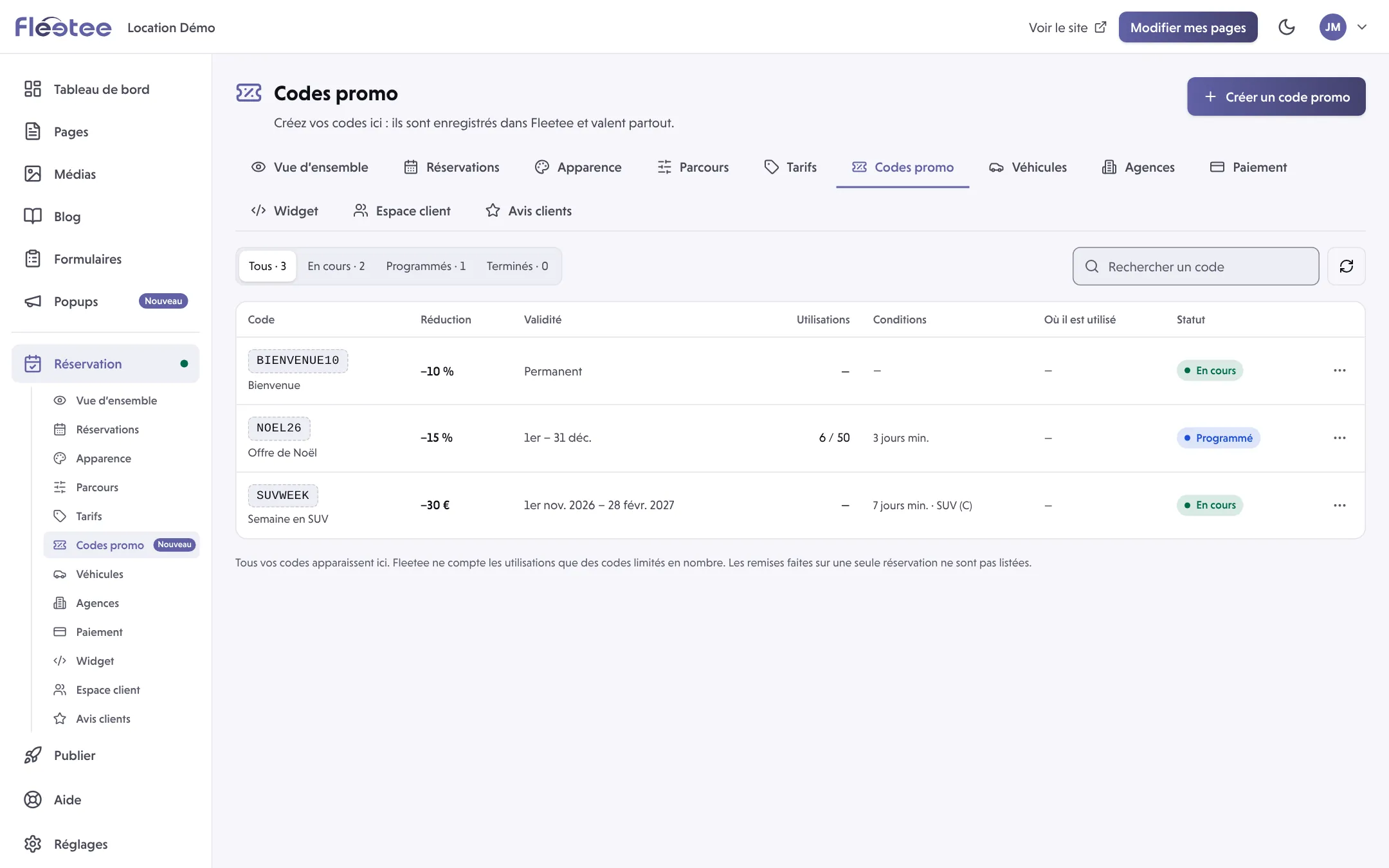
Click “Créer un code promo” (create a promo code)
A panel opens.
Enter the code and its name
Code: what your customers will type. Letters without accents, digits, “-” and “_” only, 32 characters at most; Fleetee checks that it is Disponible (available). Nom (name): shown on invoices (100 characters at most).
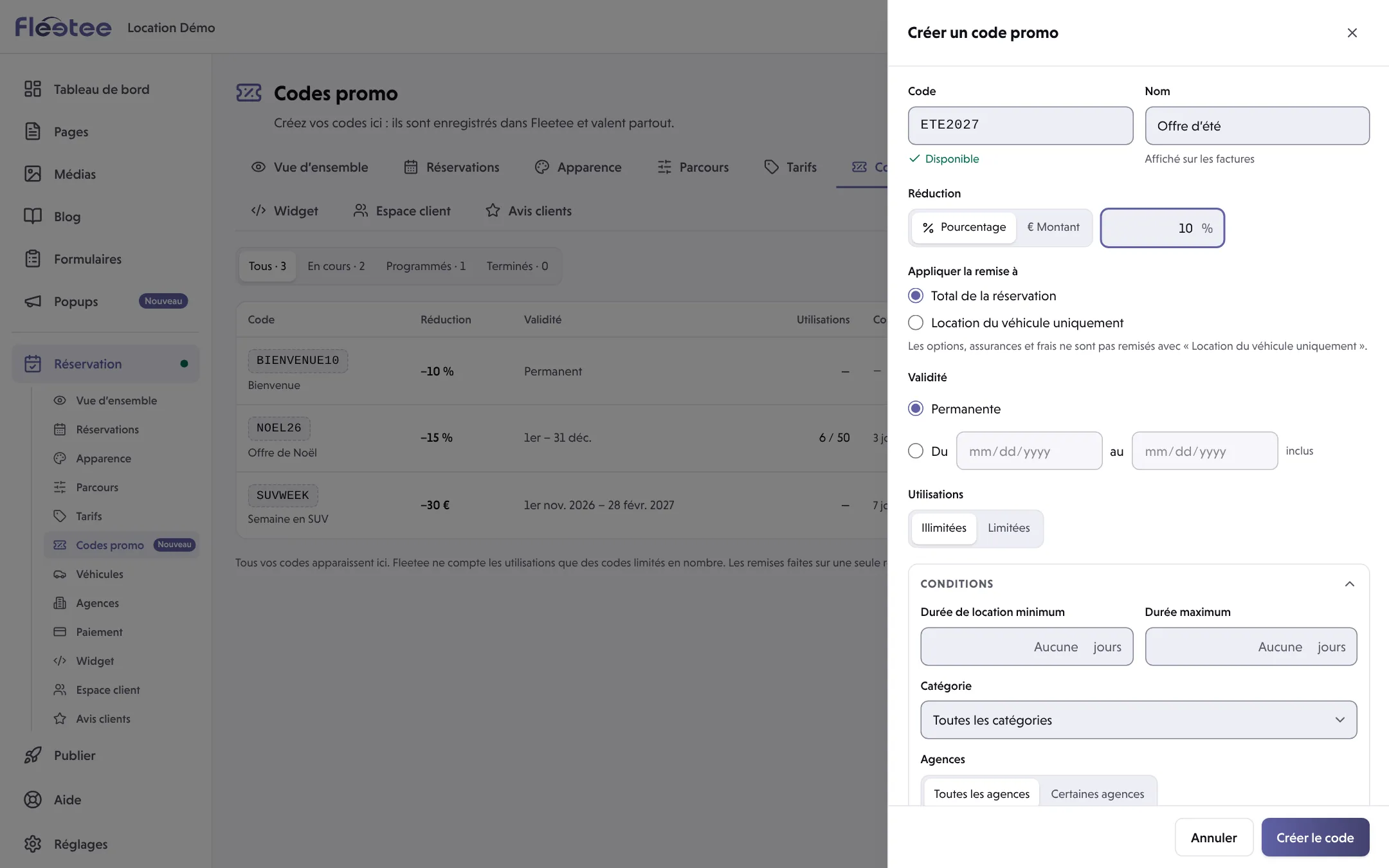
Set the reduction
Pourcentage (percentage, between 1 and 100) or Montant (amount, incl. tax, deducted from the booking total). Appliquer la remise à (apply the discount to): Total de la réservation (booking total), or Location du véhicule uniquement (vehicle rental only; options, insurance and fees are then not discounted). A very high reduction asks for confirmation (“Je confirme cette réduction”).
Set the validity and usage
Validité: Permanente (permanent), or Du … au … (from… to…: the booking dates). Utilisations: Illimitées (unlimited), or Limitées (limited) to a total number of times.
Limit the conditions (optional)
Minimum and maximum Durée de location (rental length), Catégorie, Agences, and Quand ? (when: Toute l’année all year, Une saison a season, or Des dates précises specific dates, with what counts: the departure day or the whole rental).
Turn on “Disponible sur le site”
This is what lets customers type it into the booking module. Without it, “the code is saved, but the site refuses it until it is available”.
Click “Créer le code” (create the code)
The code appears in the list with its status.
Statuses
En cours (running), Programmé (scheduled: not valid yet), Expiré (expired), Épuisé (used up: all uses taken), Désactivé (disabled), and Pas utilisable sur le site (not usable on the site), for a code the module cannot apply (the row gives the detail).
Follow a code
The Statistiques (statistics) button on the list gives figures for your codes’ use. For a code without a limit, “Utilisations” gives the number of confirmed bookings made with that code.
Edit or delete
Modifier (edit) opens the same panel. Supprimer (delete) asks for confirmation (“Supprimer ce code promo ?”). A code already used by one of your site’s popups must be chosen again in the popup after a change.
Where to find it: Réservation › Codes promo (Booking › Promo codes)
Where to find it: Réservation › Codes promo (Booking › Promo codes)
Go further
Updated on 18 November 2026 with version 2.0