

How do I get my booking module up and running?
- Web v2
- Administrator
In short. In Fleetee Web, open Réservation › Parcours (Booking › Booking flow): check the connection to Fleetee, choose automatic or manual validation, set up online payment, then follow the configuration status on the overview.
The booking module settings are reserved to the account administrator; a marketing profile can read them but not change them.
The booking module lets your customers book and, depending on your settings, pay online. The settings are in Fleetee Web, in the “Réservation” (Booking) menu.
Fleetee Web is displayed in French. The names below are quoted as they appear on screen, with a translation in brackets.
Open the booking settings
In Fleetee Manager, click Settings › Booking site (an entry reserved to the administrator): the settings open in a new tab, already signed in. In Fleetee Web, it is the “Réservation” menu.
Look at “Vue d’ensemble” (Overview)
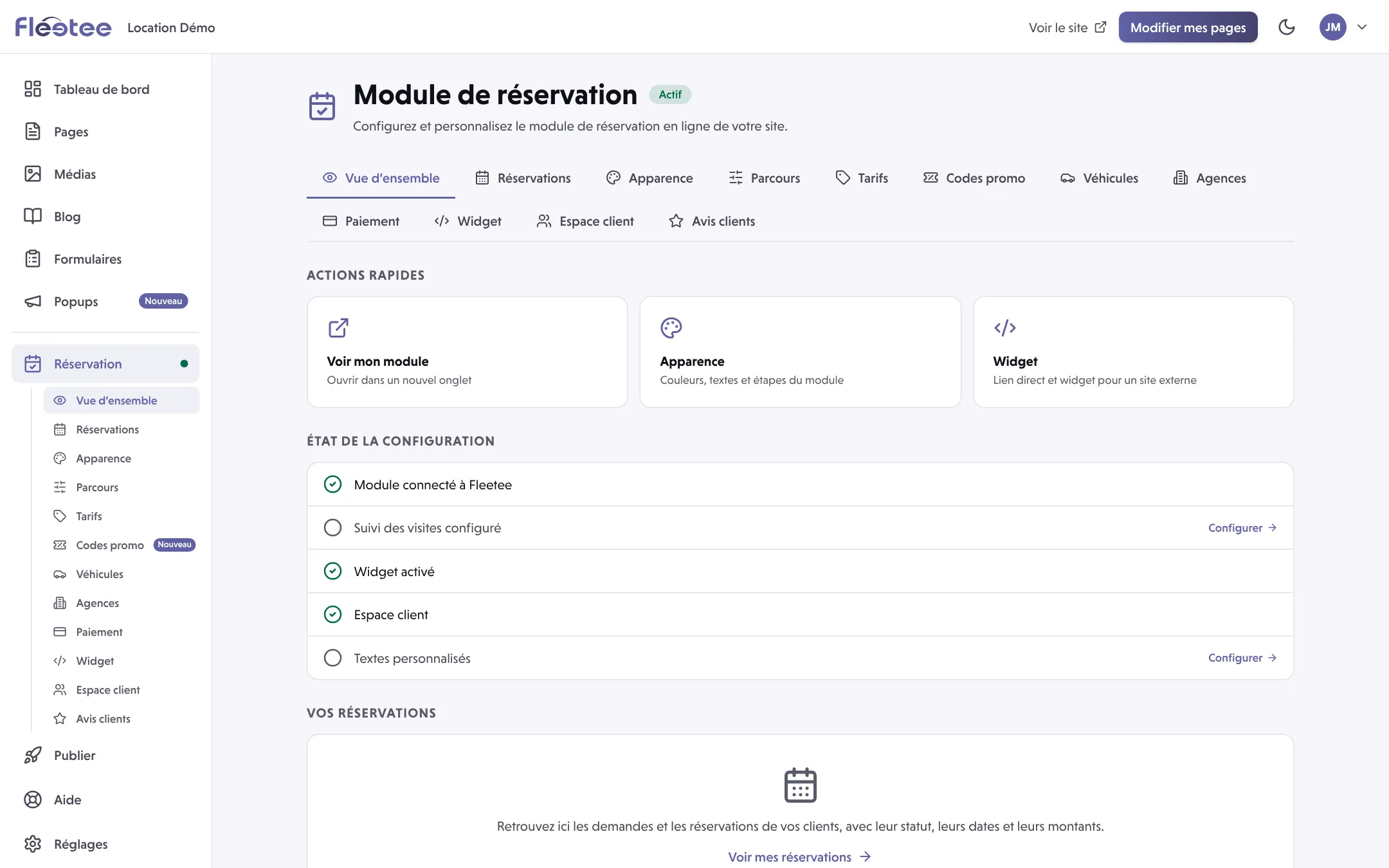
The “Module de réservation” (Booking module) page shows a status (“Actif” active, “Non configuré” not configured or “Désactivé” disabled) and “État de la configuration” (Configuration status): “Module connecté à Fleetee” (module connected to Fleetee), “Suivi des visites configuré” (visit tracking set up), “Widget activé” (widget on), “Espace client” (customer portal) and “Textes personnalisés” (custom texts). Each finished line is ticked, and “Configurer” (Configure) leads to its setting.
Check the connection to Fleetee
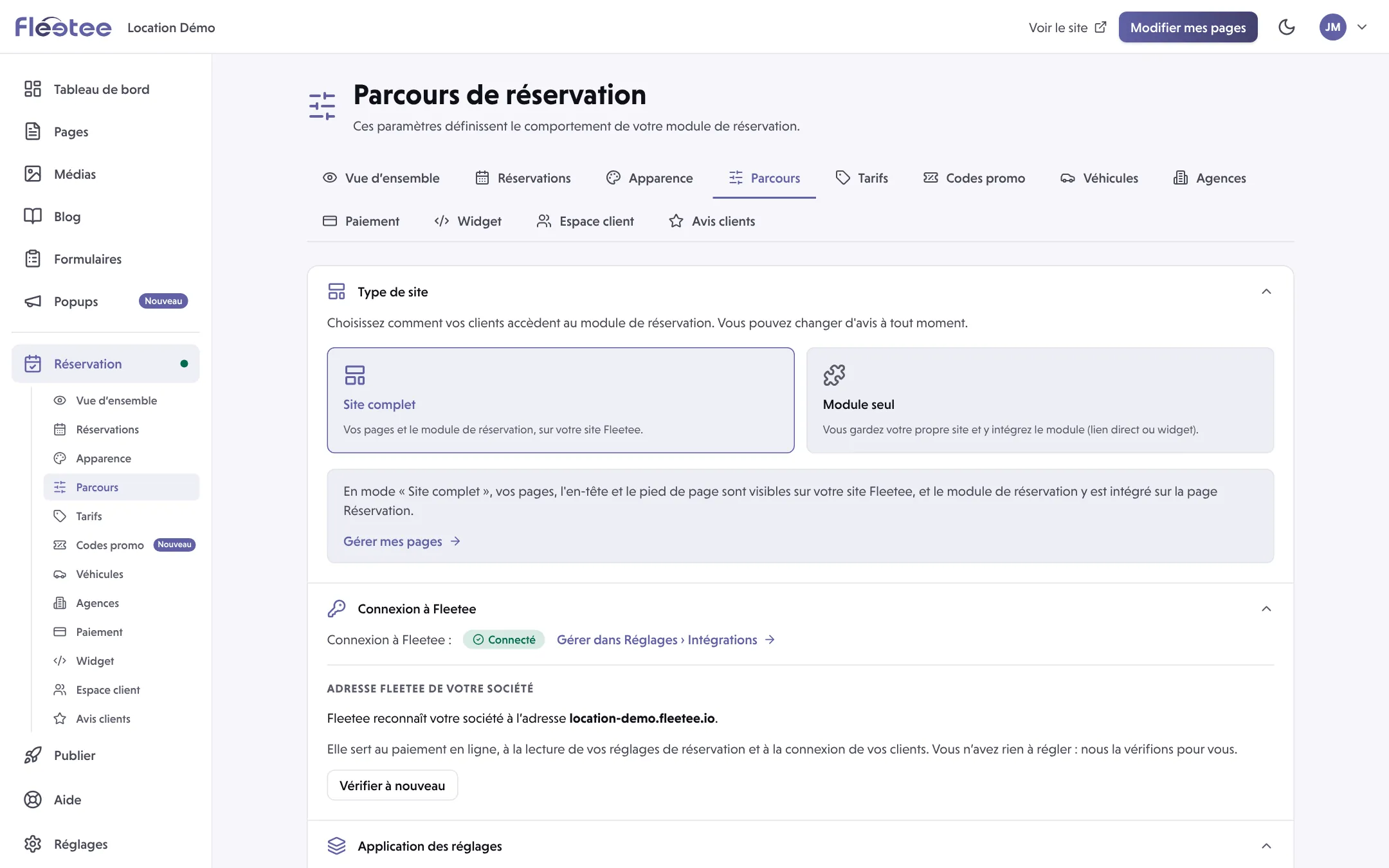
The module reads your agencies, vehicles and prices from Fleetee. Without the connection, Fleetee Web shows “Connexion à Fleetee non activée : vos agences ne peuvent pas s’afficher” (Connection to Fleetee not activated: your agencies cannot be displayed). The connection is activated in Réglages › Intégrations (Settings › Integrations). In “Parcours”, the “Connexion à Fleetee” line says “Connecté” (Connected).
Open “Parcours” (Booking flow)
Réservation › Parcours (“Parcours de réservation”) gathers the settings in foldable sections. The most important ones are described below.
Set up payment
Réservation › Paiement (Payment): “Choose how your customers pay when booking, and connect your payment provider.”
Put the module in front of your customers
In the overview, “Voir mon module” (See my module) opens the module. “Widget” gives the direct link and the widget for an external site, and “Apparence” (Appearance) sets the colours, texts and steps.
The important settings of “Parcours”
- Type de site (Type of site): choose how your customers reach the booking module. You can change your mind at any time.
- Application des réglages (How settings apply): “Les mêmes pour tout le compte” (the same for the whole account), or “Agence par agence” (agency by agency: validation, deposit, redirects… specific to each agency).
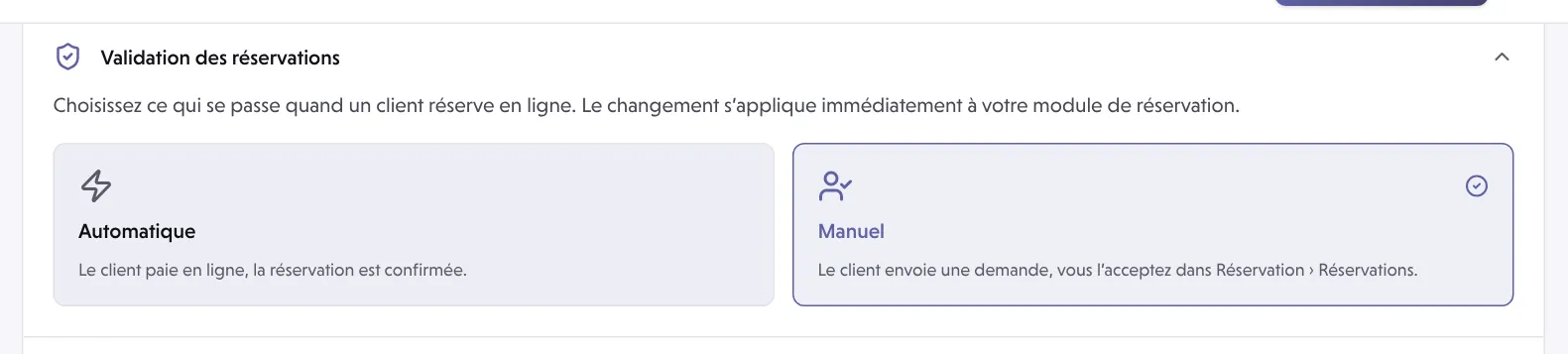
- Validation des réservations (Booking validation): “Automatique” (the customer pays online, the booking is confirmed) or “Manuel” (the customer sends a request, you accept it in Réservation › Réservations). The change applies immediately.
- Acompte (Deposit): “Demander l’intégralité du paiement” (ask for the full payment: the customer pays the whole rental online) or “Demander un acompte” (ask for a down payment: the customer pays part online and the balance at the counter). For a down payment, you choose the “Part réglée en ligne” (share paid online).
- Paiement en ligne par groupe tarifaire (Online payment by price list): you choose the groups whose bookings are paid online. For the others, the booking is confirmed without payment on the site, and you collect at the agency.
- Agences affichées, Choix des horaires, Options proposées au client and Résultats de recherche (agencies shown, time choice, options offered, search results): what your customers see and can choose.
Without an online payment method set up for your company, no price list can be paid online. If you turn payment off for a group, its bookings are confirmed without any payment: the site then announces a confirmation, not a payment.
Where to find it: Fleetee Web › Réservation › Parcours (from Manager: Settings › Booking site, which opens in a new tab)
Go further
Updated on 18 November 2026 with version 2.0