

Can I connect my Shopify site to Fleetee Web?
- Web v2
- Administrator
- Marketing
In short. There is no dedicated Shopify connection, but the booking module shows on Shopify like on any site: through the widget code (Réservation › Widget), or a simple direct link. No API key is needed.
Fleetee Web has no Shopify app or connection of its own: it does not synchronise your shop. The booking module, however, can be shown on any site that accepts custom code, and it needs no development and no API key. You have two options.
Fleetee Web is displayed in French. The names below are quoted as they appear on screen, with a translation in brackets when needed. Your agencies, vehicles, availability and prices must be ready in Fleetee, and your Fleetee site must have its address online: see How do I get my booking module up and running?.
Option 1: show the module on your Shopify site (widget)
Prepare the widget in Fleetee Web
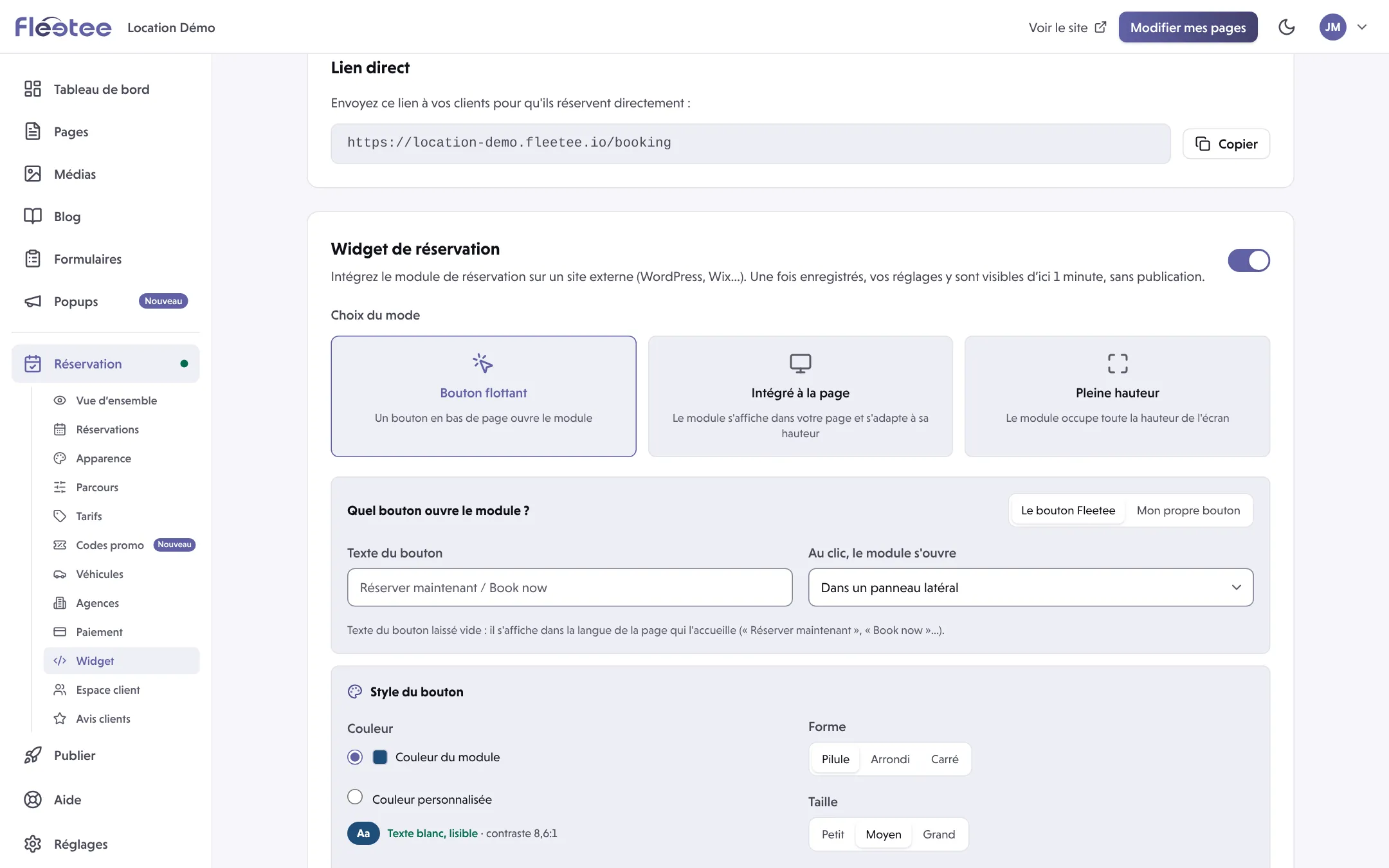
In Réservation › Widget, turn the widget on, choose the mode (Bouton flottant floating button, Intégré à la page embedded in the page, or Pleine hauteur full height) and click Enregistrer (save). The details are in How do I embed the booking module in my WordPress site?: the settings are the same for every platform.
Allow your shop’s address
In Sites autorisés à afficher le widget (sites allowed to display the widget), enter your Shopify site’s address with nothing after it (for example
https://www.my-shop.com), then click Autoriser (allow). The address with “www” and the one without are two different addresses.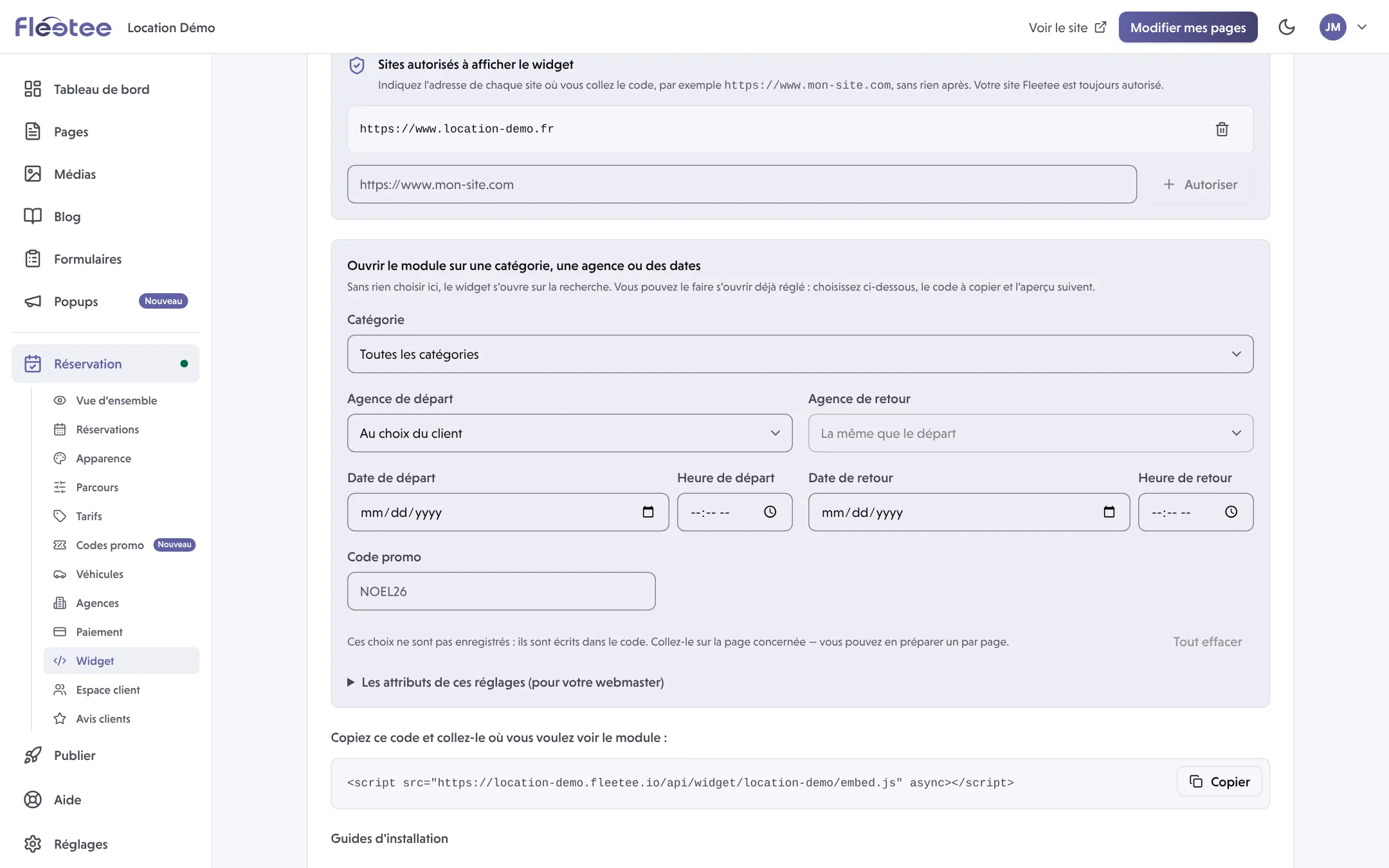
Copy the code
Click Copier (copy) under “Copiez ce code et collez-le où vous voulez voir le module” (copy this code and paste it where you want the module to appear).
Paste it into Shopify
Fleetee Web has no dedicated Shopify guide: the Guides d’installation › Autre (installation guides › other) tab sends you to your platform’s help to add custom code. Follow Shopify’s help for that, and paste the code unchanged.
Test on the public page
Open your shop, run a search with dates and a test agency, and check the display on a phone. Do not complete a real booking until the journey is validated.
If the module does not show, or only on some sites, the causes are listed in How do I embed the booking module in my WordPress site? (address not allowed, page not published…).
Option 2: a link to the module
The same Réservation › Widget page gives a Lien direct (direct link): an address to put in a button or menu item of your shop (“Book a vehicle”). Customers book on the module hosted by Fleetee Web, then come back to your site like after any link. There is nothing to paste.
What this does not do
- The widget does not import your Shopify products and does not sell vehicles through the Shopify cart: booking and payment go through Fleetee.
- The code is the same for every platform. If your developer wants a fully custom journey, see API or booking module: which one do I need?.
Where to find it: Réservation › Widget (Booking › Widget)
Where to find it: Réservation › Widget (Booking › Widget)
Go further
Updated on 18 November 2026 with version 2.0