

Which steps should I follow to get started with Fleetee?
- Manager v3
- Administrator
In short. On the Manager Home page, answer “Where are you with renting?”. Fleetee then shows “Your progress”: a percentage, steps grouped in stages, and a button that takes you to your next step.
The first time you sign in, Fleetee Manager asks where you are, then lays out your setup steps on the Home page. Do them in any order: each step has its own button.
Answer “Where are you with renting?”
Choose “I’m just starting” (no rentals yet), “I already rent” (even one vehicle, now and then) or “I’m switching software” (your vehicles, customers and rentals are elsewhere). Fleetee tailors your steps to your answer.
Read “Your progress”
The card says, for example, “Your Fleetee is 40% ready”, with the number of steps done. Steps are grouped in stages. For someone just starting: “Planned fleet”, “Rates prepared”, “Agency and company details”, “Online bookings”.
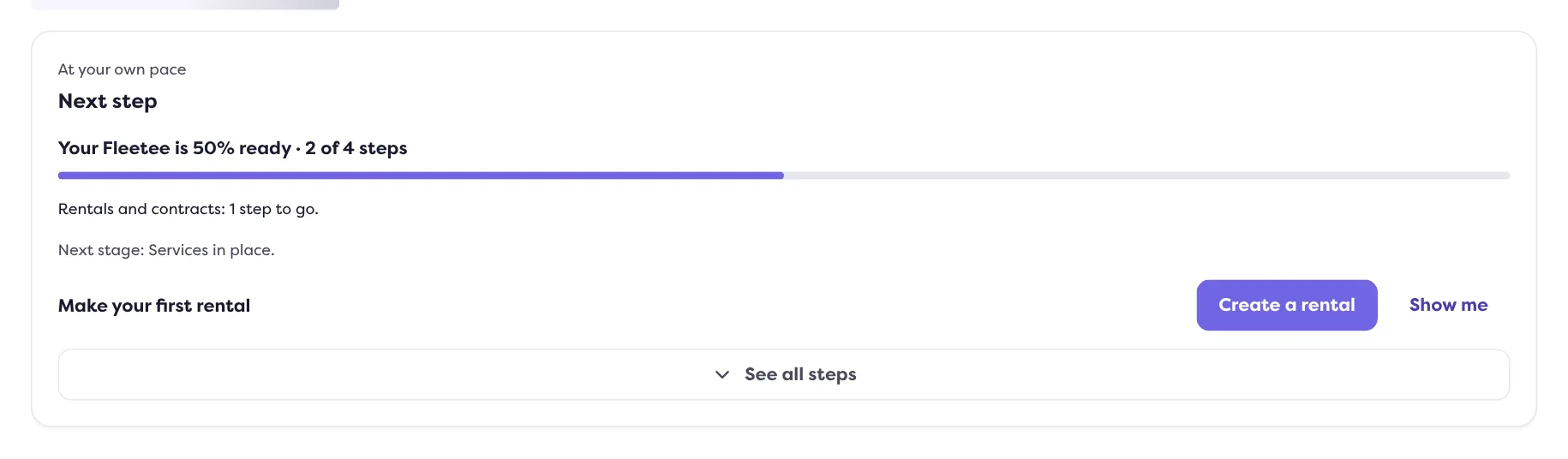
Click the button of the next step
Fleetee highlights the first step to do. Its button opens the right screen directly: a form, an import, the pricing assistant, your team’s space.
Click “Show me” if you want to be guided
When a step has a guided tour, a “Show me” button appears next to its button. It shows you where to go, but you make every move yourself: nothing is saved without you.
Come back to Home
A finished step is ticked and the card updates. Click “See all steps” to unfold the stages, or “Collapse steps” to fold them.
The steps you may meet
Depending on your profile, the list includes:
- “Set your prices”: the five-step pricing assistant;
- “Add your vehicles”: a registration number is enough;
- “Import your fleet” and “Import your customers”: import everything at once;
- “Your agencies” or “Your agency”: the address and opening hours of each agency;
- “Make your first rental”, “Your first contract in a minute” and “Issue your first invoice”;
- “Create your rental website”, “Get paid online” and “Do a check-in report on your phone”;
- “Invite your team”: the team is managed in the Fleetee Account (My account).
A step that does not apply to you can be put aside. For the team step, the menu offers “I work alone”.
Your achievements
Under the stages, “Your achievements” shows four milestones: “Site published”, “Online payments ready”, “First paperless rental” and “Team connected”. Until one is earned, it tells you what is left to do.
Change your answer or resume the start
- The “Change profile” button, at the top of the card, reopens the opening question. You can change your mind at any time.
- If you chose “Skip, I’ll explore on my own”, the question is not offered again by itself: “Change profile” reopens it.
- If you closed the start, the Help menu offers “Resume the start”.
Only the company administrator can resume the start. Once you have done the key steps, Fleetee shows “Your account is up and running!”: the card becomes “Next step”, which points out from time to time what can save you time.
Where to find it: Home, “Your progress” card (“Next step” once the start is finished)
Go further
Updated on 18 November 2026 with version 3.0