

How do I switch Fleetee to dark mode?
- Manager v3
- Administrator
- Agency manager
- Rental agent
- Accountant
In short. Open your account menu, top right: the “Theme” row offers Light, Dark or Auto. Auto follows your device setting. Your choice is kept in this browser.
The Manager comes in a light and a dark theme. Pick the one that is easier on your eyes, for example in the evening or in a dimly lit workshop.
Open your account menu
Click your profile, top right of the screen.
Find the “Theme” row
It offers three choices: the sun (Light), the moon (Dark) and Auto.
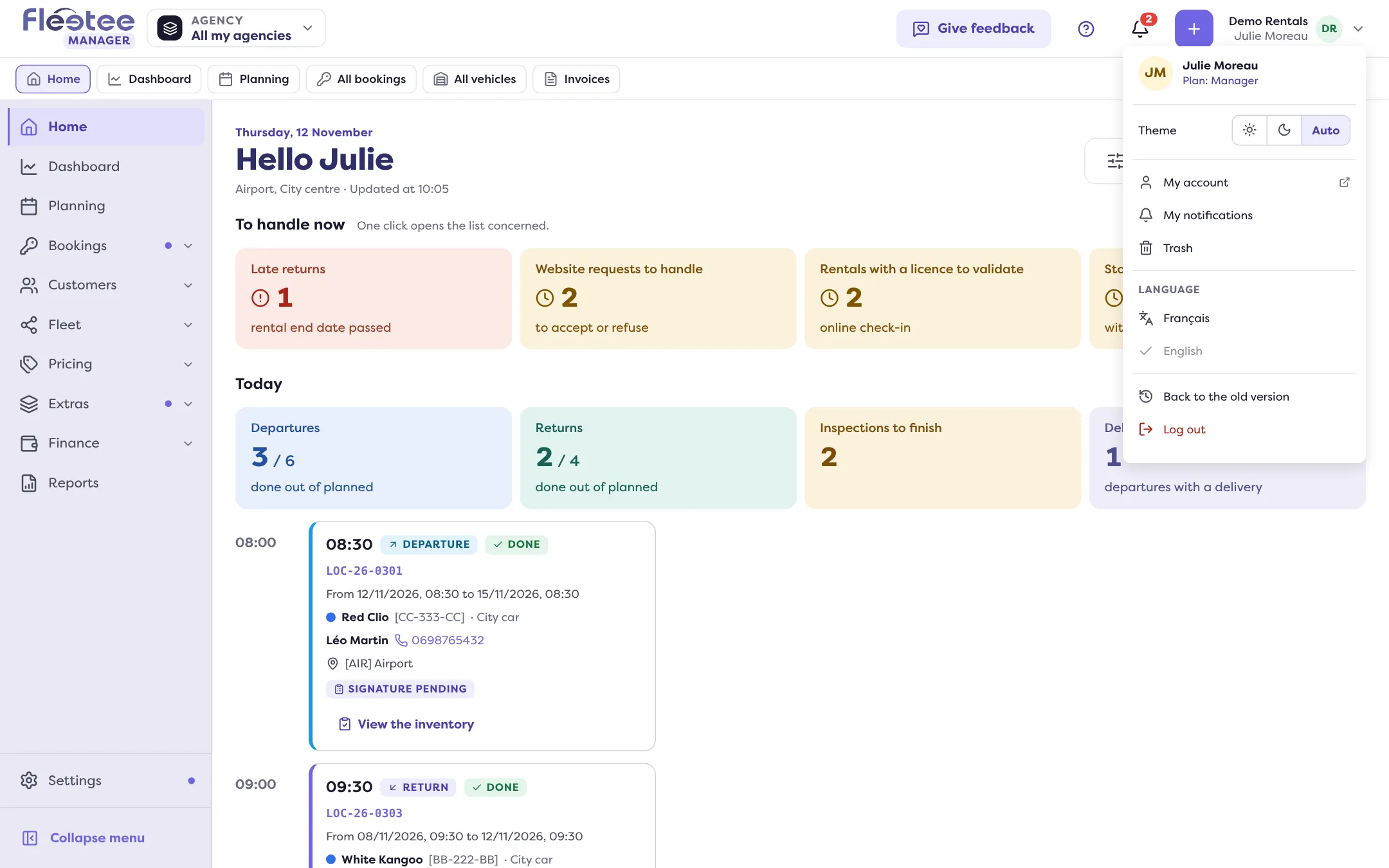
Click your choice
The change is immediate, on the whole page.
What does “Auto” do?
“Auto” follows the light or dark setting of your computer, phone or tablet. If that device goes dark in the evening, Fleetee follows. It is the default.
Good to know
The choice is kept in this browser, not in your account. On another computer or browser, choose again.
For a tour of the screens, read How do I find my way around the Fleetee Manager menu?.
Where to find it: Account menu › Theme
Where to find it: Account menu › Theme
Go further
Updated on 18 November 2026 with version 3.0