

How do I give feedback on the new version?
- Manager v3
- Administrator
- Agency manager
- Rental agent
- Accountant
In short. Click “Give feedback” at the top of the screen, say what it is about, write at least 10 characters and click “Send”. You can attach a screenshot of the page, a video or a file.
A problem, an idea, a compliment: the Fleetee team reads every piece of feedback. It uses them to decide what to improve first.
Click “Give feedback”
The button is in the header, left of the “?”. On a narrow screen it shows only its icon (a speech bubble with a heart) and its name appears on hover. You also find it in the Help menu and, on a phone, in your account menu.
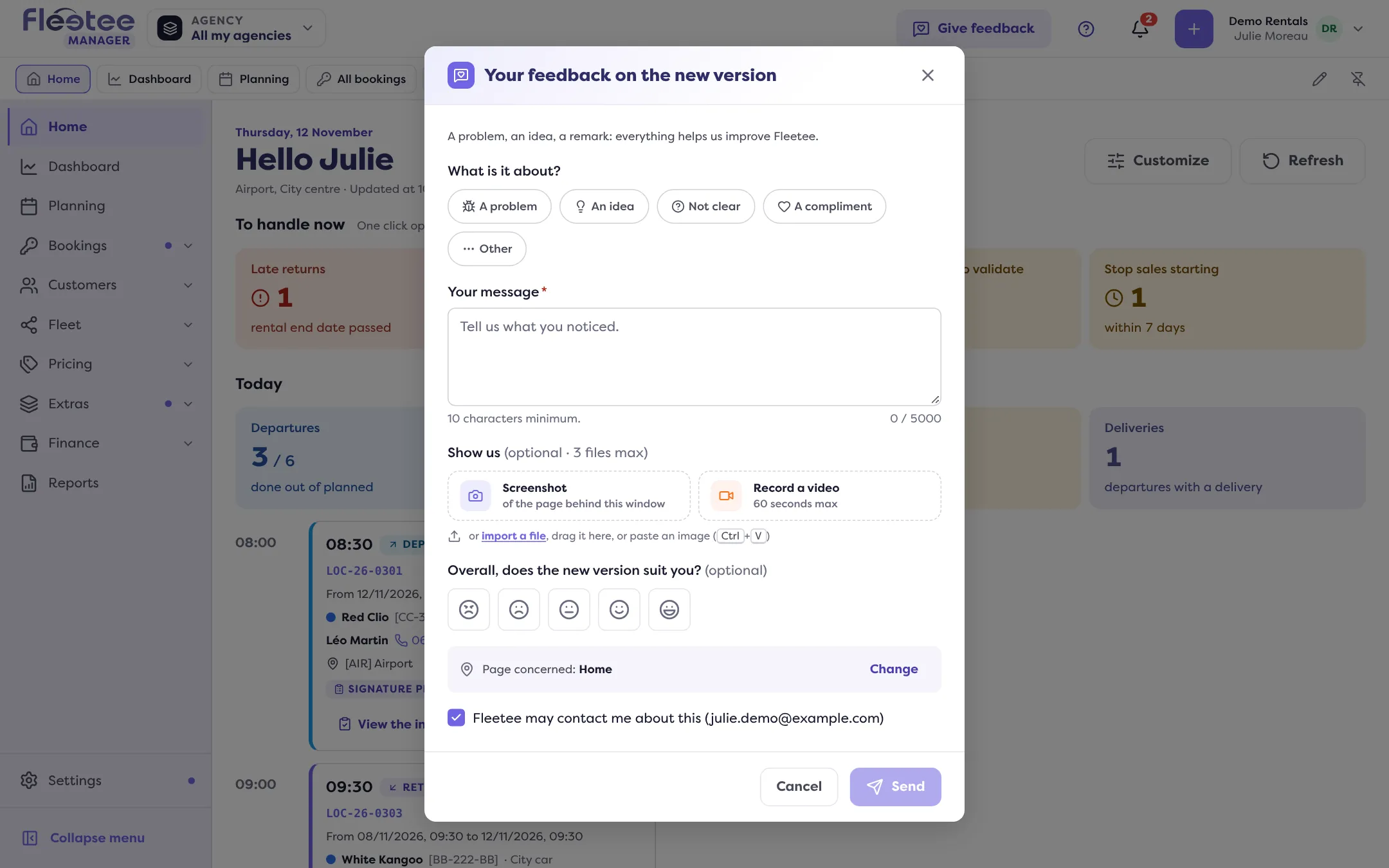
Say what it is about
Under “What is it about?”, choose: “A problem”, “An idea”, “Not clear”, “A compliment” or “Other”.
Write your message
In “Your message”, at least 10 characters. Say what you were doing and what happened.
Show us (optional)
Under “Show us”, attach a screenshot of the page behind the window, a video of up to 60 seconds (one per feedback), or “Import a file”. You can also drag a file or paste an image. Up to three files. Only the Fleetee team sees them.
Adjust, then send
You can rate “Overall, does the new version suit you?” from 1 to 5, check the “Page concerned” (“Change” to edit it) and decide whether Fleetee may contact you. Click “Send”.
The Manager confirms: “Thank you, your feedback has been passed on to the Fleetee team.”
If you are stuck
For an urgent block, the support chat answers faster: the form reminds you when you pick “A problem”. Also read How do I go back to the old version of Fleetee Manager? if you must finish a job on the old screen.
When the button is not available
- Offline: the button is greyed out (“Available once the connection is back”).
- Signed in as another user (control taken by the Fleetee team): the button is hidden.
Where to find it: Header, left of the “?”: “Give feedback” button (also in the Help menu)
Where to find it: Header, left of the “?”: “Give feedback” button (also in the Help menu)
Go further
Updated on 18 November 2026 with version 3.0