

How do I quickly find a booking, a customer or a vehicle?
- Manager v3
- Administrator
- Agency manager
- Rental agent
- Accountant
In short. Click the search bar in the header, or press Ctrl+K (⌘K on Mac), then type a name, a plate or a reference from two characters. Results are grouped by type: booking, quote, vehicle, customer, invoice…
The header search finds a booking, a quote, a vehicle, a customer, a claim, an intervention, an inspection report, an invoice or a contract in one entry.
Open the search
Click the “Search a booking, a vehicle, a customer…” bar in the middle of the header (on a phone, the “Search” button), or press Ctrl+K (⌘K on Mac).
Type what you know
A customer’s name, a registration, a booking or invoice number. Fleetee searches from two characters. It forgives typos, ignores accents and capitals, and finds a registration with or without dashes (“AB-123-CD”, “AB123CD” or “ab 123 cd”).
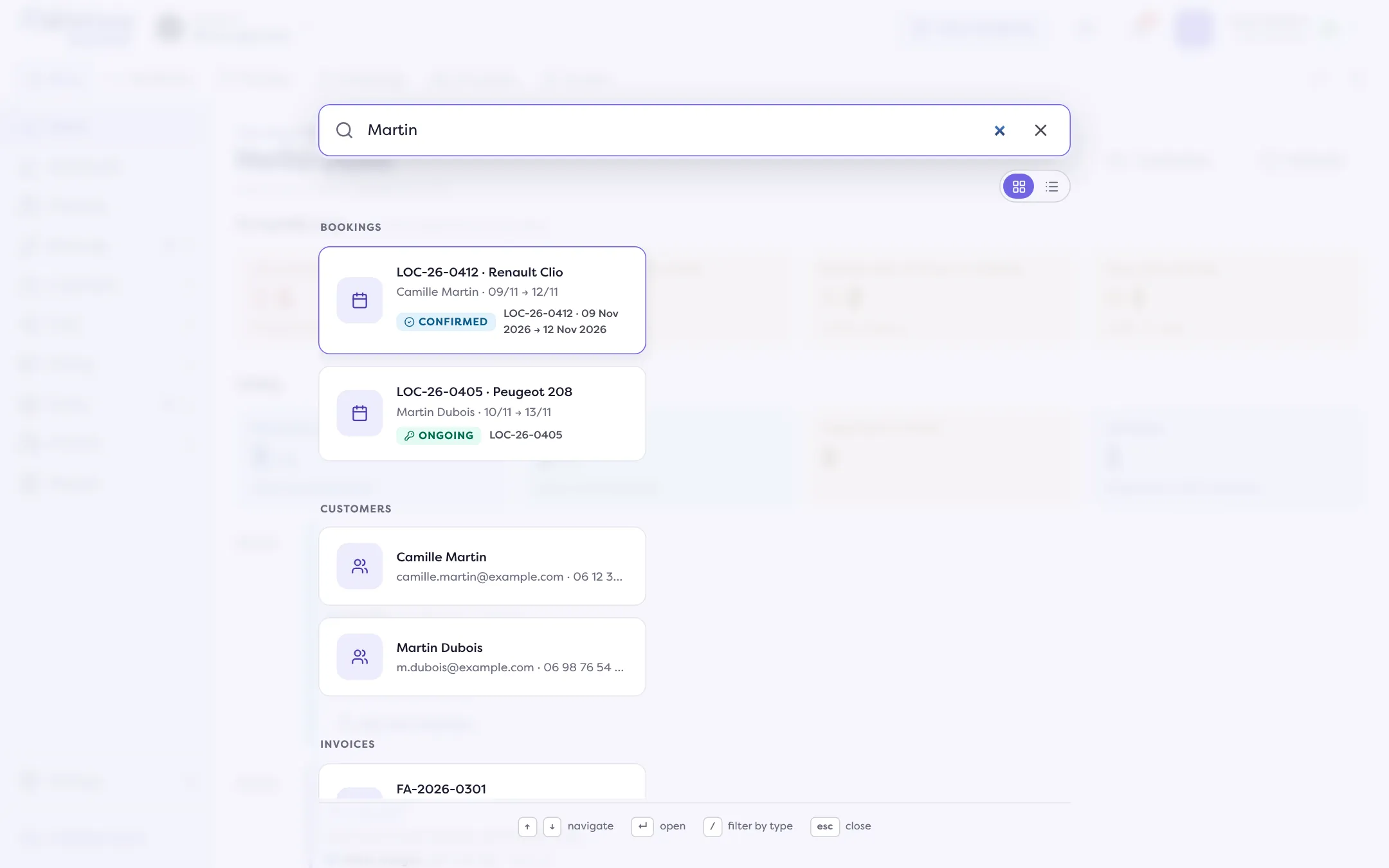
Choose the result
Use the arrow keys, then Enter, or click. The file opens. The search also offers the menu pages and the creation actions that match what you typed.
Reading the results
Results are sorted by type: Bookings, Quotes, Vehicles, Customers, Claims, Interventions, Inventories, Invoices and Contracts (main or amendment). Each line shows enough to avoid a mistake: a status, a date, the customer or the vehicle. The “Grouped view” and “List view” buttons change the layout.
Searching one type only
Type / at the start of the entry: the “Filter by type” picker opens. Choose Customers, for instance, and the field becomes “Search in Customers…”. Handy for a name that exists both as a customer and as a vehicle.
Quick actions
With nothing typed, the search offers the actions of the “Create” menu: “Create a rental”, “Create a quote”, “Add a vehicle”, “Create an invoice”, “Add a traffic ticket”, depending on your rights. “Open planning” is offered too.
If you find nothing
- “No results for …”: try a name, a plate or an identifier.
- You only see your agencies. If your access is limited to some agencies, only the items of those agencies are found. If you have chosen an agency at the top, the search is limited to it too.
- The item was deleted: look for it in the Trash.
- The bar does not appear. The search is not open for your company yet.
Where to find it: Header, search bar (Ctrl+K or ⌘K)
Where to find it: Header, “Search a booking, a vehicle, a customer…” bar (Ctrl+K or ⌘K)
Go further
Updated on 18 November 2026 with version 3.0