

How do I pin my favourite pages at the top of the screen?
- Manager v3
- Administrator
- Agency manager
- Rental agent
- Accountant
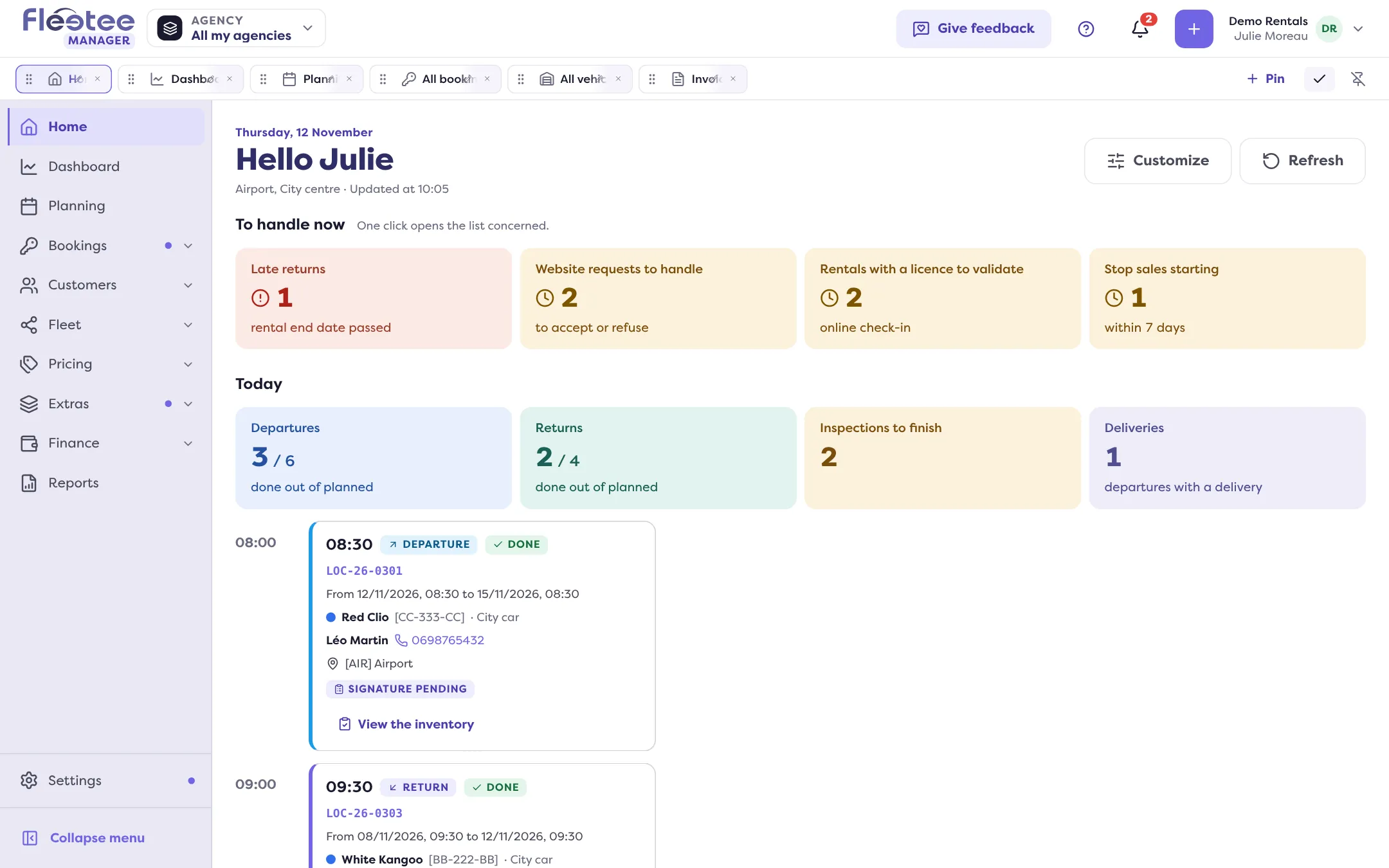
In short. The “Quick access” bar at the top of the screen keeps your favourite pages one click away. Click the pencil to edit it: “Pin” a page, rename it, move it or remove it.
The “Quick access” bar shows the pages you open most. Each person has their own.
Click the pencil
It is on the right of the bar (tooltip “Edit the quick-access bar”). The bar switches to edit mode.
Add a page
Two ways. On the page you are looking at, click “Pin this page”. Or click “Pin”, search for the page in “Search a page…” and click it.
Tidy your pins
Drag a pin to move it. A pin’s pencil renames it: the name changes only in your bar. The cross removes it.
Finish
Click the tick (“Finish editing the bar”).
Hide the bar
The button next to the pencil hides the bar (“Hide the quick-access bar”): it folds away, then comes back on hover (on a computer). “Keep the quick-access bar shown” puts it back. On a phone, the folded bar becomes a “Quick access” strip you tap to unfold.
Good to know
- Only the pages your role gives access to are offered.
- To find one specific record (a booking, a customer), use How do I quickly find a booking, a customer or a vehicle? instead.
Where to find it: “Quick access” bar, top of the screen › pencil
Where to find it: “Quick access” bar, top of the screen › pencil
Go further
Updated on 18 November 2026 with version 3.0