

How do I change a booking: dates, vehicle, extras?
- Manager v3
- Administrator
- Agency manager
- Rental agent
In short. Open the rental page: “Change the dates” and “Change the status” are at the top, the rest is in “More”, in the cards of the page and in the panels. Each change states what changes before you save.
There is no single “Edit” button: each change has its own action, gathered on the rental page. They all follow the same path.
Open the rental page
Click the row in Bookings › All bookings, or the bar in the Planning.
Pick the action
- At the top of the page: “Change the dates” and “Change the status”.
- In the “More” menu, by groups: Edit, Add (for example “Add a payment”, “Add a discount”, “Add a document”), View, Digital key and Danger zone.
- In the cards: the pencils of the pricing table (“Change the rate”, “Add an option”, “Change the mileage”, “Change the price list”, “Change the excess”) and the Deposit card (“Change the deposit”).
- In the panels: “Change the renter” and “Manage drivers” (Customer panel), “Change the vehicle” (Vehicle panel).
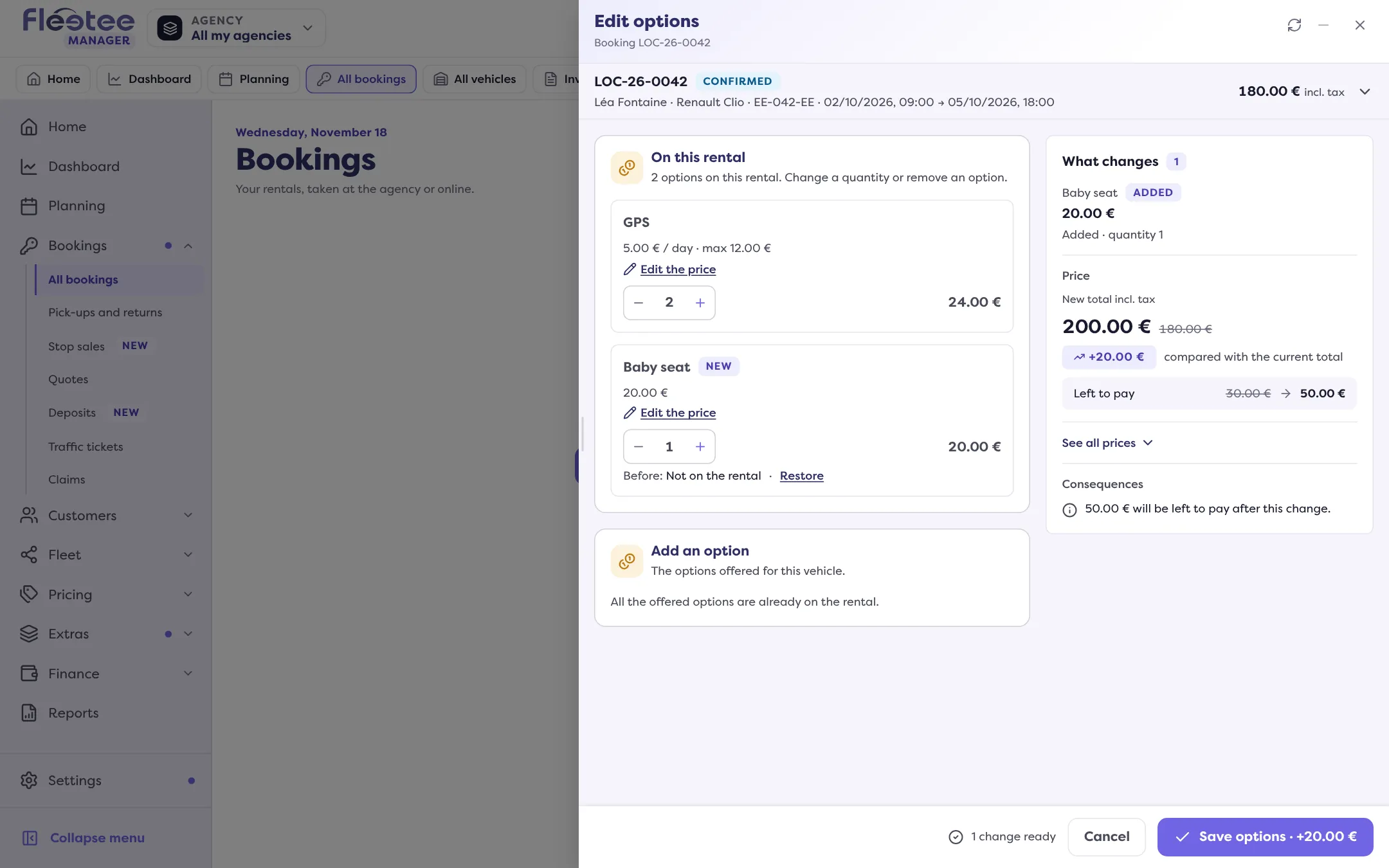
Make the change and read “What changes”
A page opens above the rental. A summary recalls the current situation. The “What changes” panel shows each line Before and After, the New total incl. tax, and the amount Left to pay or the Excess. “See all prices” details the whole table after the change.
Save
The footer button carries the name of the action (“Save the dates”, “Save options”…) and the price difference. If a warning shows (vehicle already booked, stop sales, option stock exceeded, agency closed), the page asks for a confirmation: “Save anyway”.
Settle the difference
If money is left to pay, Fleetee offers “Record a payment” (or “Later”). In case of an excess, “Excess payment” points to the payments and the invoices.
What you can change depending on the status
The actions offered depend on the status (see What do the booking statuses mean?):
- Pending request to Confirmed: dates, options, mileage, price list, payment, discount, renter, status, documents, drivers, excess, deposit, vehicle. The vehicle can only be changed on a rental that has not started;
- Ongoing: the same, except the renter and the vehicle. The start can no longer be changed (only the end can); to change the vehicle, see Replace the vehicle of an ongoing booking;
- Completed: options, status, dates, documents, mileage, price list, payment, discount, excess, drivers;
- Refused, expired, cancelled, no-show, deleted: the status and the documents only.
To lengthen a rental, see Extend a booking without overbooking. To cancel it, see Cancel a booking.
Dates: how the price is recalculated
In “Change the dates”, if your company turned this setting on, you choose how to recalculate: “Difference only” (keep the initial pricing and only calculate the difference), “Whole booking” (the latest rate in force) or “Average rate”. The amount of each method is shown. A price typed by hand follows the new duration, or you type the amount directly.
After the contract is validated
Once the contract is validated, later changes are not added to it: a banner “Some changes are not included in the rental contract yet.” offers “Review” to generate the amendment. See Generate the contract and get it signed.
Where to find it: Rental page › “Change the dates” and “Change the status” at the top, “More” menu, cards and panels
Where to find it: Rental page › “Change the dates” and “Change the status” at the top, “More” menu, cards and panels
Go further
Updated on 18 November 2026 with version 3.0