

How do I choose a list’s columns and filters, and save a view?
- Manager v3
- Administrator
- Agency manager
- Rental agent
In short. On a list, “Filters” narrows what is shown, “Customize” sets the figures, columns, colours and display, and “View” keeps your filters one click away above the list. Your settings are yours, or the whole company’s.
Every Manager list (bookings, customers, vehicles, invoices…) is set up the same way: you filter, you choose what is shown, and you keep the result as a view.
Filtering a list
Click “Filters”
A panel opens. Filters are grouped into cards by subject: the list’s object, the dates (several dates can be filtered at the same time), the agencies, the vehicle, the customer, the payment, custom properties…
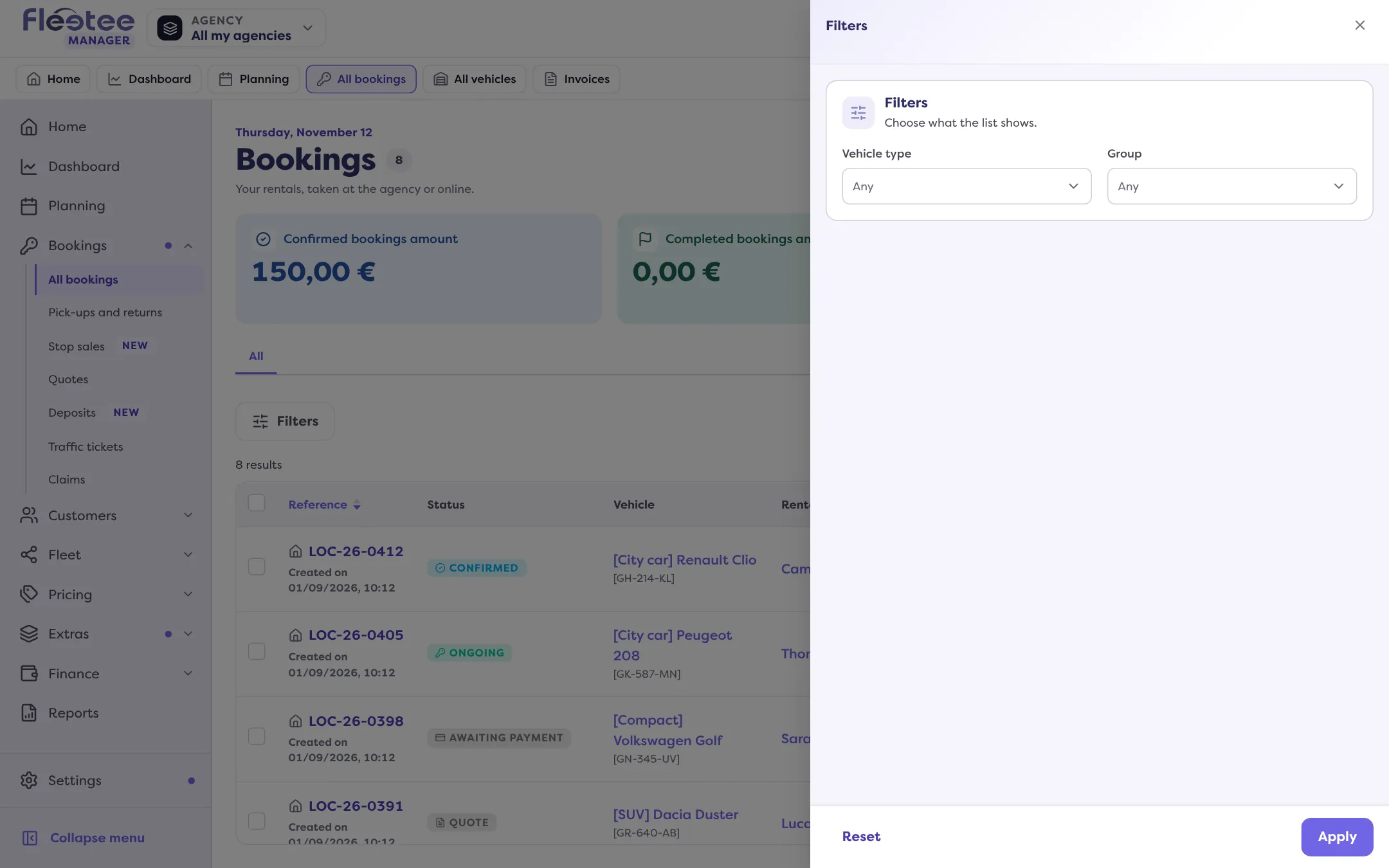
Choose your criteria
The active filters at the top of the panel recall what is already filtered. When filters are active, they also show as chips above the list, with their number on the button.
Confirm
The list, its figures and its exports follow the filters.
If you have chosen an agency at the top of the screen, the list’s agency filter only offers the agencies in your selection.
Choosing what is shown: “Customize”
The “Customize” button opens “Customize the list”, with a “Jump to a part” navigation:
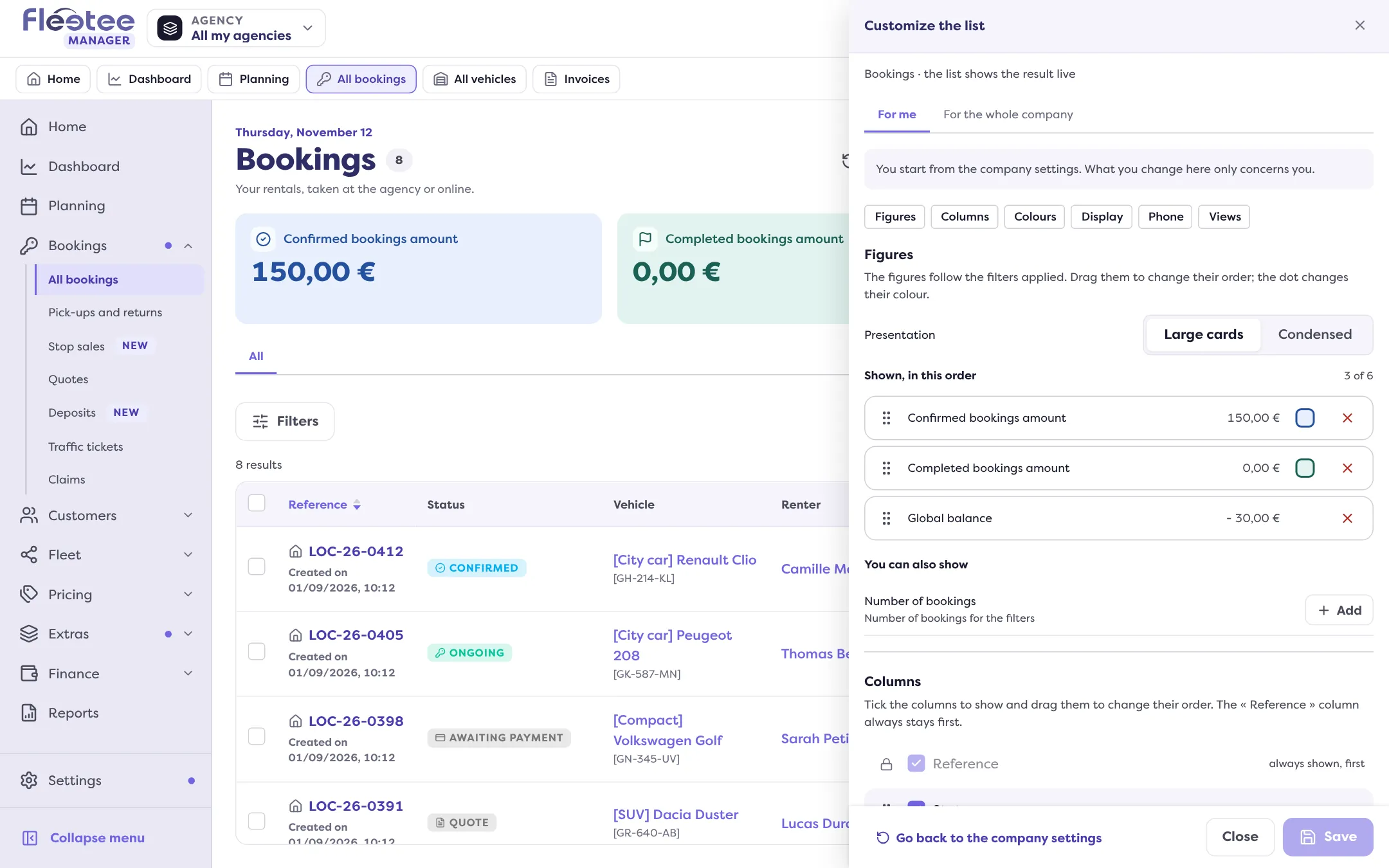
- Figures: the figures at the top of the list (six at most, depending on the list), their order, colour and presentation (“Large cards” or “Condensed”).
- Columns: tick the columns to show and drag them to change their order; the first column always stays first. “Row height”: “Comfortable” or “Compact”.
- Colours: “Coloured statuses” (when off, every status is grey) and “Highlight the rows to deal with”.
- Display: “Rows per page” and “Order when opening”. They apply when the list opens, after saving.
- Phone: on a phone the list becomes cards, and you choose the “Card information”. See Can I use Fleetee Manager on my phone?.
- Views: your saved views (see below).
A list only has the parts that concern it. The panel shows the result live. Save with “Save”; “Leave without saving?” protects you if you close before.
For me, or for the whole company
Two levels: “For me” (you start from the company settings; what you change only concerns you) and “For the whole company” (the starting point of the whole team; only administrators can change it). The option “Each member can adapt the list for themselves” decides whether members can have their own settings; otherwise everyone sees exactly the company’s. “Go back to the company settings” (or “Go back to the original settings” for the company) cancels your choices.
Keeping a view
A view keeps filters so you can find them again in one click.
Filter the list
Apply the filters you want.
Click “View”, next to the tabs
The “New view” window opens: give a “Name of the view”. It keeps the current filters and order.
Choose “For whom” and the tab
“For me” or “The whole company” (a shared view appears for every member; only administrators can change or delete it), and “Show as a tab” to open it in one click above the list.
Click “Create the view”
“View … created” confirms.
Periods stay relative: a “Today” or “This week” view follows the day it is opened. Tick “Keep the exact dates” to freeze the dates.
In “Customize” › Views, you edit or delete your views, choose the one “Opened by default”, and reorder the tabs. Base views (with a padlock) are provided by Fleetee: they cannot be changed or deleted, you can only hide them.
Where to find it: A list › “Customize” and “Filters”
Where to find it: A list › “Customize” and “Filters”
Go further
Updated on 18 November 2026 with version 3.0