

How do I act on several rows of a list at once?
- Manager v3
- Administrator
- Agency manager
- Rental agent
In short. Tick the rows of a list: an action bar appears with “Clear selection” and that list’s actions: export, send an e-mail, group bookings, assign an agency or a price list, add a tag.
Rather than repeating an action row by row, tick what interests you and apply the action once.
Tick the rows
Tick each row’s checkbox, or the header checkbox (“Select the rentals of the page”, “Select the customers of the page”…) for the whole page. A counter says “3 rentals selected”.
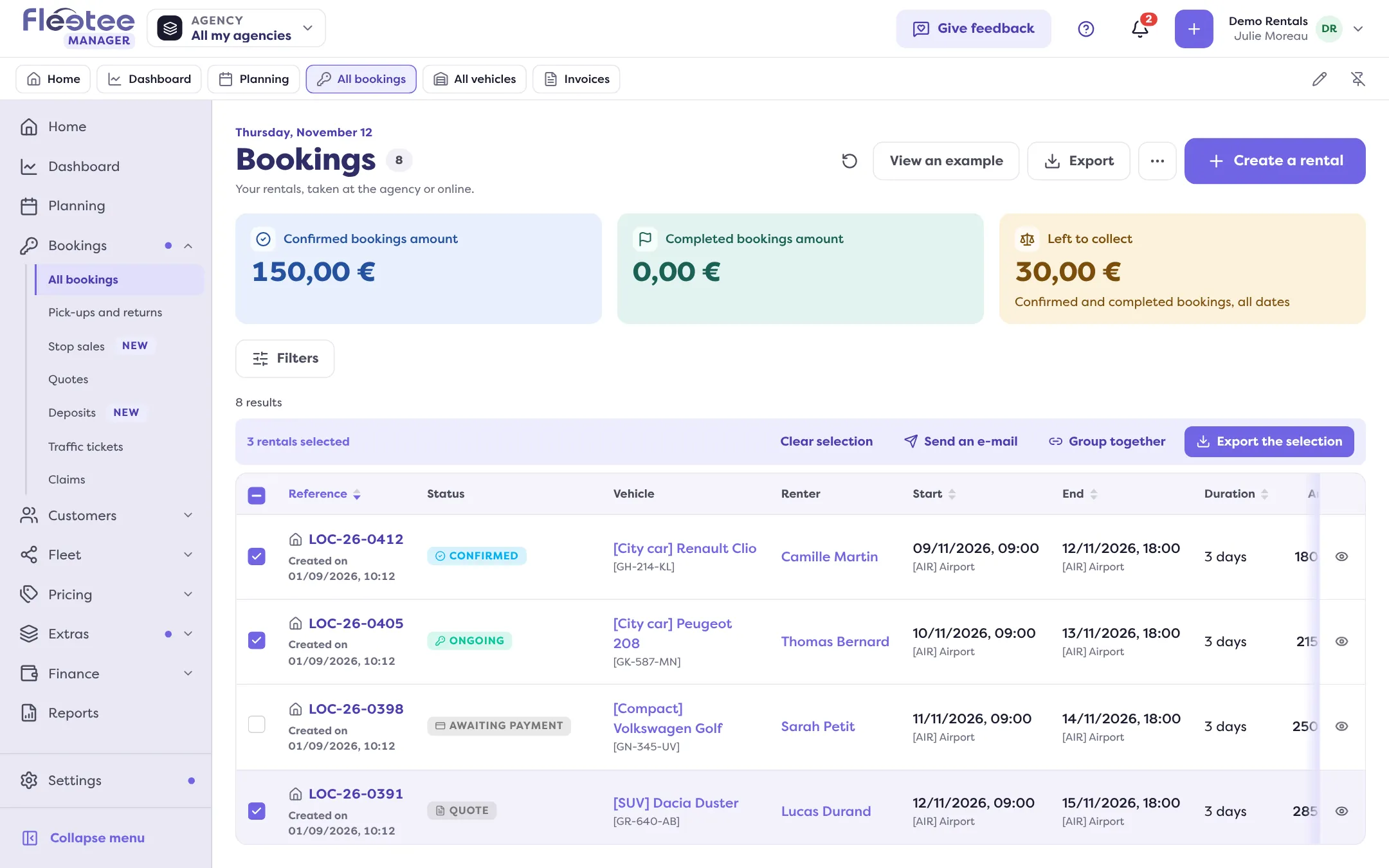
Choose the action in the bar that appears
The buttons depend on the list (see below). “Clear selection” empties the selection.
Confirm, then follow the result
A window sums up what will happen. For actions processed row by row, Fleetee shows “4 of 12 processed…” then the outcome: changed, already assigned, refused, to check.
The actions by list
- Bookings (Bookings › All bookings): “Export the selection”, “Send an e-mail” (up to 100 per grouped send) and “Group together”: see How do I group a customer’s bookings afterwards?.
- Customers: “Export the selection”, “Send an e-mail”, “Add a tag” and “Remove a tag” (up to 500 customers at a time), and “Assign a price list”.
- Vehicles: “Export the selection” and “Assign a main agency”.
- Invoices: “Export the selection” and “Send an e-mail”.
- Payments, purchases, interventions, claims, traffic tickets, customer reviews, products: exporting the selection.
Assigning in one go: what to know
- A price list to customers: it will be suggested for their next rentals. Existing rentals and invoices do not change.
- A main agency to vehicles: agencies already attached are kept. This does not arrange a transfer and does not change existing rentals.
- 50 items at most per assignment (“Select up to 50 items.”).
- “Stop after this item” interrupts a running process.
- Uncertain result: if Fleetee could not confirm, it says the assignment may have been saved. Click “Reload the list” before any new action.
Sending an e-mail to several
This service message concerns the ticked rows: no consent to check. Beyond 100 rows, Fleetee asks you to untick some: “120 bookings are ticked: untick 20 in the list.”
Selection and filters
The selection clears when the filters change. To act on a subset, filter first (see How do I choose a list’s columns and filters, and save a view?), then tick.
Where to find it: List checkboxes, then the action bar that appears
Where to find it: List checkboxes, then the action bar that appears
Go further
Updated on 18 November 2026 with version 3.0