

How do I add a driver to a booking?
- Manager v3
- Administrator
- Agency manager
- Rental agent
In short. In the booking file, Customer panel, click “Manage drivers”. Pick an existing customer to attach their licence, or create a driver with their licence. “Remove” detaches a driver without deleting them from your customers.
A driver is a person allowed to drive during the rental, with their licence. The renter is not necessarily the only driver. Each driver is a customer of your company, with a licence attached to the booking.
Open the booking file, “Customer” panel
At the top of the panel, click “Manage drivers”. The “Drivers” page opens. It shows the “Drivers of the rental” (name, licence no., issue date, front and back of the licence) and an “Add a driver” card.
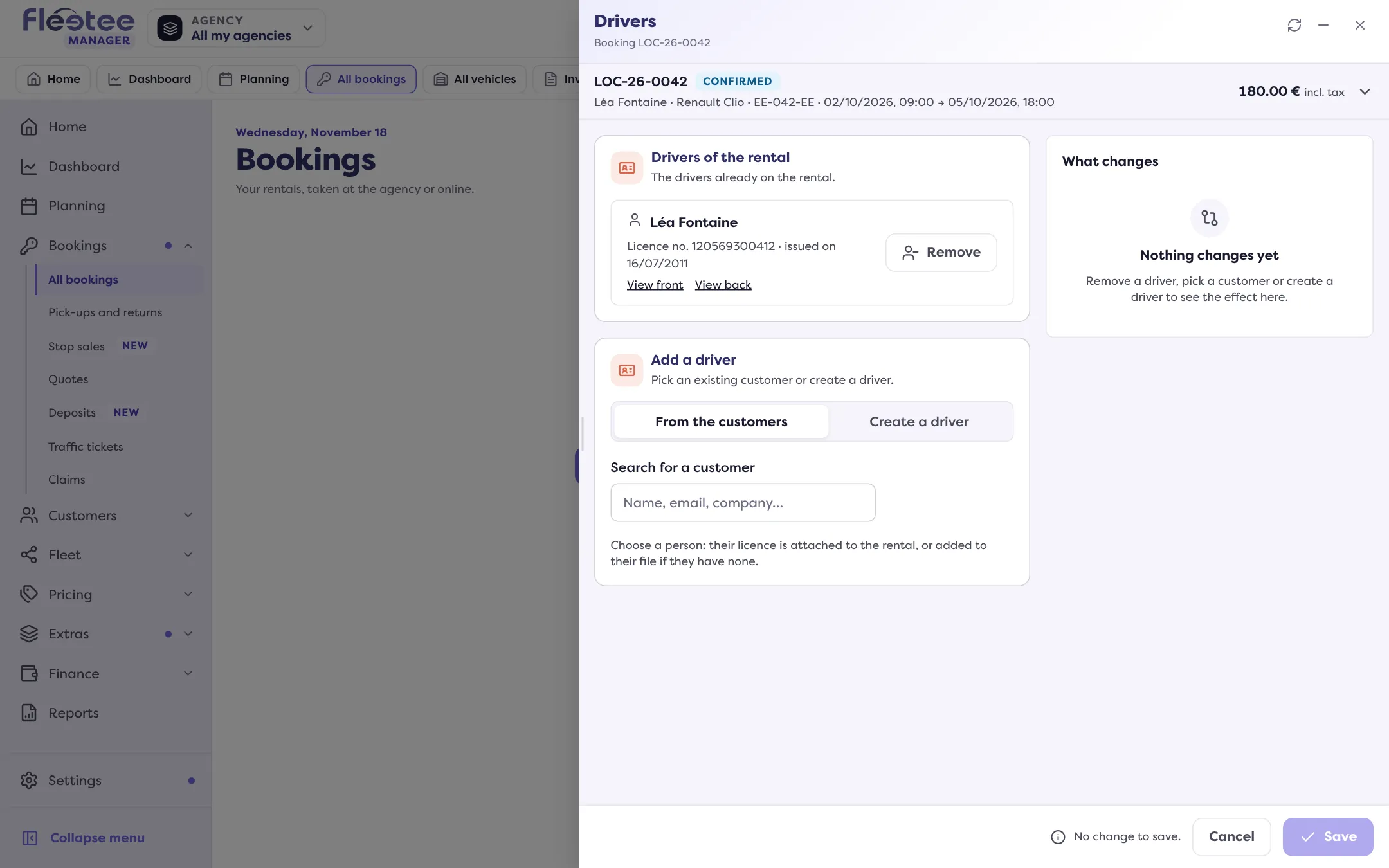
Choose how to add the driver
- “From the customers” tab: “Search for a customer”, choose them. Their licence is attached to the rental, or added to their file if they have none yet (“This customer has no licence on file: fill it in, it will be added to their customer file.”). A company does not drive: choose a person.
- “Create a driver” tab: type “First name”, “Last name”, “Email” and “Date of birth”, then the licence (number, issuing country, issue date, and the licence files as PDF, PNG or JPEG, 10 MB at most).
Read what is going to happen
The page sums it up: a new customer is created, unless your company already has a customer with the same e-mail and name; or the licence is added to the existing customer’s file, who becomes a driver of the rental.
Click “Add the driver” (or “Attach the driver”)
Fleetee announces “Driver added” or “Driver attached”. The driver appears in the list, and a line is added to the booking’s Activity (“Drivers changed”).
Removing a driver
In “Drivers of the rental”, click “Remove” next to the driver, then confirm with “Remove the driver”. The customer and their licence stay in their customer file: they are simply no longer attached to this rental. A pending removal must be saved or cancelled (“Cancel the removal”) before you add another driver.
A young-driver surcharge?
If your company applies a young-driver surcharge, it is recalculated from the drivers’ ages: the price of the booking may change.
If the button does not work
- “Drivers cannot be managed on a quote”: they are added to the rental once the quote is converted.
- “Drivers cannot be changed at the current status of the rental.”: drivers can be managed on a booking that awaits an answer or a payment, or is reserved, confirmed, in progress or finished. A cancelled, refused, expired or deleted booking no longer accepts them.
- “This customer already exists”: your company already has a customer with this e-mail. Click “Use this customer”.
- “This customer already has a licence”: a customer has one licence only. Click “Attach their licence” instead of entering a second one.
- “This licence already belongs to a driver of this rental.”: it is already attached.
To fill in a file from a photo of the licence, see How do I fill in a customer file by photographing their licence?.
Where to find it: Booking file › “Customer” panel › “Manage drivers”
Where to find it: Booking file › “Customer” panel › “Manage drivers”
Go further
Updated on 18 November 2026 with version 3.0