

How do I replace the vehicle of an ongoing booking?
- Manager v3
- Administrator
- Agency manager
- Rental agent
In short. On an “Ongoing” rental, open the Vehicle panel and click “Plan a replacement”: date, place, replacement vehicle, what happens to the old vehicle’s calendar. The price does not change; an amendment is to be validated.
A vehicle breaks down during a rental? The replacement gives the customer another vehicle from a given date, without touching the price of the rental.
“Plan a replacement” is only offered for an Ongoing rental. Before departure, simply change the vehicle with “Change the vehicle” (see Change a booking).
Open the Vehicle panel
Open the rental page, then the Vehicle panel of the rail. The button is greyed out if no vehicle is assigned to the rental.
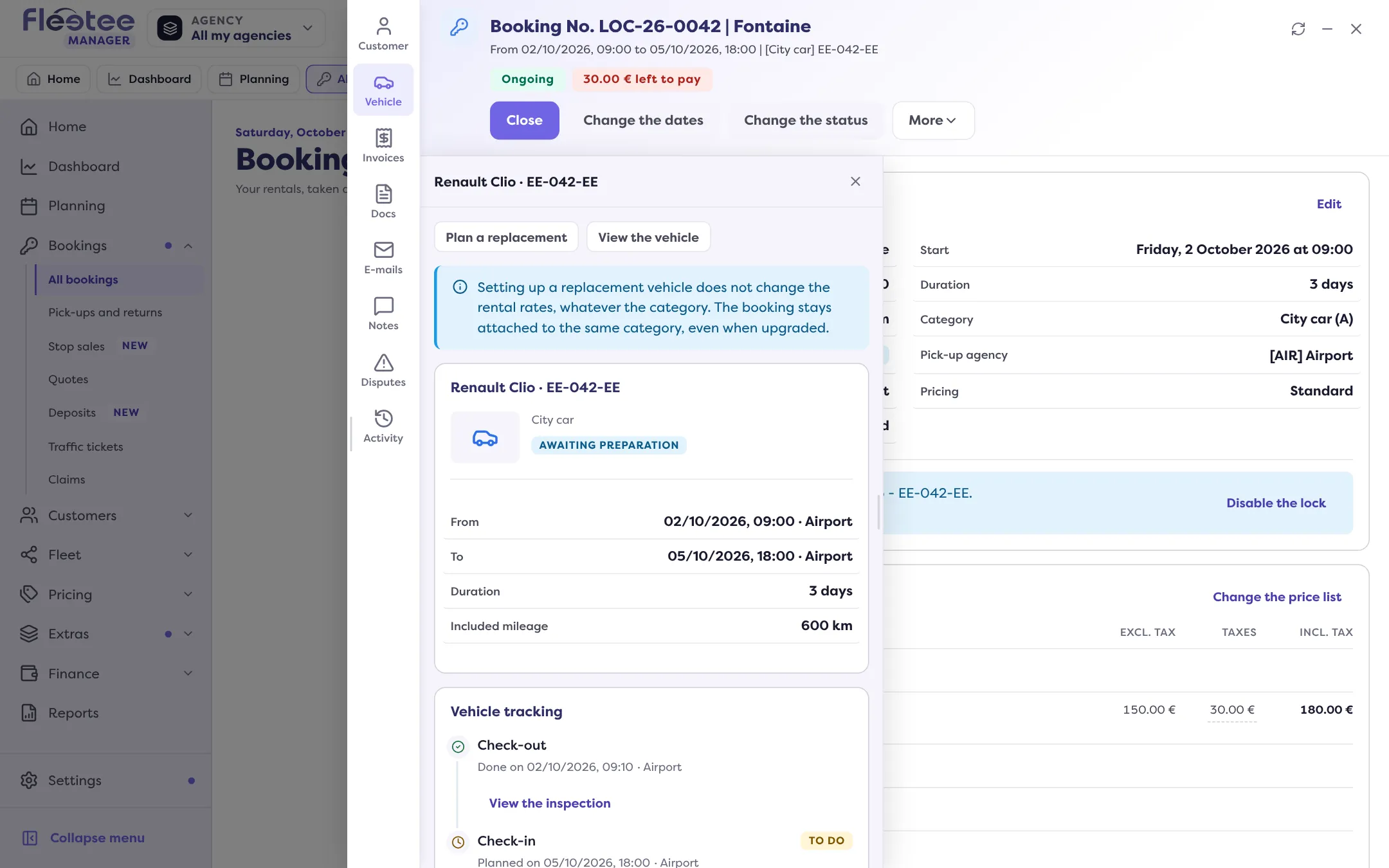
Click “Plan a replacement”
The “Plan a replacement” page opens.
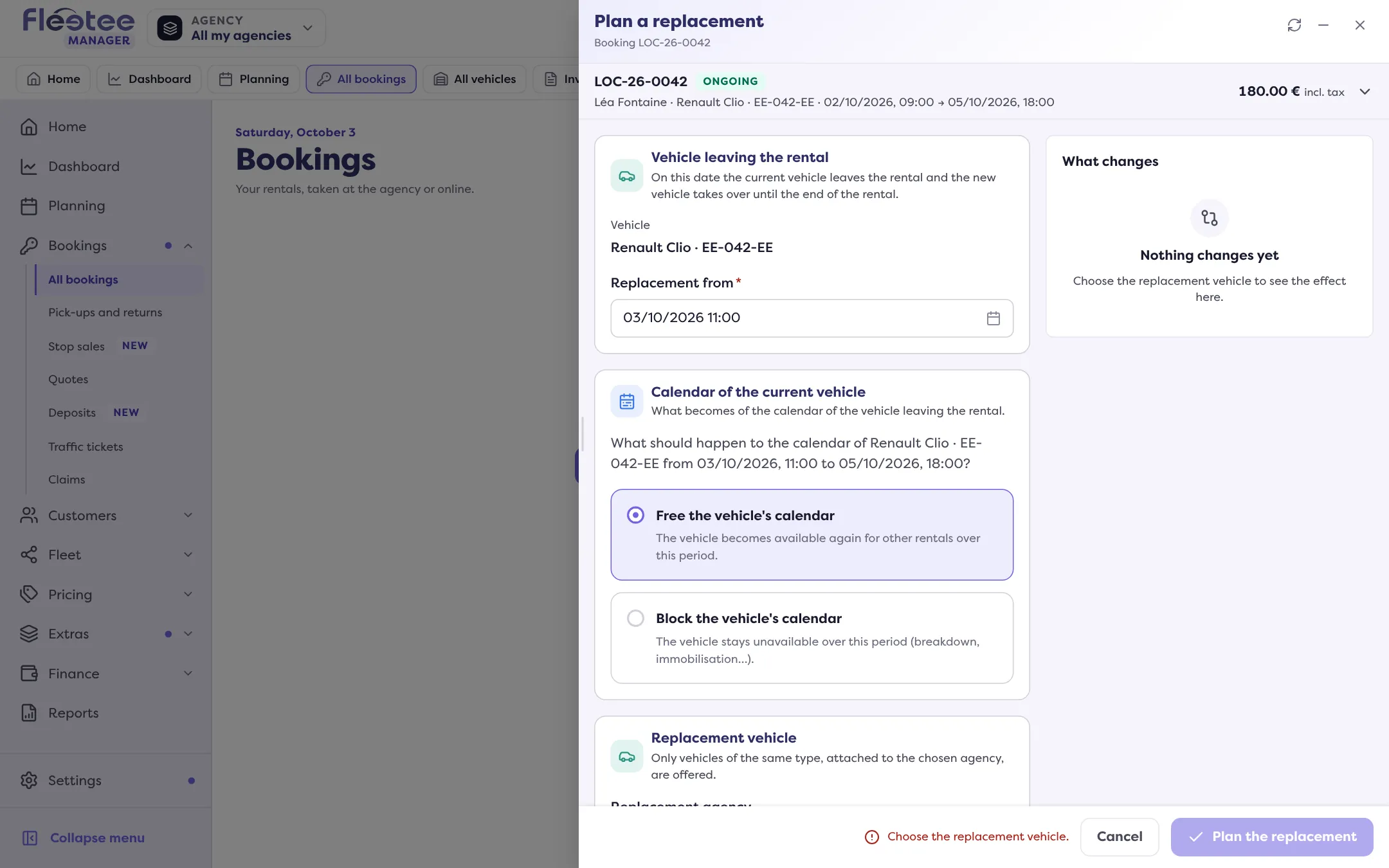
Say when and where
- Replacement from: on this date, the current vehicle leaves the rental and the new one takes over until the end. The date must fall within the current vehicle’s period and before the end of the rental. If the rental was due to be over already, extend it first.
- Replacement agency and Replacement place. With the place “Other”, specify it.
Choose the replacement vehicle
Pick the Category, then the replacement vehicle. Only vehicles of the same type, attached to the chosen agency, are offered. A vehicle that is not free can be chosen, but it will then be booked twice: the page says so.
Decide what happens to the old vehicle’s calendar
For the period from the replacement to the end of the rental, choose “Free the vehicle’s calendar” (it becomes available again for other rentals) or “Block the vehicle’s calendar” (it stays unavailable: breakdown, immobilisation…).
Add a reason and a comment
The Reason for the replacement is optional. The Comment is shown on the planning.
Click “Plan the replacement”
The message “Replacement planned” confirms it. The replacement appears in the Vehicle panel.
What it changes
- The price does not change, whichever vehicle you choose.
- An amendment to the contract is to be validated: the page announces it. See Generate the contract and get it signed.
- The rental can no longer be moved from the planning: “A replacement has been made: this rental can no longer be moved from the planning.”
- On the Pick-ups and returns page, the card carries the “Replacement” badge.
Edit or cancel a replacement
In the Vehicle panel, “Edit the replacement” reopens the page: change the date, the place, the vehicle, the reason (it can be replaced, not erased), then “Save the replacement”.
To cancel it, “Cancel the replacement”: the replacement vehicle is taken off the rental and the original vehicle takes it back until the end. This cannot be undone. If you had chosen to block the old vehicle’s calendar, it stays blocked: free it from its page.
Where to find it: Rental page › Vehicle panel › “Plan a replacement”
Where to find it: Rental page › Vehicle panel › “Plan a replacement”
Go further
Updated on 18 November 2026 with version 3.0