

How do I add a comment to a booking?
- Manager v3
- Administrator
- Agency manager
- Rental agent
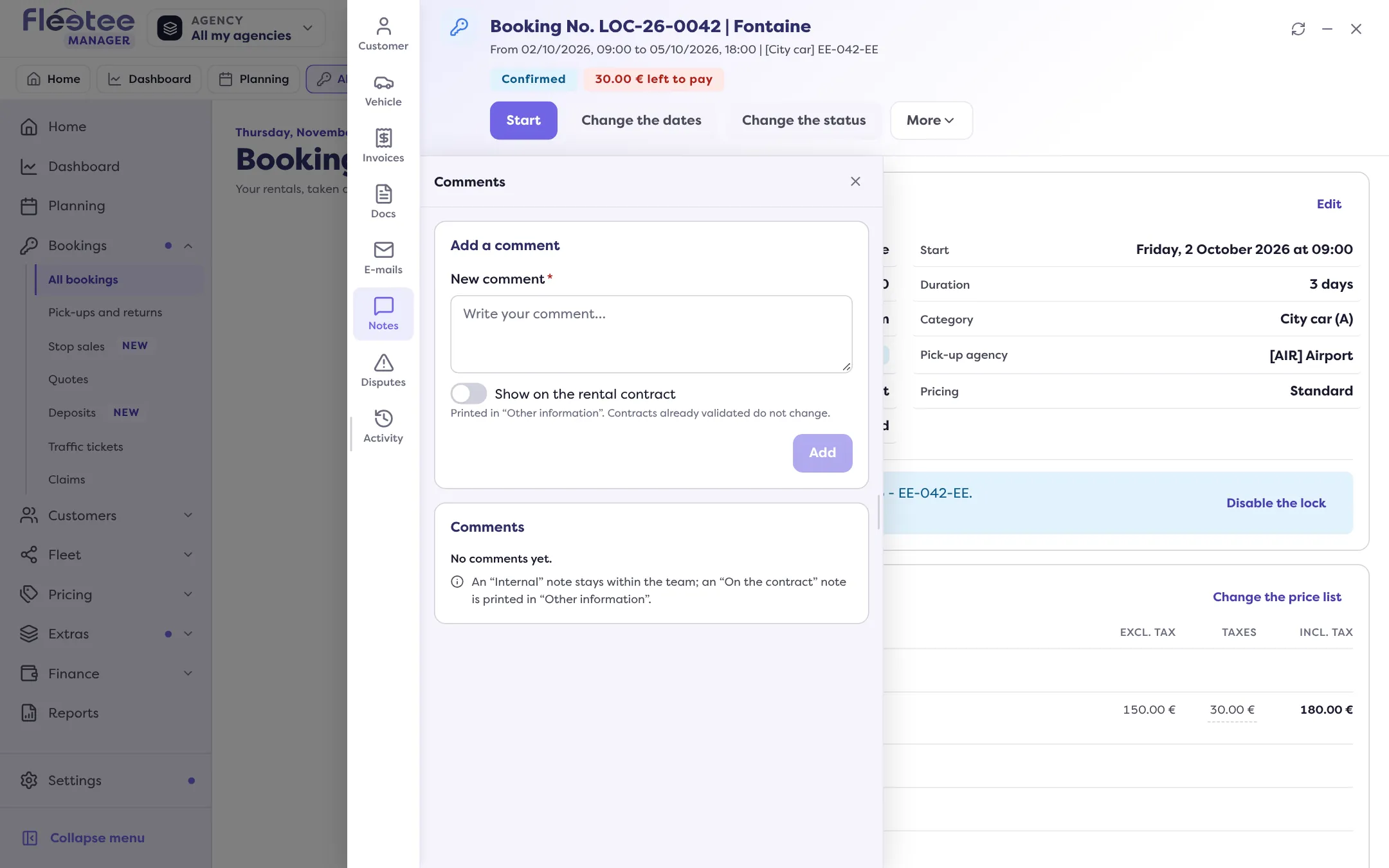
In short. On the booking page, open the “Notes” panel, write in “New comment” and click “Add”. Tick “Show on the rental contract” to print it; otherwise it stays internal.
A comment keeps a piece of information on the booking: the customer will be late, a spare key is left at the desk, a remark to carry onto the contract.
Open the “Notes” panel
On the booking page, click the “Notes” panel (titled “Comments”). A counter shows the number of comments.
Write the comment
In “New comment” (“Write your comment…”), at the top of the panel.
Choose where it shows
Leave the comment internal (it stays within the team), or tick “Show on the rental contract”: it is then printed in “Other information” on the contract. Contracts already validated do not change.
Click “Add”
The button stays greyed out while the text is empty. The Manager confirms “Comment added.”
Read, edit, delete
Comments are listed newest first, with their author, the date and an “Internal” or “On the contract” badge.
- “Edit” changes the text (“Comment edited.”).
- “Delete” asks “Delete this comment?”: it no longer shows, and the history keeps a trace of it (“Comment deleted.”). See Where can I see the history of a booking?.
On a quote
A quote note is always internal: it stays within the team.
When adding fails
“Adding refused: insufficient rights or session expired”: sign in again or ask an administrator for the rights. “The server did not answer: check the comments list before trying again”: check the list before retrying, so you do not create a duplicate.
Where to find it: Booking page › “Notes” panel › “Add a comment”
Where to find it: Booking page › “Notes” panel › “Add a comment”
Go further
Updated on 18 November 2026 with version 3.0