

How do I send the booking confirmation to the customer?
- Manager v3
- Administrator
- Agency manager
- Rental agent
In short. In the booking file, open the Docs panel: “Rental confirmation” › row menu › “Send by e-mail”. You can also write a message in the E-mails panel and attach the document. The document appears once the rental is confirmed.
The rental confirmation is a PDF document of the booking. You send it to the customer by e-mail from the file, and you find the sending again in the E-mails panel.
Open the booking file, “Docs” panel
The file’s rail offers Customer, Vehicle, Invoices, Docs, E-mails, Notes, Disputes and Activity. Documents (contract, confirmation, invoices…) appear as soon as the rental is confirmed.
Find “Rental confirmation”
It is in the “Quote and confirmation” group.
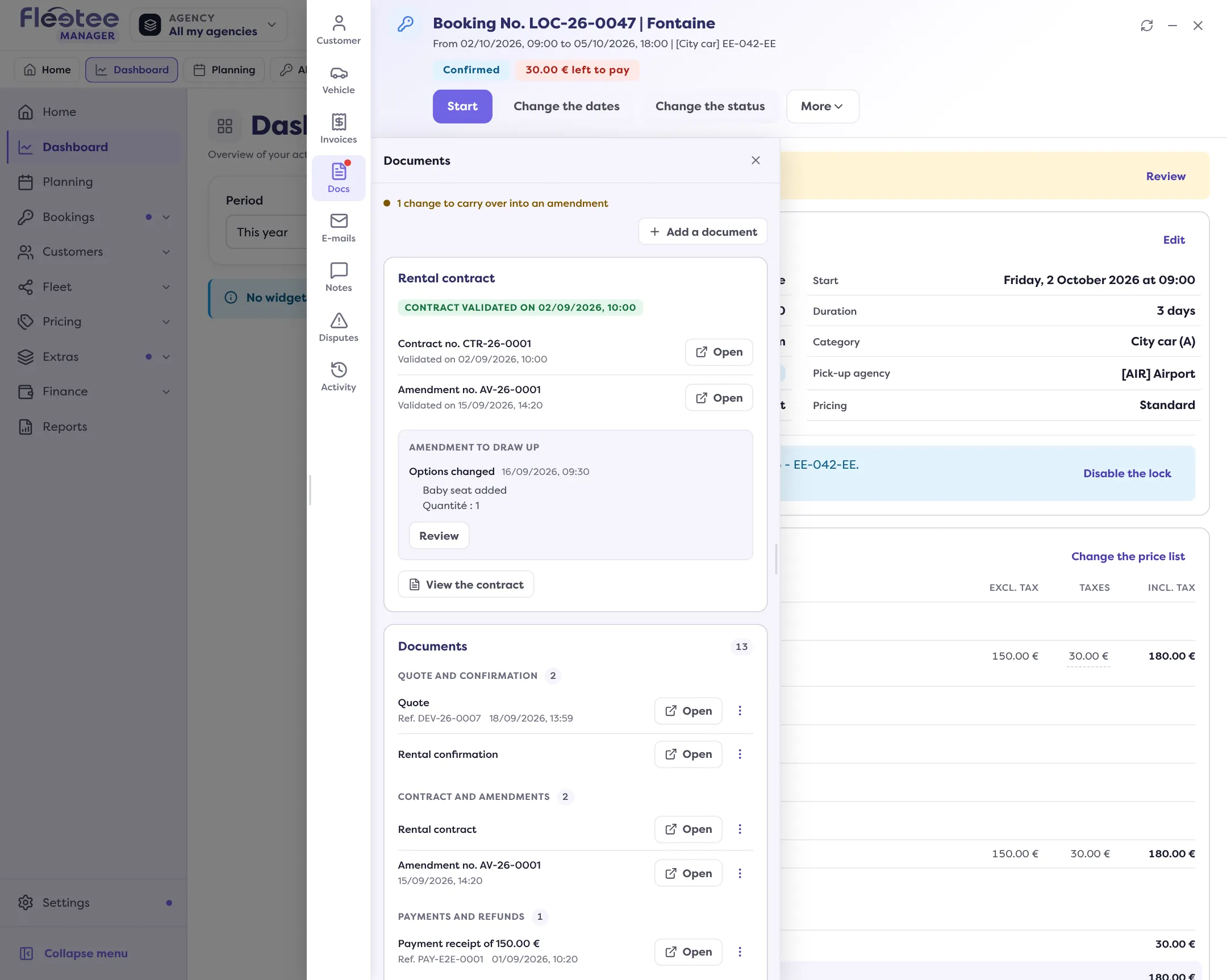
Open its row menu and click “Send by e-mail”
A window opens. The recipient (“To”) suggests the addresses known for the booking; you can type another. Check the “Subject” and the “Message”.
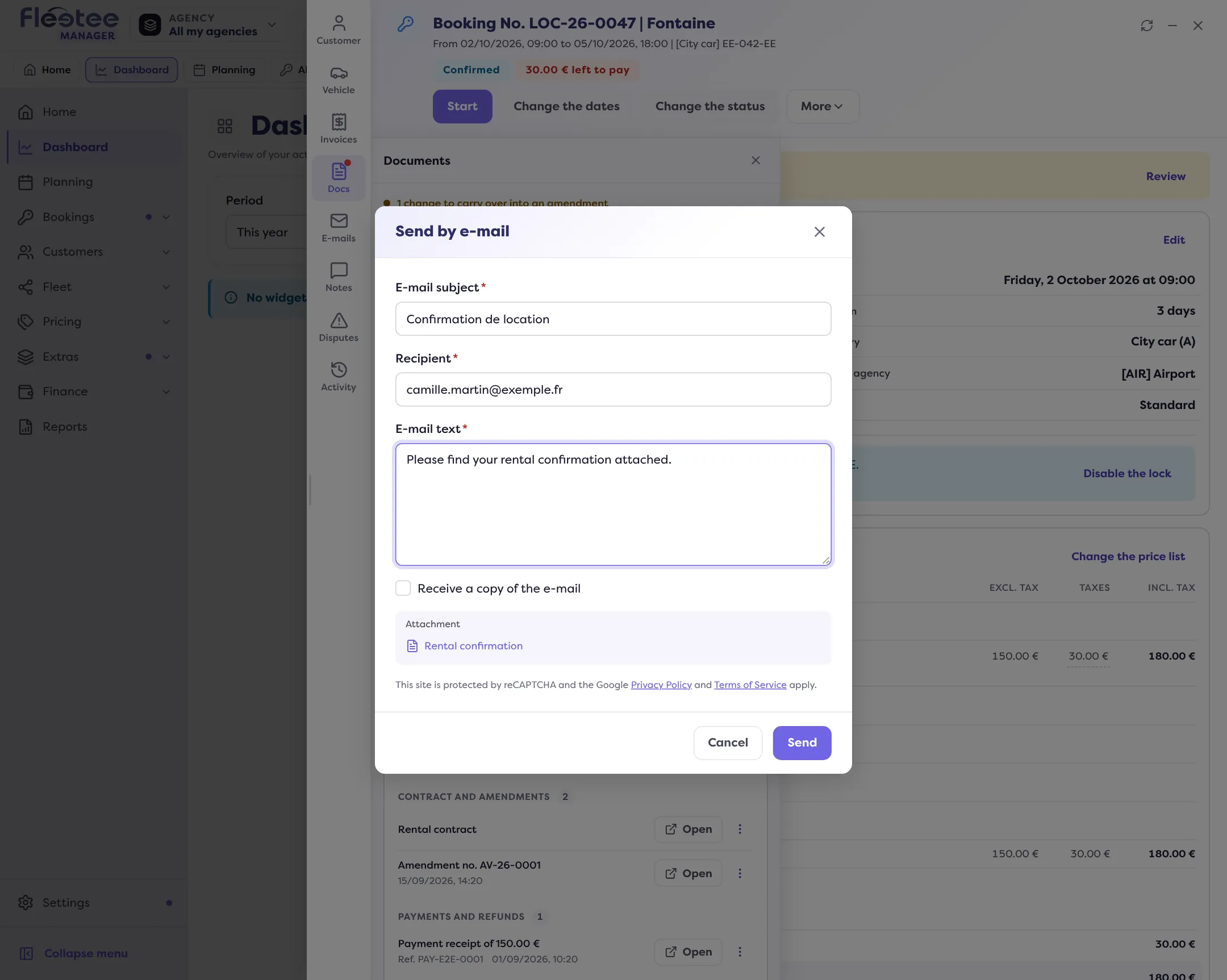
Click “Send”
Fleetee confirms with “E-mail sent to …”. The sending appears in the E-mails panel.
Sending a free e-mail with the confirmation attached
In the E-mails panel, “Send an e-mail” opens a message: “To”, “Subject”, “Message”, and “Attachments” (10 at most). Tick “Rental confirmation” among the documents offered.
If the confirmation content is up to date
After a change to the booking, “Regenerate”, in the same row menu, rebuilds the document before sending. It is offered once the rental is confirmed or later in its life cycle. If regeneration fails, Fleetee shows “The confirmation could not be regenerated”.
Finding what was sent
The E-mails panel lists all e-mails sent about the booking: confirmation, documents, reminders. A sent e-mail is also recorded in the booking’s Activity. If the customer says they received nothing, see My customer says they didn’t get an e-mail: what should I check?.
When sending is refused
- “No recipient: the e-mail was not sent.”: the customer has no e-mail address. Type it in “To”.
- “No customer is attached to this rental.”: sending is not offered until the booking has a customer.
- “Sending refused: insufficient rights or expired session.”: sign in again, or check with your administrator.
- Attachment refused: 10 attachments at most, 15 MB at most each, PDF or images (JPEG, PNG, GIF, WebP).
To ask for a payment at the same time, see How do I send the customer a payment link?.
Where to find it: Booking file › “Docs” panel › “Rental confirmation” › “Send by e-mail”
Where to find it: Booking file › “Docs” panel › “Rental confirmation” › “Send by e-mail”
Go further
Updated on 18 November 2026 with version 3.0