

How do I send an invoice to the approved platform?
- Manager v3
- Administrator
- Agency manager
In short. Open the invoice, Transmission tab: “Send to the platform” (or “Send again to the platform” if a filing already exists), then confirm. “Refresh” reads the state at the platform again. Refused content is not resent: credit note then new invoice.
This is reserved to the administrator and the agency managers. With another role, ask one of them to do it.
A validated invoice goes to the approved platform by itself, as soon as everything is ready. This tab is for following its journey, and for sending or resending it by hand when it did not go.
Open the invoice, Transmission tab
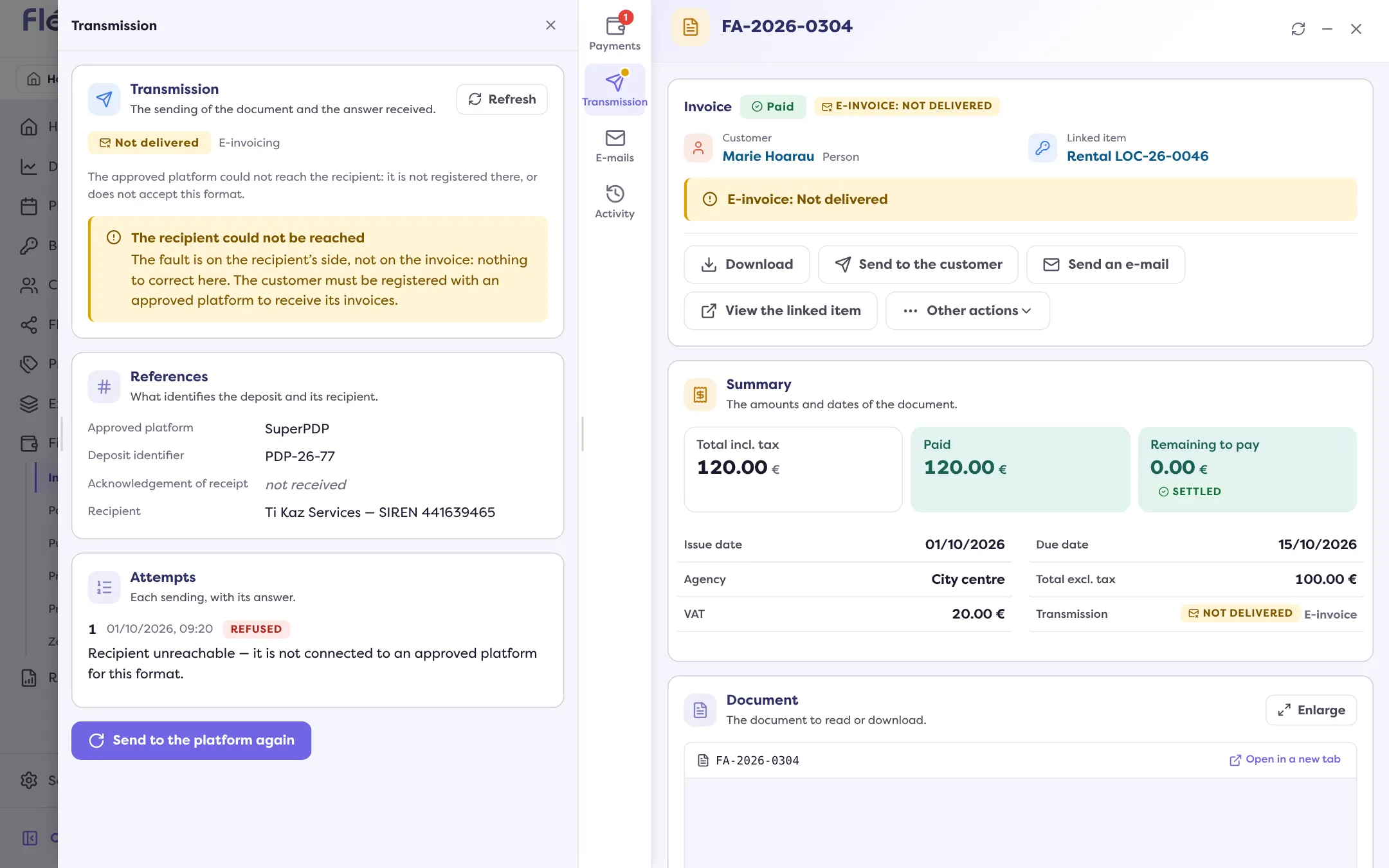
The tab only appears if the invoice has a transmission state. At the top: the state and the route (“E-invoicing” or “E-reporting”), with an explanatory sentence, for example “Deposited at the approved platform, waiting for the recipient.”
Read the references and the attempts
References: approved platform, Deposit identifier, Acknowledgement of receipt, Recipient. Attempts: each sending with its answer, the most recent first; the invoice number does not change from one deposit to the next.
Click “Refresh”
It reads the state at the platform again. If it does not answer, Manager says so: “The approved platform did not answer: the state shown is the last one known.”
Click “Send to the platform”
When no deposit has been made yet, the button reads “Send to the platform”; after a deposit, “Send to the platform again”. The window recalls that the document is deposited again, that its number does not change and that no amount is modified. Confirm with “Send” or “Send again”.
Check the result
Message: “The invoice has been put in the transmission queue.” The state moves to “Waiting to be sent”, then “Being sent”, “Filed” and “Accepted” (the invoice list uses these words).
When the button is not offered, or refused
| Message | What it means |
|---|---|
| A transmission is already in progress for this invoice. | Wait, then refresh. |
| Mandatory mentions are missing on this invoice: it cannot be deposited, and it is frozen at issue. | Go through a credit note then a new invoice. Complete your settings for the next ones. |
| The approved platform is still checking your account: no invoice is sent to it until then. | Nothing to do: it will go once the account is validated. |
| No account is connected to the approved platform: the invoice cannot be deposited. | Connect your account. |
| Sending to the approved platform is disabled for your company. | You turned e-invoicing off: turn it back on. |
| This invoice is not concerned by e-invoicing: it is declared, not deposited. | “E-reporting” route: nothing to send. |
When the platform refuses
If the platform refuses the invoice, the tab gives the reason for the refusal and what to do:
- The recipient could not be reached: the fault is on the recipient’s side, not on the invoice. The customer must be registered with an approved platform to receive its invoices.
- Content of the invoice refused: the content is frozen at issue, sending it again will give the same refusal. Issue a credit note, then a new invoice: read Cancel an invoice with a credit note.
- Wrong connection: the account connected to the approved platform is not the seller of this invoice. To check the connection, ask an administrator of your company or contact the support team, then send the invoice again.
- File already deposited: this file has already been deposited at the approved platform.
Where to find it: Invoice › Transmission › “Send to the platform”
Where to find it: Invoice › Transmission › “Send to the platform”
Go further
Updated on 18 November 2026 with version 3.0