

How do I create my payment methods?
- Manager v3
- Administrator
- Accountant
In short. In Settings › Accounting, “Payment methods” card: four methods are provided (Card, Cheque, Cash, Transfer), of which only the accounting code can change. “Add a method” creates your own, with its name and its code.
A payment method says how the customer paid (card, cheque…). Each method carries an accounting code, used in the accounting exports for the payments of that method.
Open Settings › Accounting
The Payment methods card lists the methods with their Accounting code. The four methods Provided by Fleetee are Card, Cheque, Cash and Transfer.
Click “Add a method”
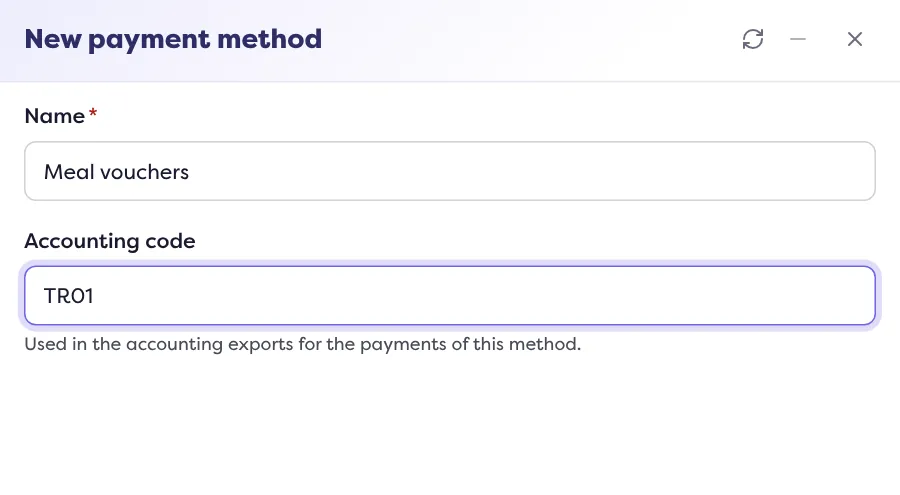
The “New payment method” panel opens.
Fill in the name and the code
Enter the Name (required: “Enter the name of the payment method.”) and the Accounting code, used in the exports.
Save
The method appears in the list. The methods you create are offered when you refund a payment.
Edit or delete a method
Click a method’s line (or its pencil).
- A method provided by Fleetee: only its accounting code can be changed. An accounting code cannot be emptied: enter another one.
- A method you created: name and code can be changed, and “Delete the method” removes it: “This payment method will no longer be offered.”
If your company invoices by agency
Choose the agency at the top of the page: a method’s code applies to that agency, whereas the name applies to all agencies. Deleting a method removes it for the company and all its agencies. Read Invoice when you have several agencies.
Who can do it?
The administrator and the accountant. When the page is read-only (for example when offline), the pencil becomes “View”: “You can view this setting, not change it.”
The codes of the company’s accounts are set on the same page: read Set my chart of accounts and accounting codes.
Where to find it: Settings › Accounting › Payment methods
Where to find it: Settings › Accounting › Payment methods
Go further
Updated on 18 November 2026 with version 3.0