

How do I get my company ready for e-invoicing?
- Manager v3
- Administrator
- Agency manager
In short. In Settings › E-invoicing, “Complete my information”: identity, address, VAT, invoice mentions, then create the SuperPDP account. Each agency that invoices under its own identity goes through the same process.
Your invoices are issued normally, but they only go to the approved platform once this information is complete. The E-invoicing page lists what is left to settle. To understand the reform: E-invoicing: what changes for me?.
Open Settings › E-invoicing
An alert says what blocks: “Your invoices cannot be transmitted” (or “Your agency cannot transmit its invoices”). It recalls the legal deadline and the number of agencies ready.
Click “Complete my information”
The panel opens on your company: “This information applies to all your invoices and will not be asked again.”
Complete the identity, the address and the VAT
Company name, SIREN (9 digits), SIRET (optional), legal form, share capital, registry city (RCS), APE code, address, EU VAT number, VAT regime (“Debits” or “Receipts”) and VAT return frequency (monthly, quarterly, simplified). Each field has its help, and a format error is flagged: “Incorrect number: 9 digits expected, check what you typed.”.
Complete the mentions and the bank details
Payment terms, late payment penalties, fixed recovery fee, early payment discount, IBAN and BIC. They appear on your invoices.
Check the invoice number prefix
It starts every number (for example FACT-2026-0148). Letters and digits only, plus . _ / and -: an accent or a special character prevents transmission. Changing it does not renumber invoices already issued.
Click “Save”
Message: “Saved.” The page updates.
Create the SuperPDP account
Under SuperPDP account, click “Create the account”. You create your access, SuperPDP verifies the identity of the legal representative, and the answer comes within a few days, shown on the page.
The states of the SuperPDP account
| State | What to do |
|---|---|
| To create | Click “Create the account”. |
| Consent pending | Finish the connection at SuperPDP: we have not received your consent yet. “Resume the connection”. |
| Under verification | Nothing. Your invoices are not transmitted until the account is validated, but you keep issuing them and sending them to your customers: they will leave automatically once it is validated. |
| To correct | SuperPDP could not validate the account. Click “Resume”, or contact us if it fails again. |
| Validated | The invoices are transmitted. |
The other points on the list
- Tax rate: only the VAT rates accepted in France go through. A refused rate does not prevent issuing the invoice, but it stays blocked: correct it in the tax settings (“Correct in the taxes”).
- Units of measure: a product without a unit is counted as “unit” on the invoice (three rental days appear as “3 units”). The invoices go out, but the mention is imprecise. “Complete the units” fixes it.
- Customers: a business customer’s record must be complete. On Home, To follow › Invoicing, the line “Customers to complete for e-invoicing” lists them. When validating an invoice, “Ask the customer” sends them an e-mail to complete their information.
Several agencies
Each entity goes through its own process: the “Your agencies” table shows the state of each (Ready, Under verification, Turned off, To complete). Filter by state or search an agency or a SIREN, then click “Complete” next to the agency. “Save and go to …” chains the agencies. You can only act on your own agencies; the others are read only. Only an administrator changes the company’s identity and its bank details.
An agency that does not invoice with Fleetee can be turned off (and turned back on at any time).
When everything is ready
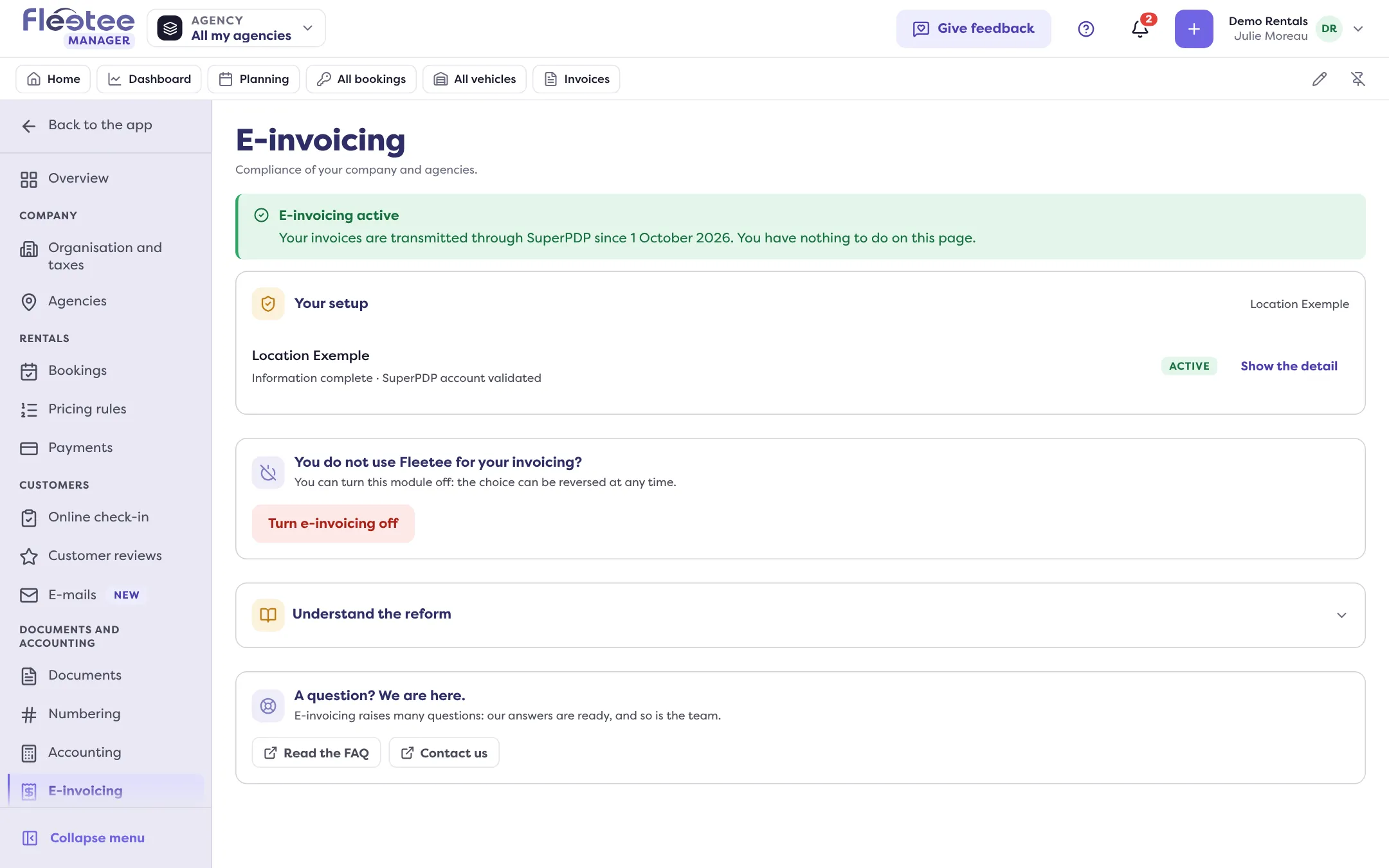
The page shows “E-invoicing active”: “Your invoices are transmitted through SuperPDP. You have nothing to do on this page.”
Where to find it: Settings › E-invoicing
Where to find it: Settings › E-invoicing
Go further
Updated on 18 November 2026 with version 3.0