

How do I create an invoice with no rental?
- Manager v3
- Administrator
- Agency manager
In short. Click the “+” button in the top bar (“Create” menu) then “Invoice”, or “Add an invoice” in Finance › Invoices. At the Object step, choose “Other”: add customer, agency, products, check the preview, then “Create the invoice”.
This is reserved to the administrator and the agency managers. With another role, ask one of them to do it.
An invoice can exist without a rental: a service rendered to a customer, a sale… It is then a free invoice, with no linked object.
Open the form
Click the “+” button in the top bar (Create menu) then Invoice. You can also open Finance › Invoices and click “Add an invoice”, or type “create an invoice” in the search. These entries are only offered to the administrator and the agency manager.
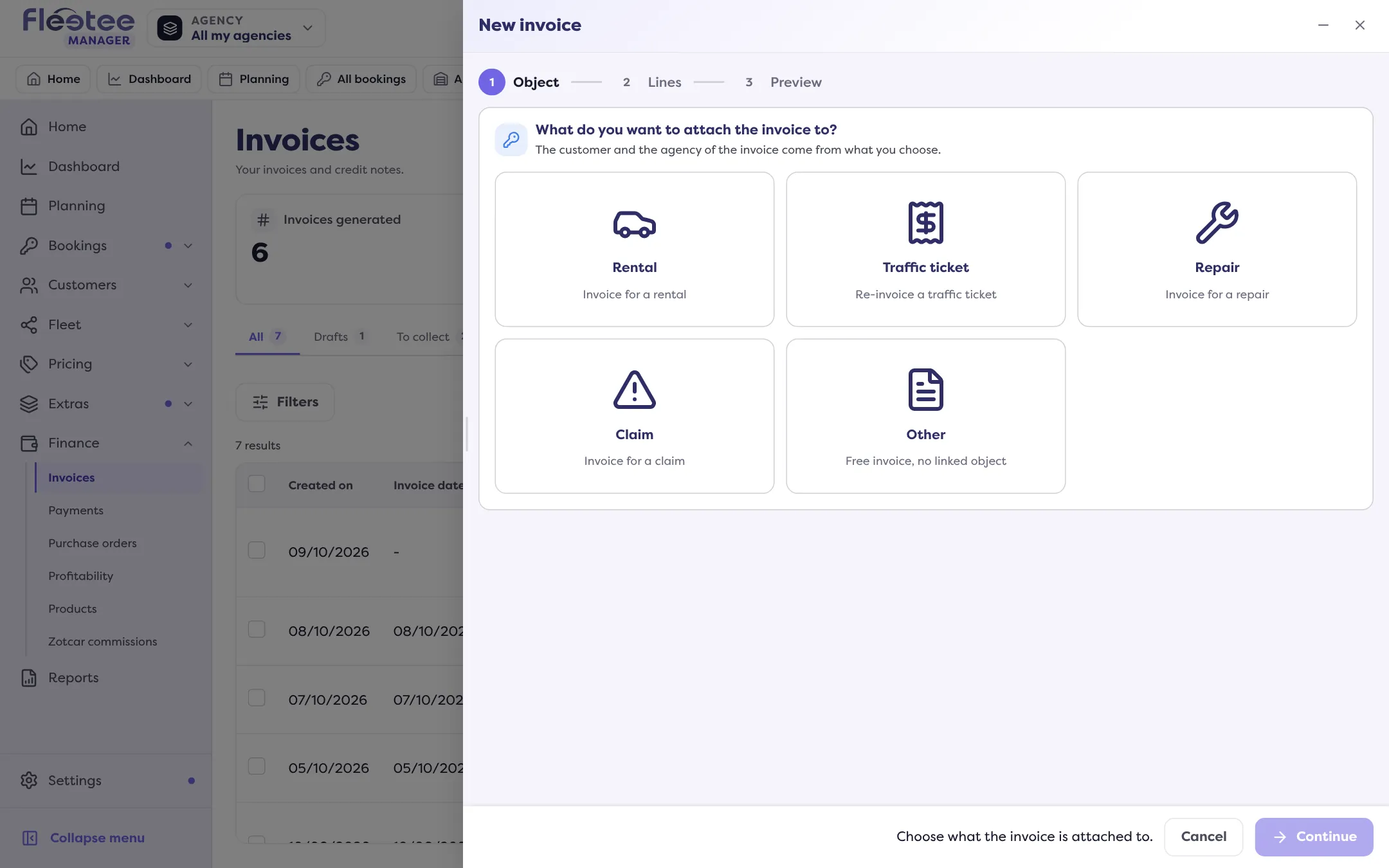
Object step: choose “Other”
The question is “What do you want to attach the invoice to?”. The cards are Rental, Traffic ticket, Repair, Claim and Other (“Free invoice, no linked object”). Choose Other: you go straight to the next step.
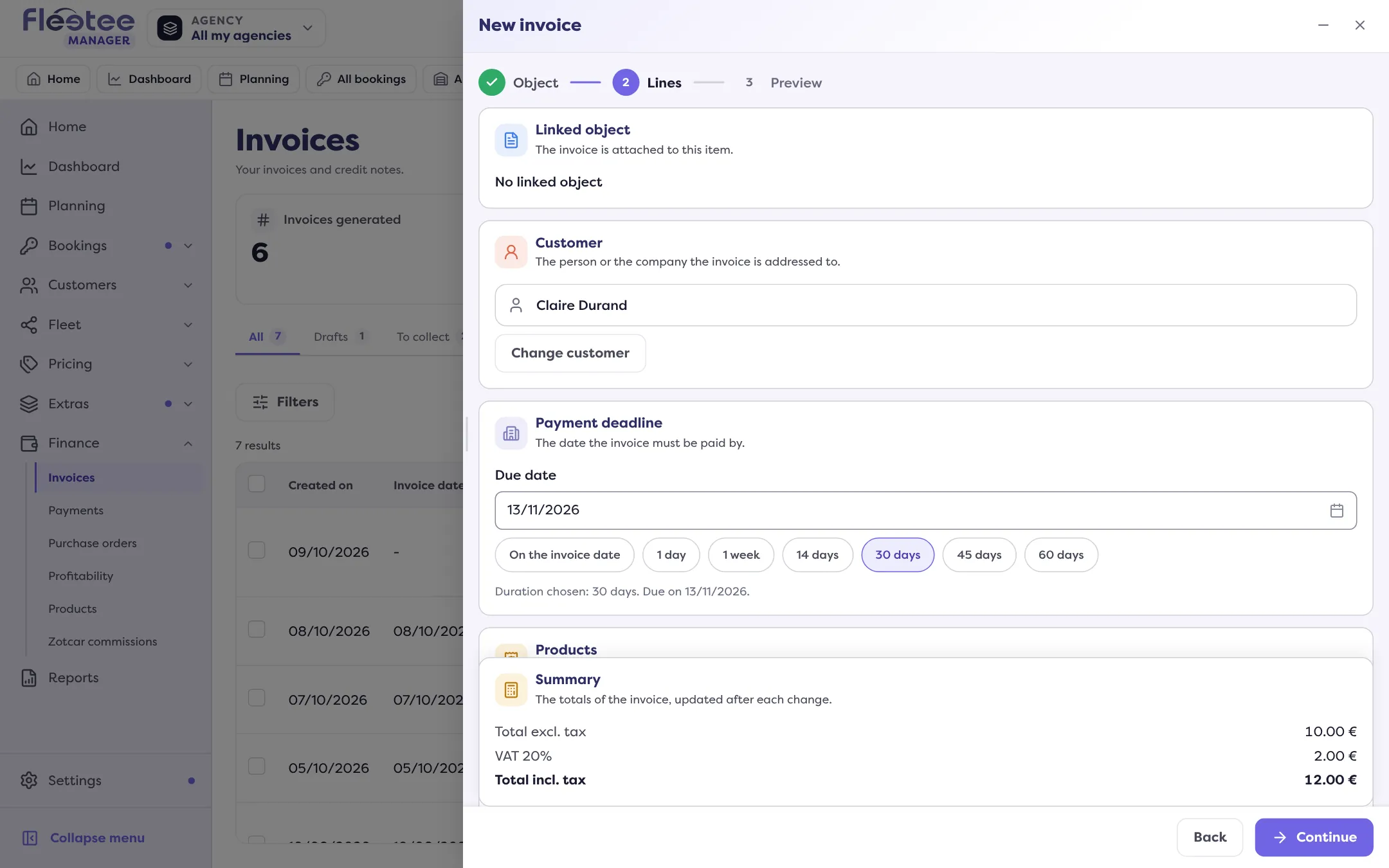
Lines step: customer, agency, products
Choose the Customer with “Search a customer” (you can create one). If you have several agencies, choose the Issuing agency. Set the Due date: on the invoice date, 1 day, 1 week, 14, 30, 45 or 60 days, or a date.
Add the products
In Products, click “Add a product” and search by name or accounting code. You need at least one product: “Add at least one product.” Change the Qty and the price if needed. A product that does not exist is created from the “Create a product” line.
Complete if needed
Add a discount, Particular conditions and the customer’s payments to link. The Summary shows the total excluding tax, the taxes and the total including tax.
Preview step: “Create the invoice”
Read the preview. Message: “The invoice was saved as a draft.” You can keep it or delete it (“Draft not validated”), then validate it: read Validate an invoice and send it.
If points have to be settled
The preview can announce “N points to settle before creating the invoice”: some of your company information is incomplete (“Your company information is incomplete”). Complete it, then come back.
The same form, with an object
From a repair, a traffic ticket or a claim, the “Create an invoice” button of the page opens the same form, with the lines prefilled: read Re-invoice a traffic ticket. From a rental, it is a secondary invoice.
Where to find it: Top bar › “+” (Create) › “Invoice”; Finance › Invoices › “Add an invoice”
Where to find it: Top bar › “+” (Create) › “Invoice”; Finance › Invoices › “Add an invoice”
Go further
Updated on 18 November 2026 with version 3.0