

How do I connect my SuperPDP account?
- Manager v3
- Administrator
In short. In Settings › Connectors, E-invoicing tab, open the SuperPDP card: “Connect to SuperPDP”, identity check of the legal representative at SuperPDP, then back to Fleetee. No key to type. The answer comes within a few days.
SuperPDP is the platform approved by the State that sends your electronic invoices. Fleetee has integrated it: you connect your account once, without typing a key. Why and when: E-invoicing: what changes for me?.
Open Settings › Connectors
Click the E-invoicing tab, then the SuperPDP card. Only the administrator manages connectors.
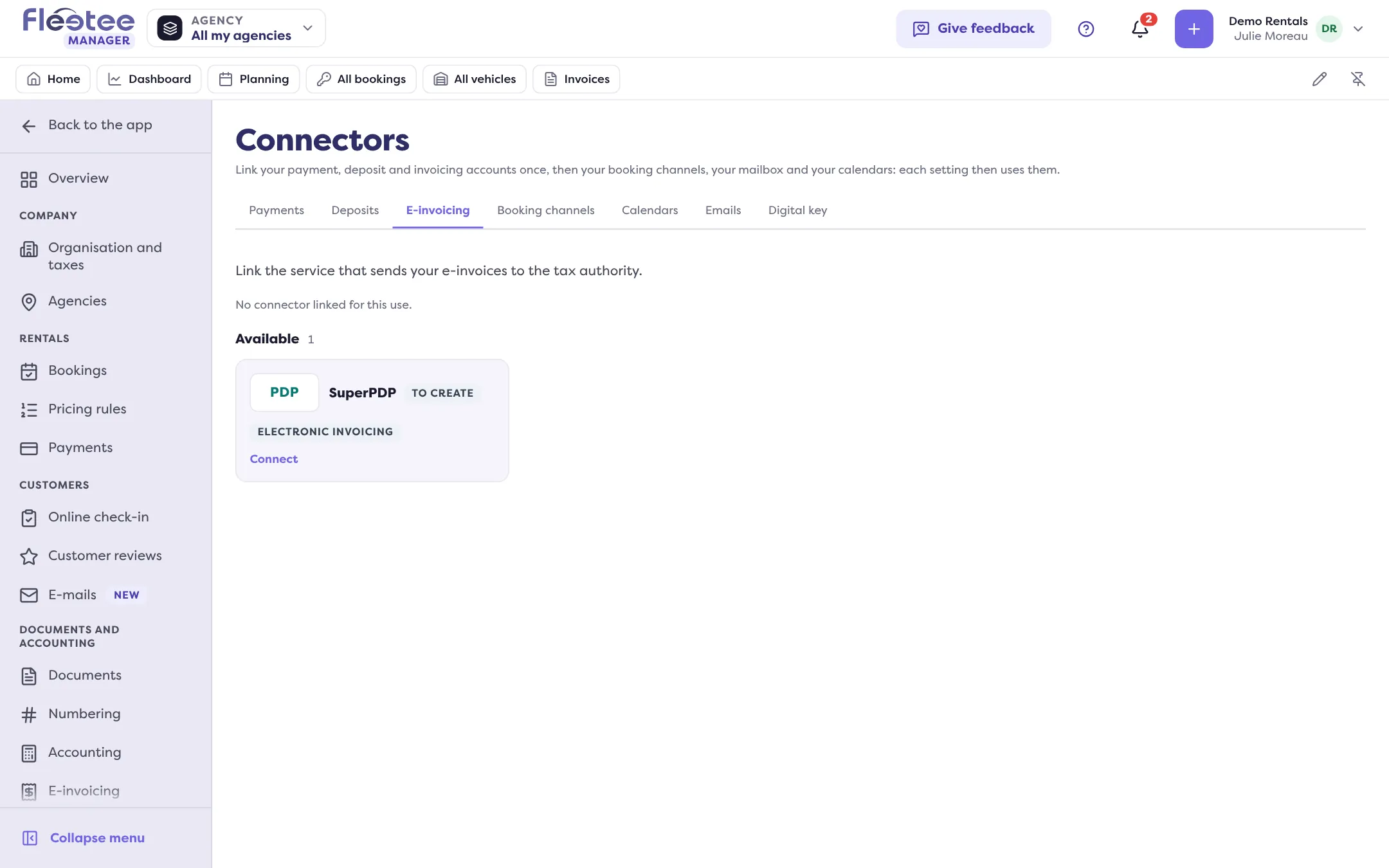
Read the account state
The card says where you stand: To create, Consent pending, Being verified, Approved, To resume or Disabled.
Click “Connect to SuperPDP”
A “Before you go on” window warns you: you will be taken to SuperPDP, which checks your identity, and an identity document of the company’s legal representative will be asked. Click “Continue to SuperPDP”.
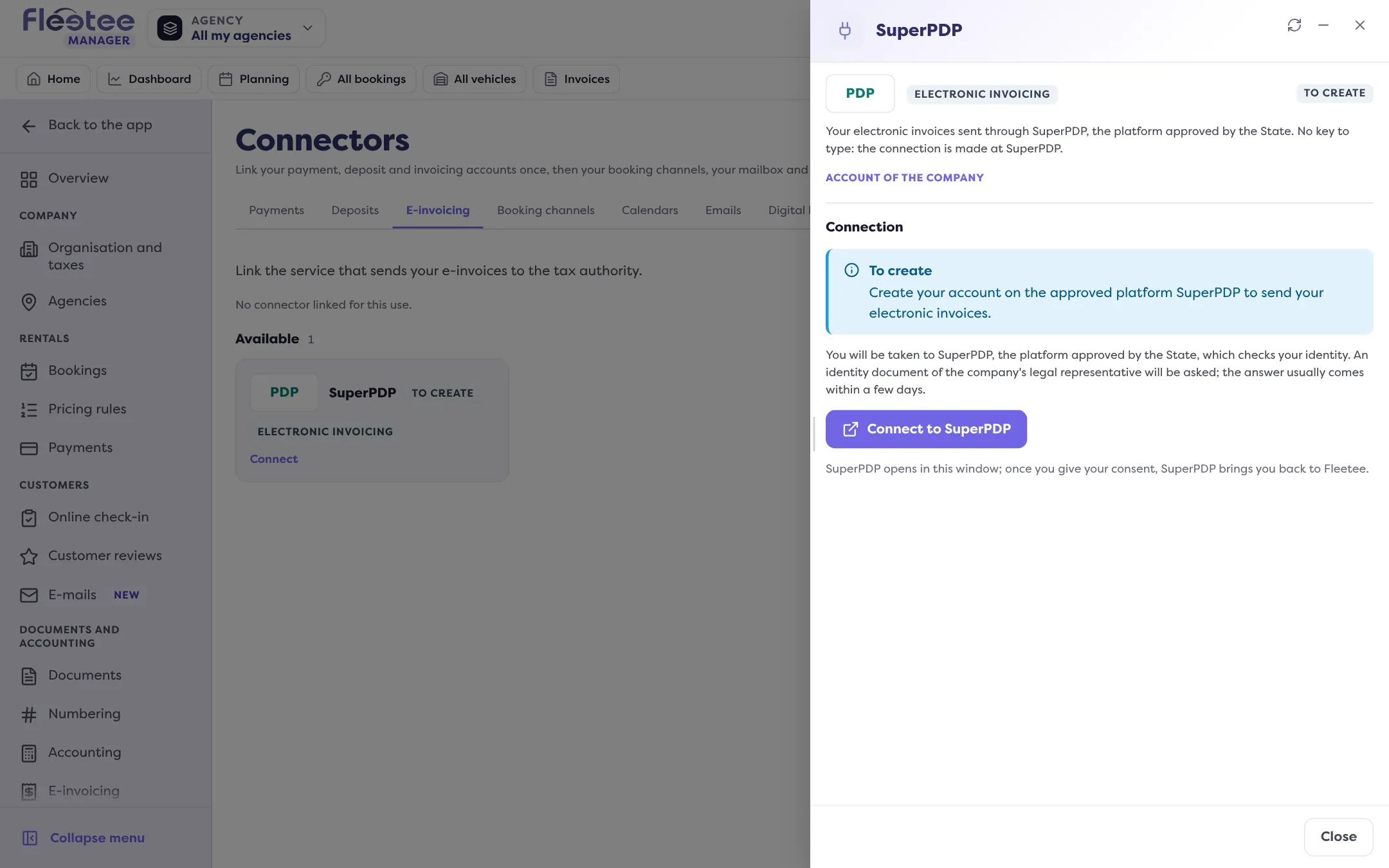
Give your consent at SuperPDP
SuperPDP opens in the same window. Once you give your consent, SuperPDP brings you back to Fleetee.
Wait for the verification
The card moves to Being verified: “SuperPDP is checking your company. Nothing is sent yet; the answer usually comes within a few days.” You keep issuing your invoices.
The states of the card
| State | What it means | What to do |
|---|---|---|
| To create | No account connected. | “Connect to SuperPDP”. |
| Consent pending | We have not received your consent yet. | Finish the connection at SuperPDP: “Resume the connection”. |
| Being verified | SuperPDP is checking your company. | Nothing. |
| Approved | “Your invoices are sent through SuperPDP.” | Nothing. |
| To resume | SuperPDP did not approve the verification, or Fleetee’s access to your account was withdrawn: your invoices are no longer sent. | Correct what SuperPDP asks, then “Resume the connection”. |
| Disabled | You turned e-invoicing off. | “Turn back on”: if your account was already verified, it is connected again without going through SuperPDP. |
If the last connection did not go through, the card says so, with SuperPDP’s message, useful to our support. The card also shows the connection date and the Environment (Production or Test).
If you invoice per agency
Each agency has its own SuperPDP account: there is no account for the company. The card lists the “Accounts of the agencies”: open an agency to connect it. Also read Invoice when you have several agencies.
The same step, from the E-invoicing page
Settings › E-invoicing lists what is left to settle, including the SuperPDP account (“Create the account”). Read How do I get my company ready for e-invoicing?.
Where to find it: Settings › Connectors › E-invoicing › SuperPDP
Where to find it: Settings › Connectors › E-invoicing › SuperPDP
Go further
Updated on 18 November 2026 with version 3.0